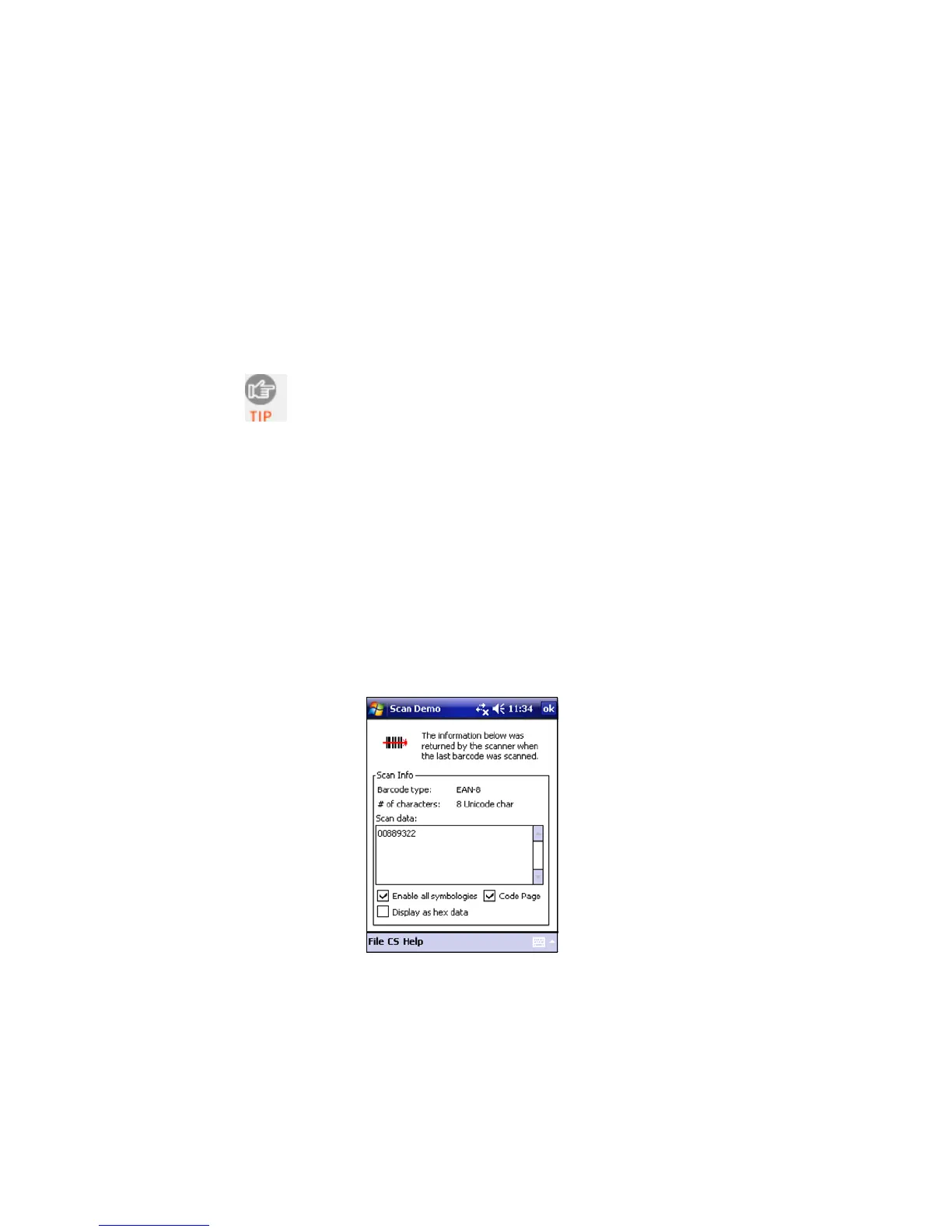
SCAN DEMO
Scan Demo makes it easy to determine the symbology, number
of characters, and decoded data (in either ASCII or Hex) of any
bar code supported by the scanner. This is especially useful if you
encounter a bar code that the scanner will not decode by
default.
1. Tap Start | Programs | SocketScan folder | Scan Demo.
Accessing Scan Demo disconnects the Bluetooth link. If
you have not configured the CHS to automatically
connect, select the CHS tab at the bottom of the page
to re-establish this link.
2. The Scan Demo screen will appear. If desired, use the check
boxes at the bottom of the screen to modify the test.
Enable all symbologies: By default, this option is checked.
Different symbologies can sometimes interpret the same bar
code differently, so you may want to uncheck this option.
Display as hex data: Check this box to view scanned data in
hexadecimal format. Otherwise, data will appear as ASCII.
3. Scan the bar code. Scan Demo will report the properties of the
bar code.
28















 To Next Page