STEP 3: START SOCKETSCAN
1. Tap Start | Programs | SocketScan folder | SocketScan.
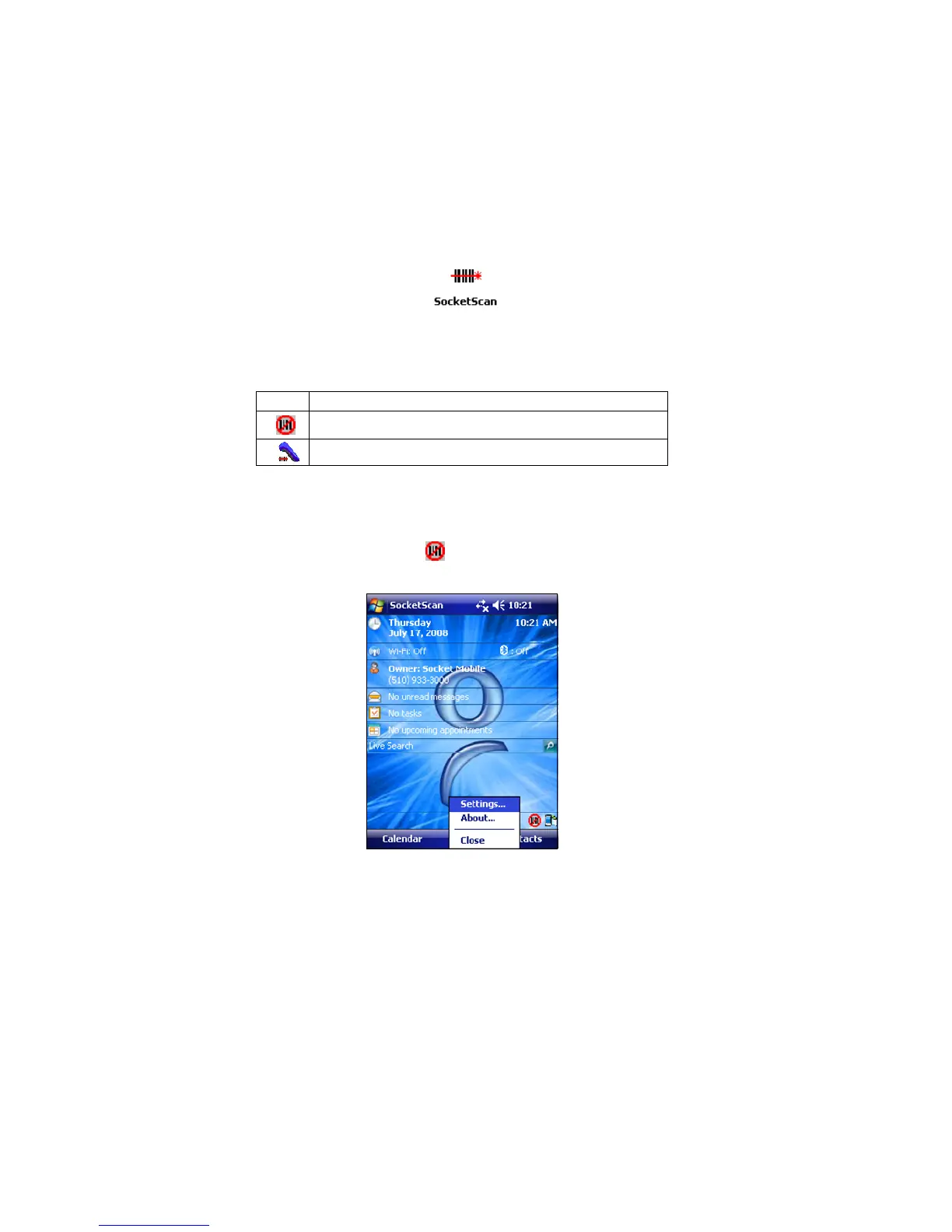
2. When SocketScan is running a SocketScan icon will appear at
the bottom of the Today screen.
Icon Meaning
No bar code scanner detected
CHS is connected and ready to scan
STEP 4: CONFIGURE SCANNER SETTINGS
1. Tap the SocketScan icon at the bottom of the Today screen.
In the pop-up menu, tap Settings.
2. The Scanner Settings utility will appear. Tap on the CS tab at
the bottom of the screen.
CHAPTER 3: SETUP FOR WINDOWS MOBILE 19















 To Next Page