70
Using the Ten-Key Input Function
You can enable the ten-key input function in editor mode
or remote control mode (basic VTR function mode,
XDCAM mode), and use it to cue up to your desired
positions.
Enabling the ten-key input function
When you enable the ten-key input function, the REVIEW
and PF1 to PF9 (0 to 9) buttons light.
The method of enabling the function differs depending on
the mode.
In editor mode: Press an edit button (IN or OUT) while
pressing the RECORDER (DEVICE 1) or PLAYER
(DEVICE 2) button.
In remote control mode (basic VTR function mode):
Press the PF9 button.
In remote control mode (XDCAM mode): Press the
PREVIEW button while pressing the RECORDER
(DEVICE 1) or PLAYER (DEVICE 2) button.
To disable the ten-key input function
Press the PF15 button.
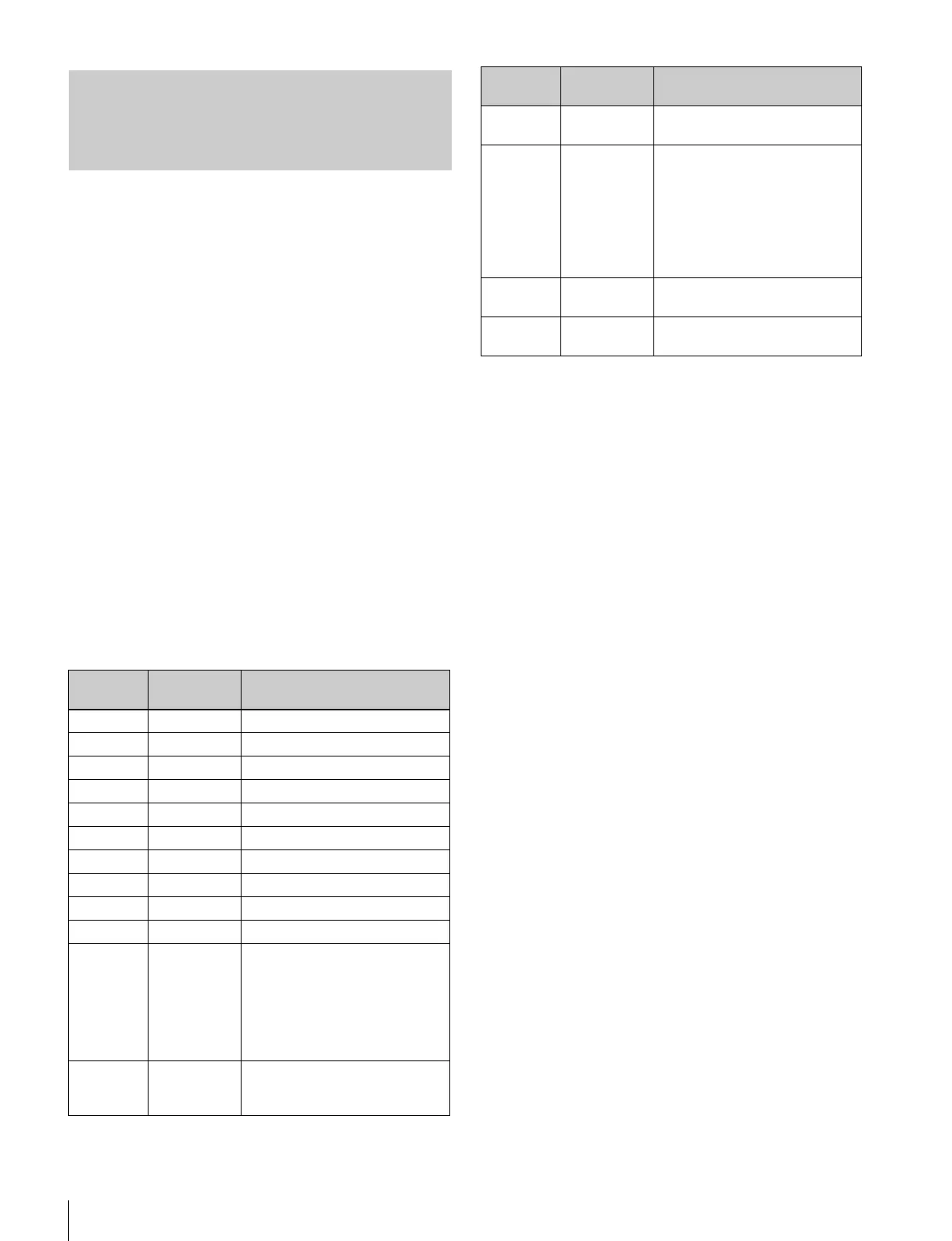
Operations while ten-key input function is
enabled
Using the Ten-Key
Input Function
Key Template
notation
Function
REVIEW 0 0 (numeric) button
PF1 1 1 (numeric) button
PF2 2 2 (numeric) button
PF3 3 3 (numeric) button
PF4 4 4 (numeric) button
PF5 5 5 (numeric) button
PF6 6 6 (numeric) button
PF7 7 7 (numeric) button
PF8 8 8 (numeric) button
PF9 9 9 (numeric) button
PF10 SET In editor mode: Confirm the
input to the edit point. (After
confirmation, this disables the
ten-key input function.)
XDCAM mode: No function.In
remote control mode: Perform
registration.
PF11 CUE UP Cue up to the entered timecode.
(If entry is still in progress,
confirm to cue up.)
PF12 CLEAR Clear a timecode that is being
entered.
PF13 +/±/–/CLIP/
EDL
Invert the sign for timecodes in
the ±12H display format.
In XDCAM mode, toggle
between timecode signs, clip
number entry, and EDL number
entry selection.When clip or
EDL number entry is selected,
cue up using that number.
PF14 BACK
SPACE
Clear the number that was last
entered.
PF15 EXIT Disable the ten-key input
function.
Key Template
notation
Function









 To Next Page