Basic Operation Guide
DVR User Manual
6
2.3 Mouse Control
Mouse control in Live Display & Playback interface
In the live display & playback interface, double click on any camera window to show the window in single screen mode; double click the window
again to restore it to the previous size.
In the live display & playback interface, if the interface display is in full screen, move the mouse to the bottom of the interface to pop up a tool bar.
The tool bar will disappear automatically after you move the mouse away from it; move the mouse to the right side of the interface to pop up a
panel and the panel will disappear automatically after you move the mouse away from it.
Mouse control in text-input
Move the mouse to the text-input box and then click the box. The input keyboard will pop up automatically.
2.4 Text-input Instruction
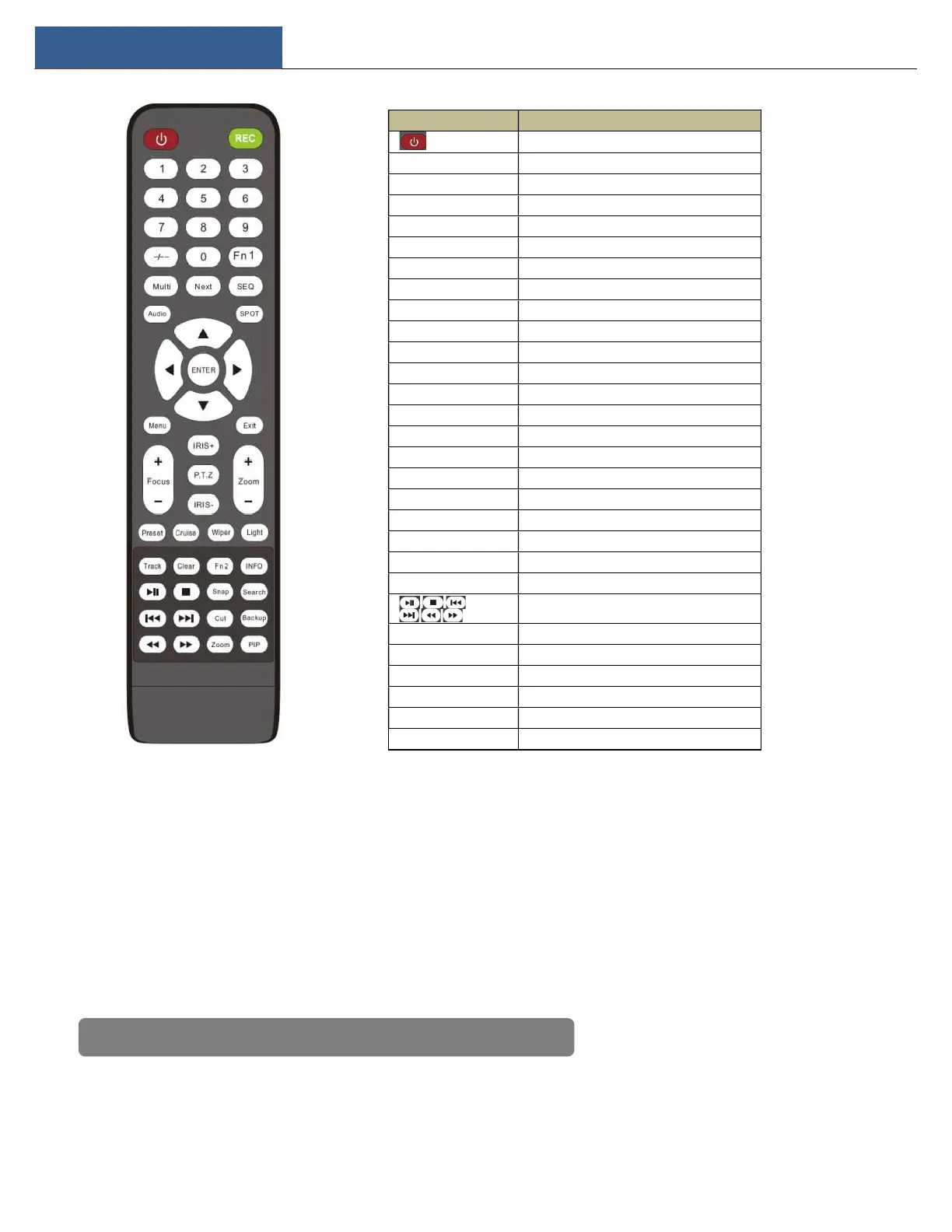
Button Function
Power Button
Switch off—to stop the device
Record Button To start recording
-/-- /0-9 Input number or choose camera
Fn1 Button No function temporarily
Multi Button To choose multi screen display mode
Next Button To switch the live image
SEQ To go to sequence view mode
Audio To enable audio output in live mode
Switch No function temporarily
Direction button To move cursor in setup or pan/title PTZ
Enter Button To confirm the choice or setup
Menu Button To go to menu
Exit Button To exit the current interface
Focus/IRIS/Zoom/PTZ To control PTZ camera
Preset Button To enter into preset setting in PTZ mode
Cruise Button To go to cruise setting in PTZ mode
Track Button No track function temporarily
Wiper Button No function temporarily
Light Button No function temporarily
Clear Button No function temporarily
Fn2 Button No function temporarily
Info Button Get information about the device
Frame/Next Frame/Speed Down/Speed Up
Snap Button To take snapshots manually
Search Button To go to search mode
Cut Button No function temporarily
Backup Button To go to backup mode
Zoom Button To zoom in the images
PIP Button Not active
Note: Mouse is the default tool for all operations unless an exception as indicated.


 To Next Page