Device Management
DVR User Manual
80
to the path where the upgrade software exists. Select the upgrade software and then click “Upgrade”. The system may automatically restart during
upgrading. Please wait for the process to finish and do not power off the DVR during upgrading.
11.5 Backup and Restore
You can back up the configuration file of the DVR by exporting the file to other storage devices; you can recover the configuration to other DVRs
which are of the same model with the DVR by importing the configuration file to other DVRs for time saving.
Insert the USB storage device into the USB interface of the DVR and then click StartSettingsSystemMaintenanceBackup and Restore to go
to the interface.
Backup
Select the USB device in “Device Name” option; go to the path where you want to store the configuration backup file and then click “Backup”
button; finally click “OK” button in the popup window.
Recover
Select the USB device in “Device Name” option; find the configuration backup file and then click “Recover” button; finally click “OK” button in the
popup window.
11.6 Restart Automatically
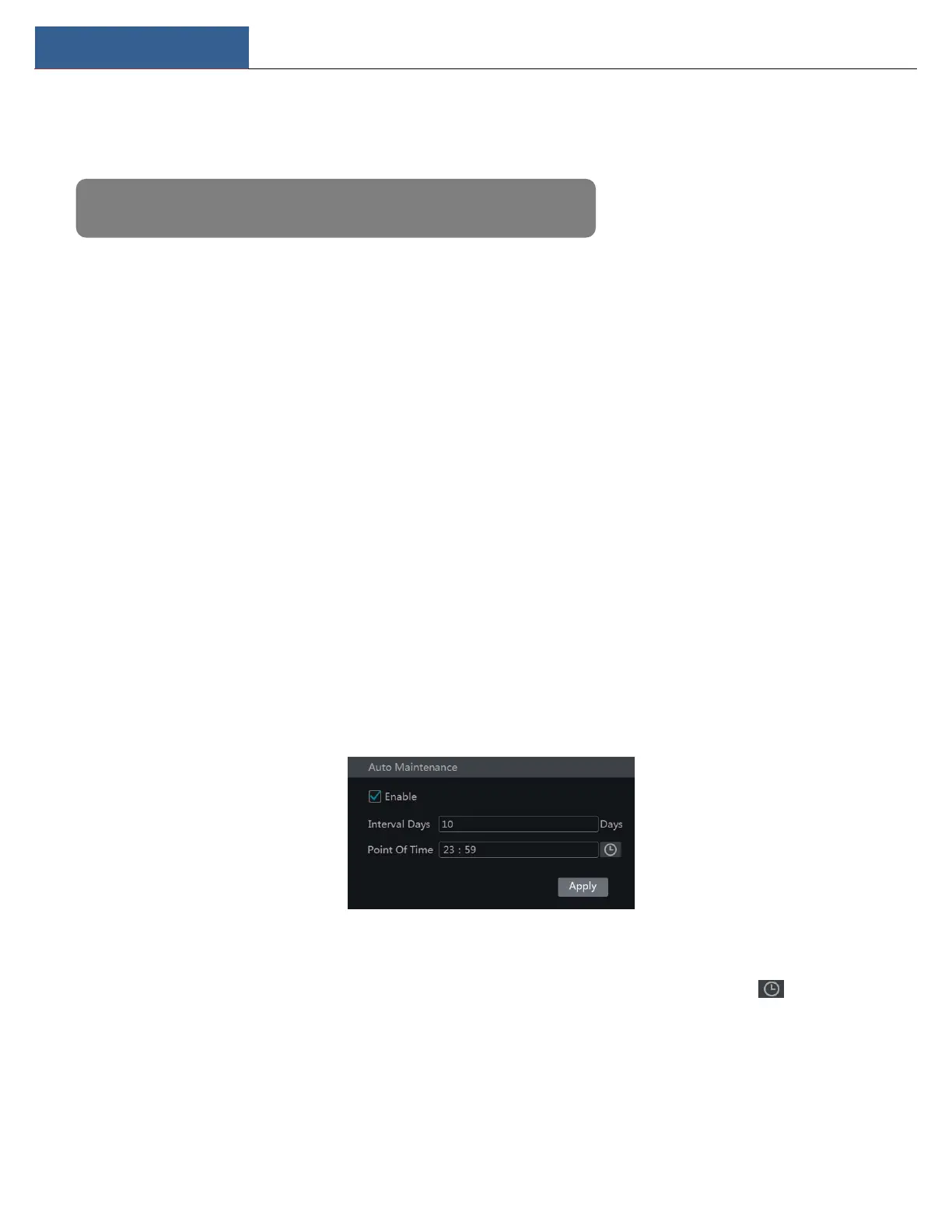
You can set the automatic restart time for the DVR to maintain it regularly. Click StartSettingsSystemMaintenanceAuto Maintenance to go
to the interface as shown below. Enable auto maintenance, set the interval days and point of time and then click “Apply” to save the settings. The
DVR will restart automatically at the pointed time every interval days.
11.7 View Log
Click StartSettingsSystemMaintenanceView Log to go to the log view interface. Select the log main type, click to set start time and
end time and then click “Search” button. The searched log files will be displayed in the list.
Note: The file system of the USB mobile device which is used for upgrading, backing up and restoring
should be FAT32 format.


 To Next Page