Record & Disk Management
DVR User Manual
41
Set the timing record schedule of each camera. See 7.3 Schedule Setting for details.
7.4.3 Motion Based Recording
Motion Based Recording: the system will start motion-based recording when the motion object appears in the setup schedule. The setup steps are
as follows:
① Set the motion-based recording schedule of each camera. See 7.3 Schedule Settingfor details.
② Enable the motion and set the motion area of each camera. See 9.2.1 Motion Configuration for details.
The camera will start motion-based recording once you finish the above settings.
7.4.4 Sensor Based Recording
① Set the sensor-based recording schedule of each camera. See 7.3 Schedule Settingfor details.
② Set the NO/NC type of the sensor, enable the sensor alarm and then check and configure “Record”. See 9.1 Sensor Alarm for details.
7.4.5 Analytics Recording
① Set the analytics recording schedule of each IP camera. See 7.3 Schedule Setting for details.
② Enable the intelligence alarm detection (object detection, exception, tripwire, or intrusion) and draw alert surface or warning area of each IP
camera. See Event for details.
The camera will start analytics recording once you finish the above settings. This function is only available for some IPCs.
7.5 Disk
7.5.1 Disk Management
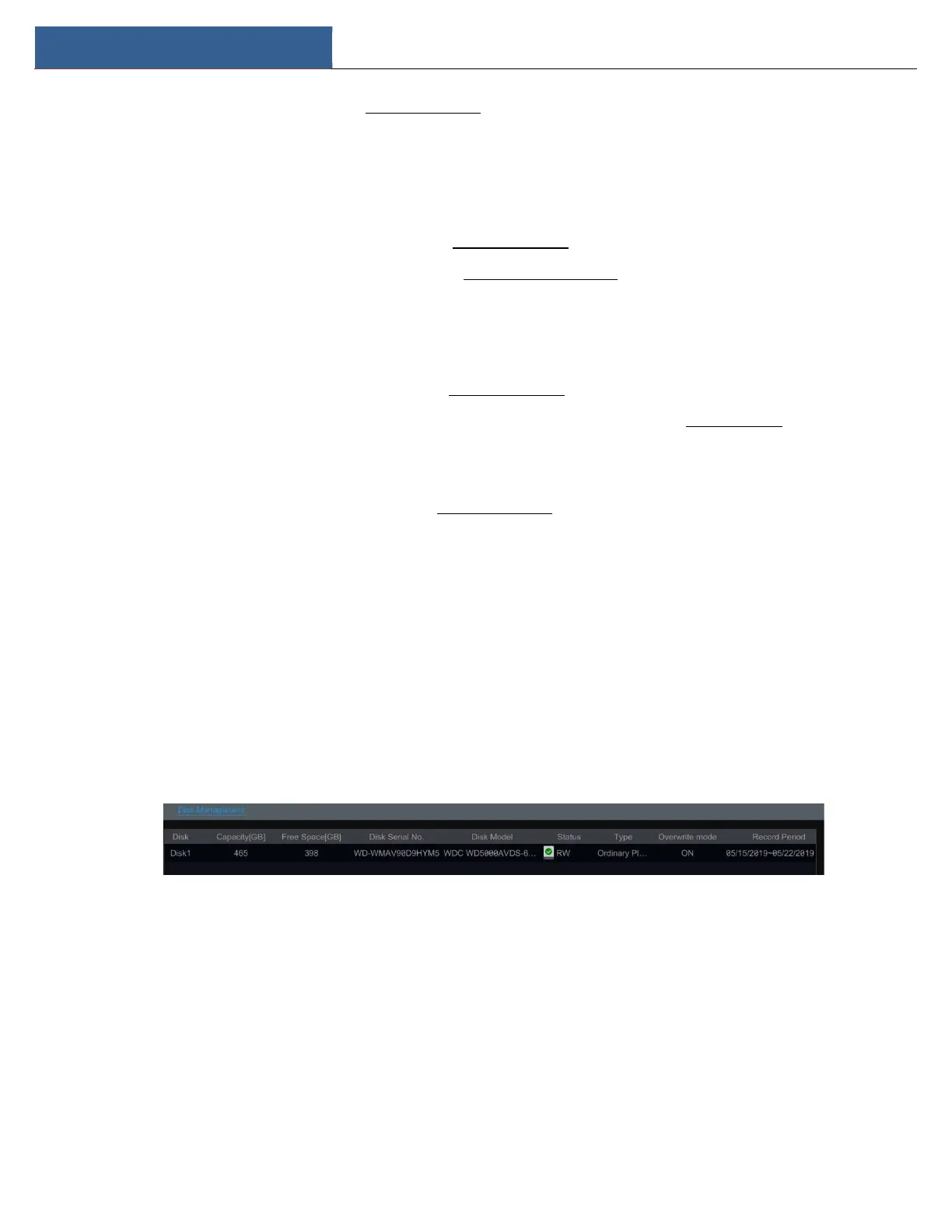
Disk Management
Click StartSettingsDiskDisk Management to go to disk management interface. You can view the DVR’s disk number and disk status and so on
in the interface. Click the “Formatting” button to format the HDD.
7.5.2 Storage Mode Configuration
Click StartSettingsDiskStorage Mode to go to the interface as shown below.


 To Next Page