Record & Disk Management
DVR User Manual
40
Set Week Schedule
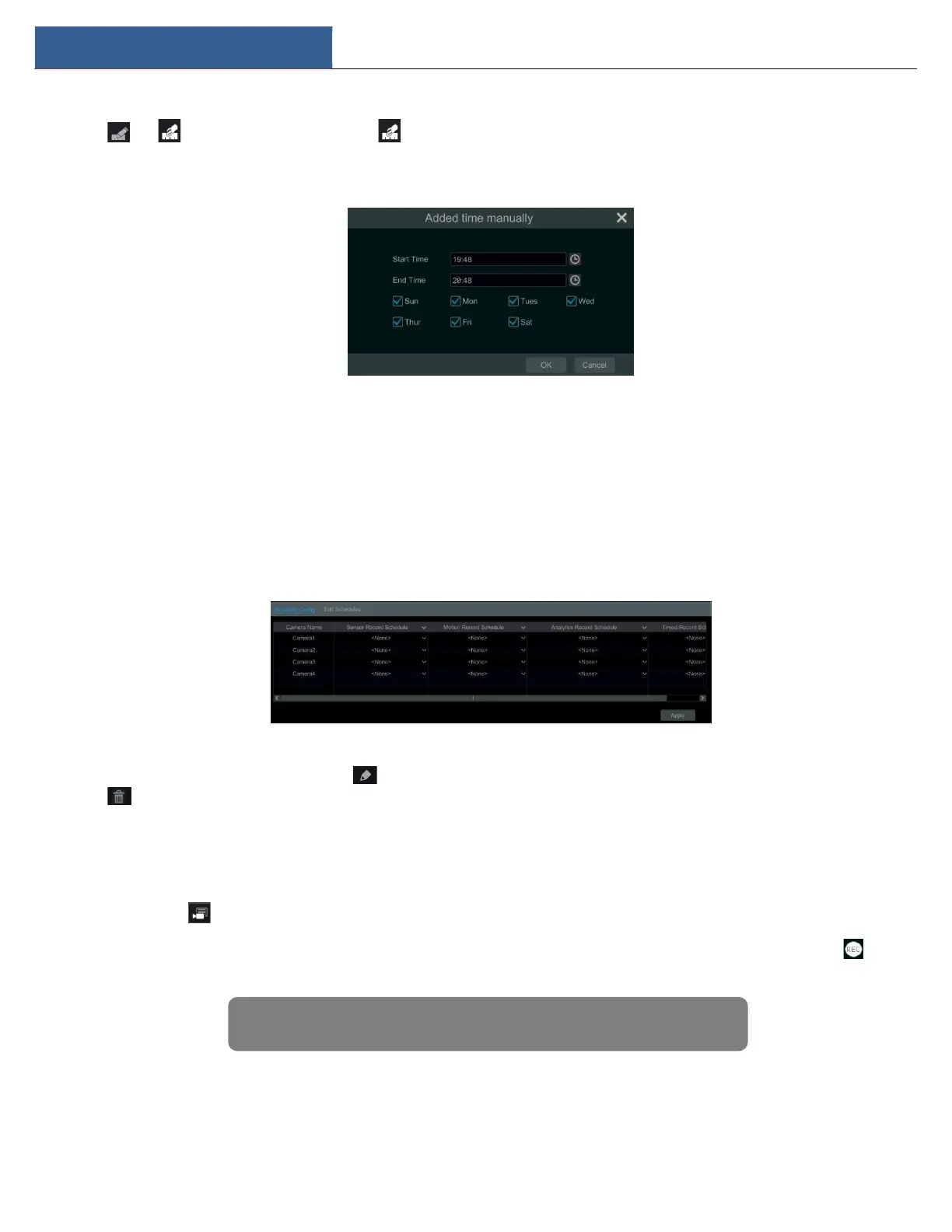
Click or and then click “Manual” beside to set the week schedule. Refer to the picture below. Set the start and end time, check
the days in the window and then click “OK” to save the settings.
Click “All” to set all week recording; click “Reverse” to swap the selected and unselected time in a week; click “Clear All” to clear all the selected
area in a week.
7.3.2 Record Schedule Configuration
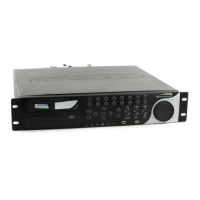
Click StartSettingsRecordRecord ScheduleSchedule Configuration to go to the interface as shown below. Set the schedule of sensor record,
motion record, timed record and intelligence record. Click “None” in the drop-down menu to clear the schedule. Click “Apply” to save the settings.
Go to “Edit Schedules” interface and then click to edit the schedule. The settings of “Edit Schedule” are similar to that of “Add Schedule”.
Click to delete the schedule.
7.4 Record Mode
7.4.1 Manual Recording
Method One: Click on the tool bar at the bottom of the live view interface to enable recording of the camera.
Method Two: Go to the live view interface and then click the right-click menu “Manually Record On” in the camera window or click on the
tool bar under the camera window to start recording.
7.4.2 Timing Recording
Timing Recording: the system will record automatically according to the schedule.
Note: Click Start
Settings
Record
Mode Settings and then set the manual record time in the


 To Next Page