Device Management
DVR User Manual
72
11 Device Management
11.1 Network Configuration
11.1.1 TCP/IP Configuration
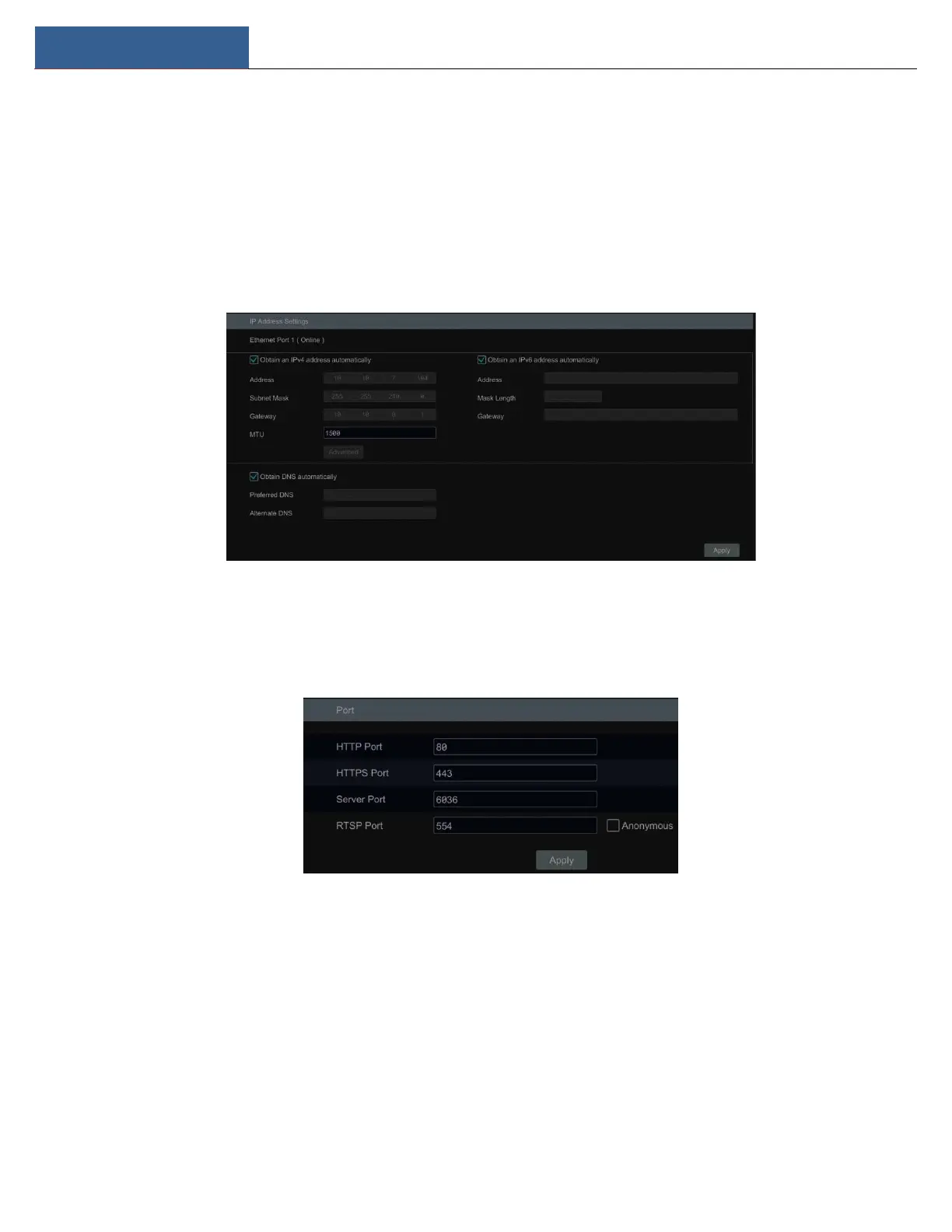
Click StartSettingsNetworkTCP/IP to go to the following interface. Check “Obtain an IPv4 address automatically”, “Obtain an IPv6 address
automatically” and “Obtain DNS automatically” to get the network addresses automatically, or manually enter the network addresses. You can
modify the MTU value according to the network condition (MTU, Maximum Transmission Unit, can be modified according to network condition for
higher network transmission efficiency). Click “Apply” to save the settings.
11.1.2 Port Configuration
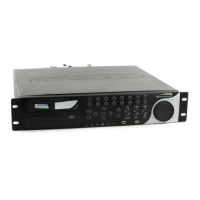
Click StartSettingsNetworkPort to go to the interface as shown below. Enter the HTTP port, HTTPS port, server port and RTSP port of the
DVR, enable “Anonymous” as needed and then click “Apply” button to save the settings.
HTTP Port: the default HTTP port of the DVR is 80. The port number can be changed to others like 81. The port is mainly used for web client access.
If you want to access the DVR through a web browser, you should enter IP address plus HTTP port in the address bar of the web browser like
http://192.168.11.61:81.
HTTPS Port: the default HTTPS port of the DVR is 443.
HTTPs provides authentication of the web site and protects user privacy. How to use it?
① Enter IP address plus HTTP port in the address bar of the web browser. Then enter username and password to log in. Click Functional
PanelNetworkHTTPS to go to the following interface.


 To Next Page