PTZ
DVR User Manual
33
Add preset
Select camera and then click “Add” button to add a preset; or click in the camera list on the right side of the interface to display the preset
information of the dome and then click to add a preset. The operation of the “Add Preset” window is similar to that of the PTZ control
interface; please see 6.1 PTZ Control Interface Introduction for details.
Edit preset
Select camera and preset. You can enter the new name of the preset and then click to save the new preset name. Adjust the rotating speed,
position, zoom, focus and iris of the preset and then click “Save Position” to save the preset.
Delete Preset
Select camera and preset and then click “Delete” to delete the preset.
6.3 Cruise Settings
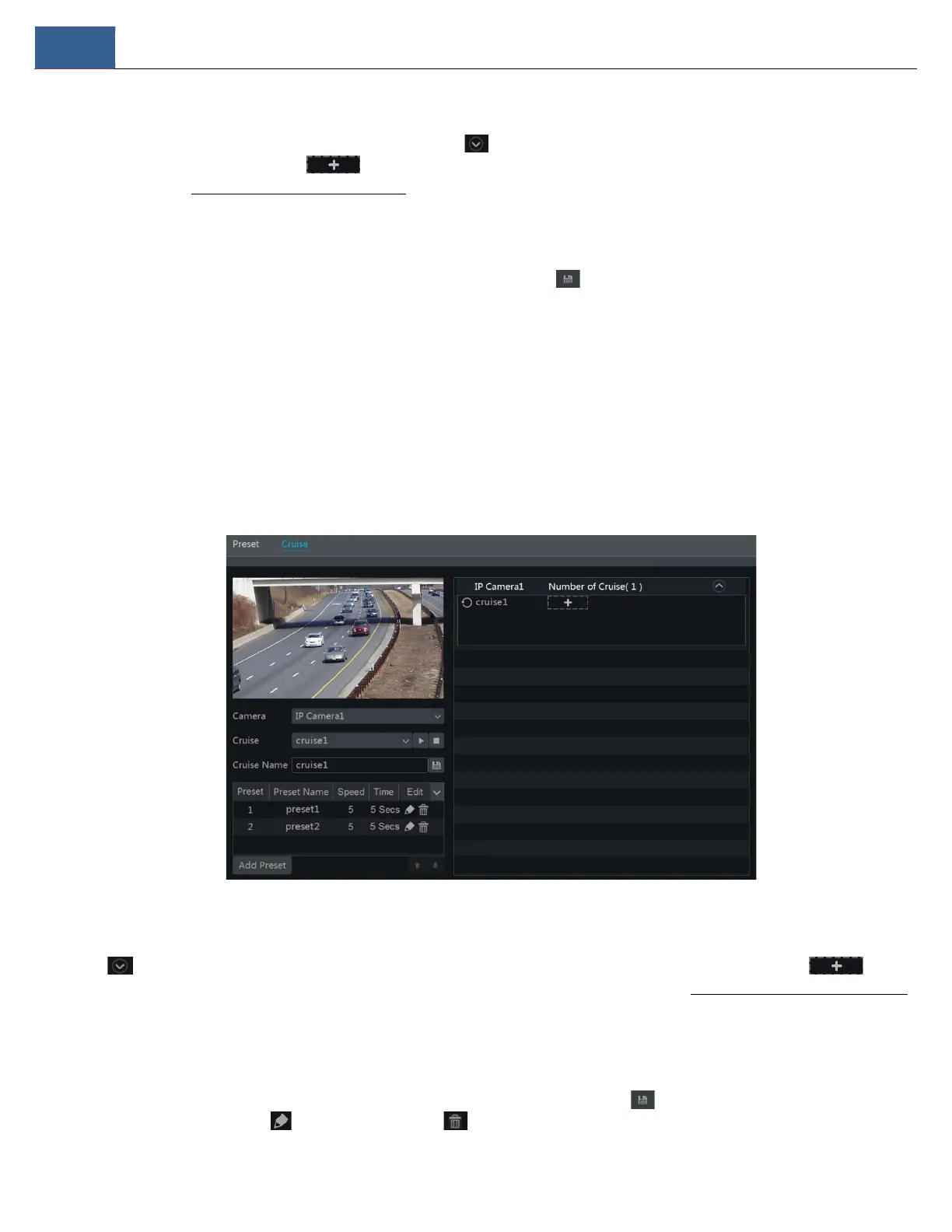
Click StartSettingsCameraPTZCruise to go to the interface as shown below.
Add Cruise
Click in the camera list on the right side of the interface to display the cruise information of the dome and then click to add
cruise. The operations of the “Add Cruise” window is similar to that of the PTZ control interface; please see 6.1 PTZ Control Interface Introduction
for details.
Edit Cruise
Select the camera and cruise in the “Cruise” interface. Enter the new cruise name and then click to save the cruise name. Click “Add Preset”
to add preset to the cruise. Click to edit the preset. Click to delete the preset from the cruise. Click one preset in the preset list and


 To Next Page