Alarm Management
DVR User Manual
47
8.3 Smart Playback
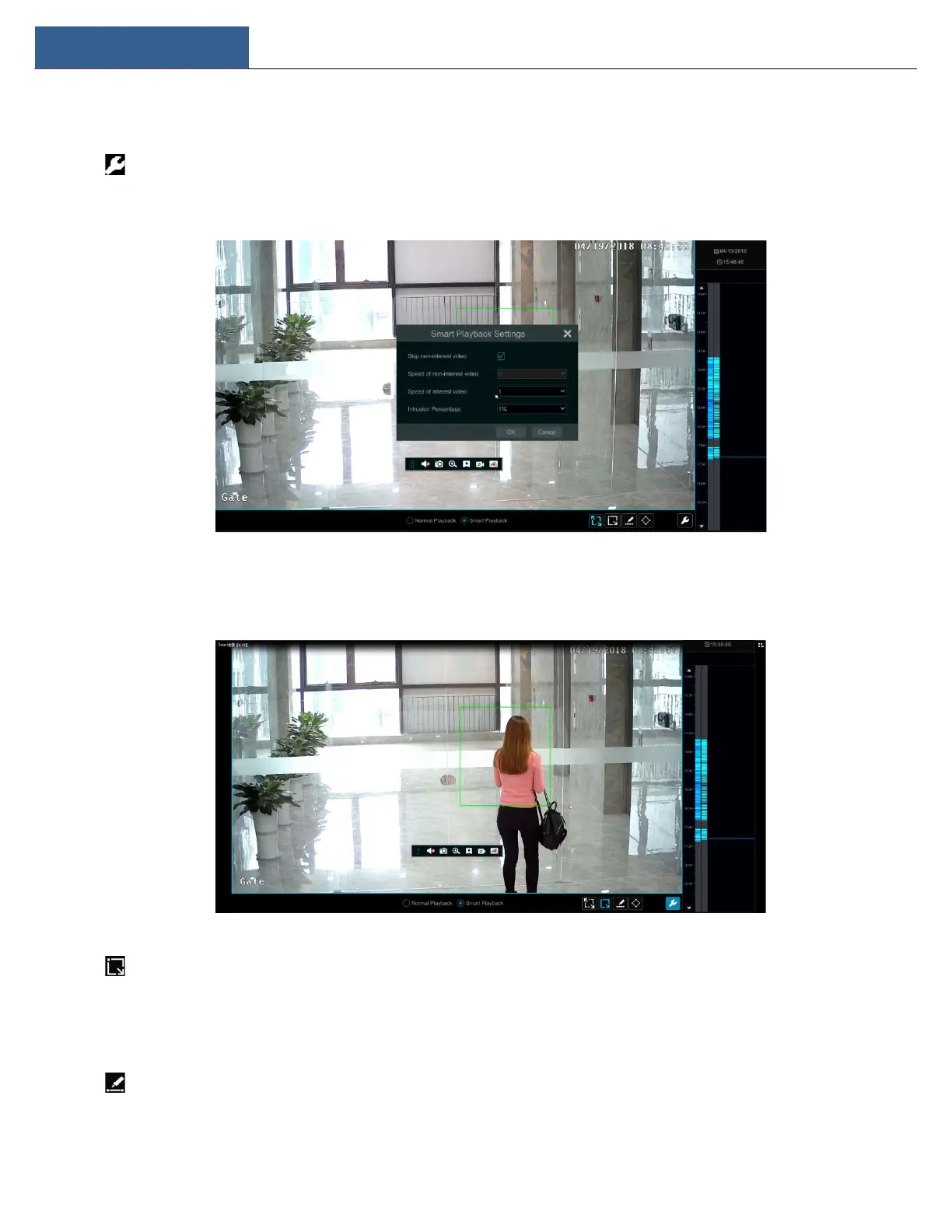
Smart Playback Settings
Click to go to the following interface. Set the value of “Speed of non-interest video” (You will skip this if you select “Skip non-interest video”),
“Speed of interest video” and “Intrusion percentage”.
Smart Playback by Drawing Rectangle
Click and draw a rectangle in the desired area. The system will then automatically search the recordings of this area. The cyan blocks indicate
that there are intelligent recording files. Move the cursor to such a block and click to play the recording.
Smart Playback by Drawing Line
Click and draw a line in the desired area. The system will then automatically search the recordings where this line has been crossed. The cyan
blocks indicate that there are intelligent recording files. Move the cursor to such a block and click to play the recording.


 To Next Page