Live View Introduction
DVR User Manual
23
5.2.3 Scheme View In Sequence
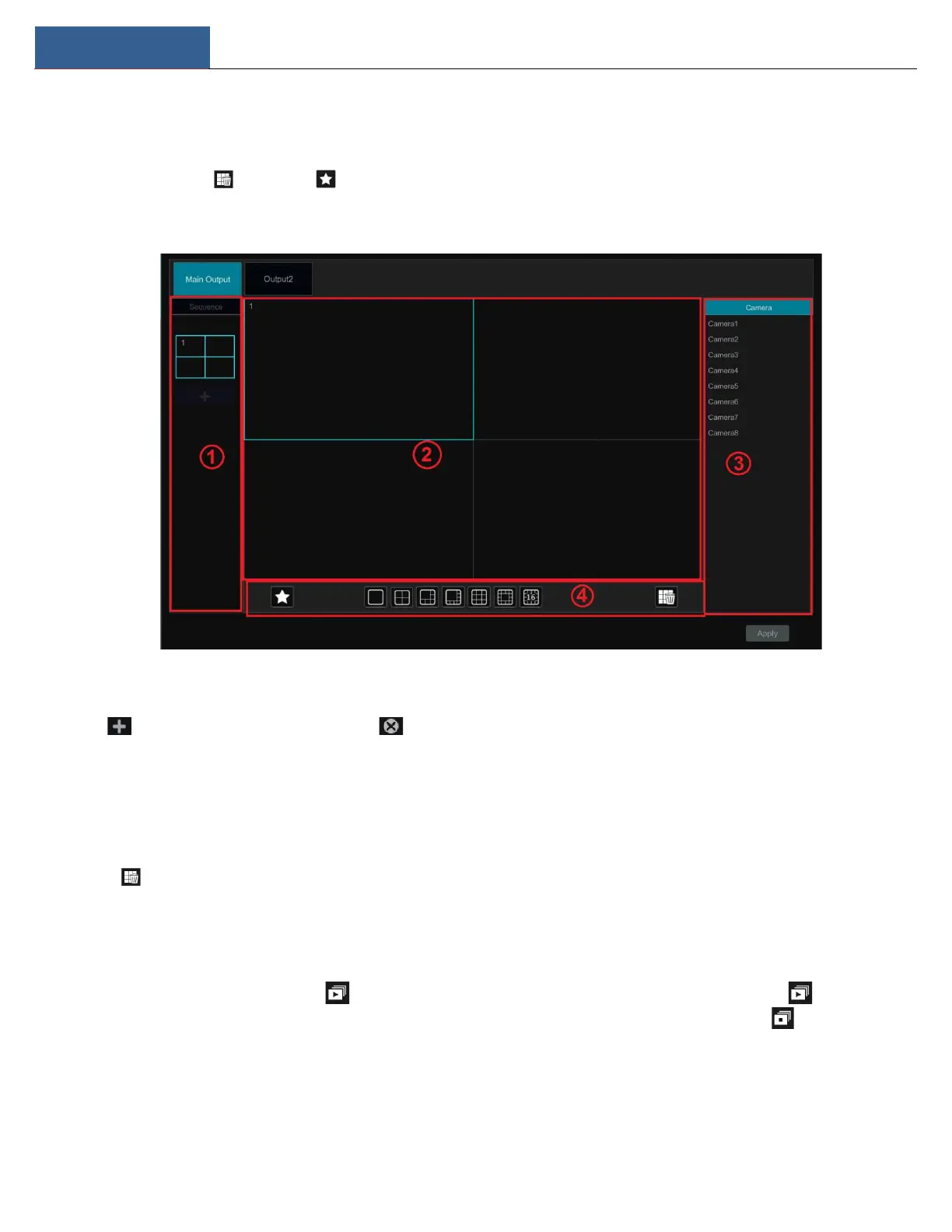
Click StartSettingsSystemBasicOutput Settings to go to the interface as shown below.
Area ① displays all the sequence schemes; area ② shows the detailed information of the scheme; area ③ displays all the cameras and groups;
area ④ is the tool bar ( : clear button; : favorite button, click it to pop up a window, enter the display mode name in the window and then
click “OK” to save the current display mode; other buttons are screen mode buttons).
Add Scheme
Click in area ① to create a new scheme. Click on the top right corner of the scheme to delete it.
Configure Scheme
a) Select a scheme in area ① and then click the screen mode button on the tool bar to set the screen mode of the scheme.
b) Select a camera window in area ② and then double click the camera or group in area ③. The camera or group will be added into the
selected window. One camera in the same scheme cannot repeat. You can click the right-click menu “Clear” in area ② to remove a single camera
or click to remove all the cameras.
c) Click “Apply” to save the settings.
Start Sequence View
Go to the live view interface and then click to open a window. Set the sequence interval in the window and then click to start scheme
view in sequence. Double click the sequence view interface to pause the view; double click again to restore the view. Click to stop the view.
5.2.4 Spot View
Click StartSettingsSystemBasicOutput SettingsOutput 2 to go to the interface as shown below.


 To Next Page