Device Management
DVR User Manual
77
Platform Access
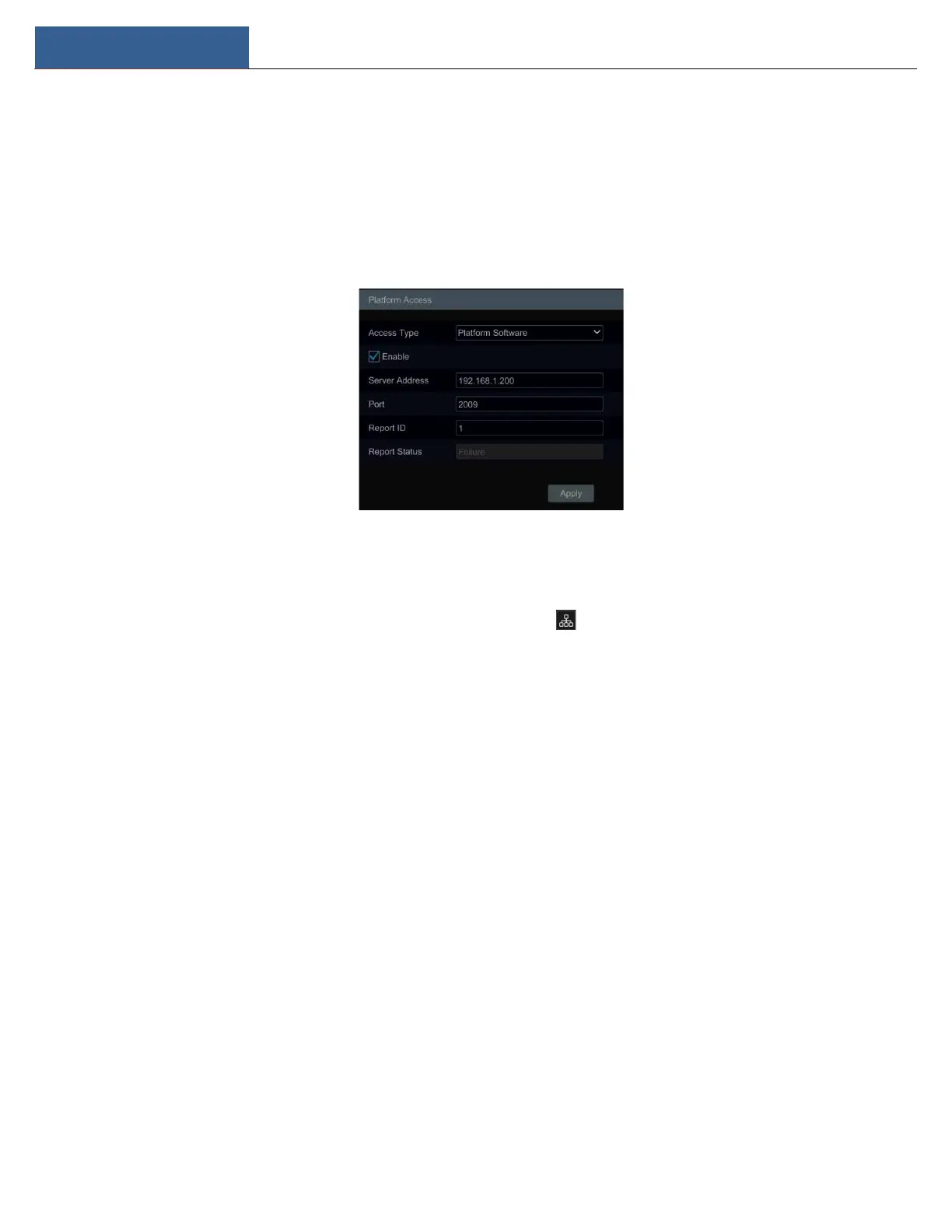
① Set “Access Type” as “Platform Software” and select “Enable” as shown below.
② Check the IP address and port of the transfer media server in the VMS. The default server port for auto report is 2009. If it is modified, please
go to the transfer media interface to check.
③ Enable the auto report in the VMS when adding a new device. Then self-define device ID and fill out the remaining information of the device
in the ECMS/NVMS.
④ Enter the above-mentioned server address, port and report ID in the server interface. Then click the “Apply” button to save the settings. Now
the ECMS/NVMS system will automatically connect this device.
11.1.10 View Network Status
Click StartSettingsNetworkNetwork Status to view the network status or click on the tool bar at the bottom of the live view interface to
view network status conveniently.
11.2 Basic Configuration
11.2.1 General Configuration
Click StartSettingsSystemBasicGeneral Settings to go to the following interface. Set the device name, device No., language, video format
and main output. Enable or disable wizard, “Log In Automatically”, “Log Out Automatically” (if checked, you can set the wait time), “App Live
Self-Adaption” and “Sequence Automatically” (if checked, you can set the wait time). Click “Apply” to save the settings.


 To Next Page