Record & Disk Management
DVR User Manual
35
7 Record& Disk Management
7.1 Record Configuration
7.1.1 Mode Configuration
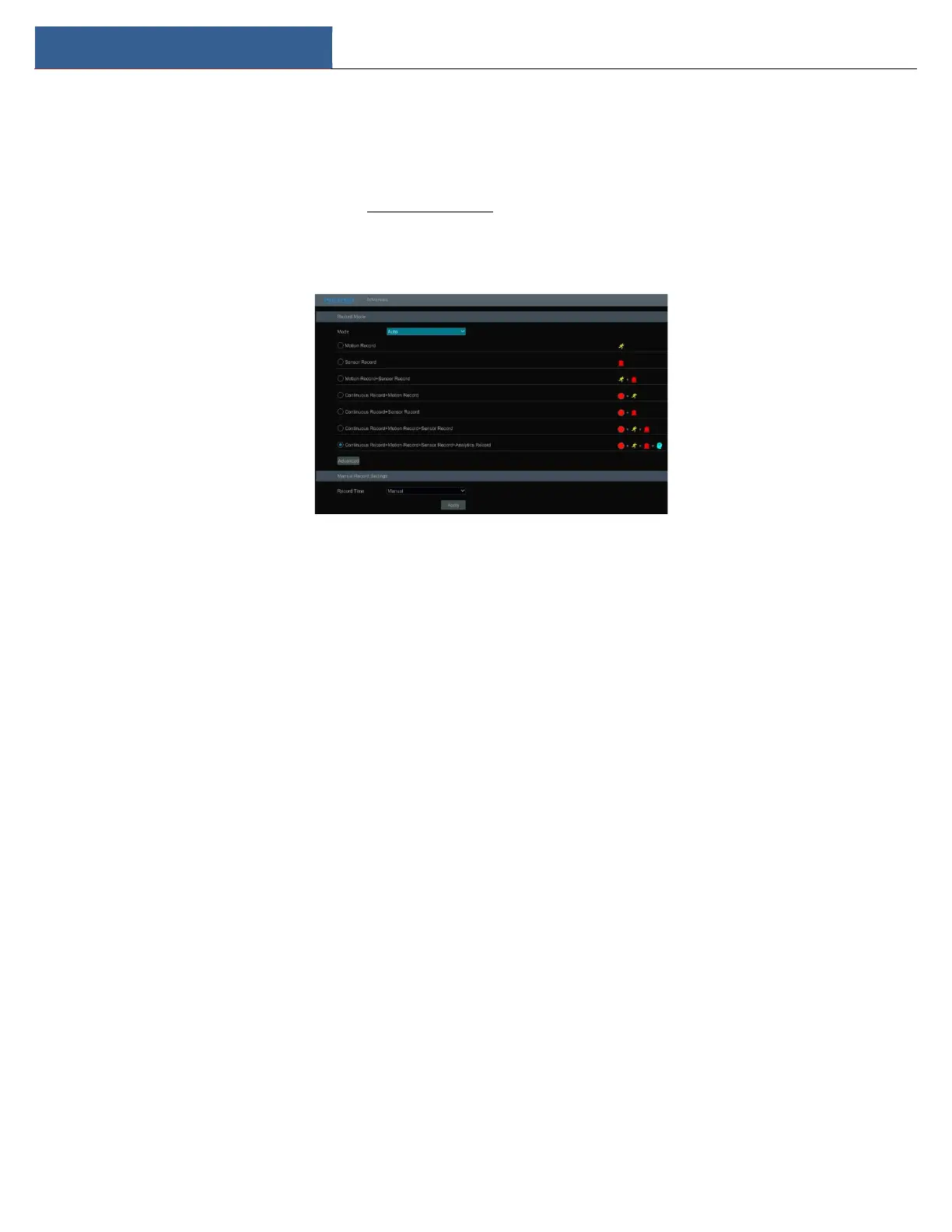
Please format the HDDs before recording (refer to 7.5 Disk Management for details). Click StartSettingsRecordMode Settings to go to the
mode settings interface. You can set the record time under the “Manual Record Settings” and then click “Apply” to save the settings. There are two
recording modes: auto mode and manual mode.
Auto Mode
Motion Record: Motion alarm record will be enabled when motion alarm happens.
Sensor Record:Sensor alarm record will be enabled when sensor alarm happens.
Motion Record+Sensor Record:Motion/sensor alarm record will be enabled when motion/sensor alarm happens.
Continuous Record+Motion Record:Normal record is enabled all the time; motion alarm record will be started when motion alarm happens.
Continuous Record+Sensor Record: Normal record is enabled all the time; sensor alarm record will be started when sensor alarm happens.
Continuous Record+MotionRecord+Sensor Record:Normal record is enabled all the time; motion/sensor alarm record will be enabled when
motion/sensor alarm happens.
Continuous Record+MotionRecord+Sensor Record+ Analytics Record:Normal record is enabled all the time; motion/sensor/analytics alarm record
will be enabled when motion/sensor/intelligence analytics alarm happens.
You can add more auto modes under intelligent recording. Click “Advanced” button to pop up a window as shown below. Check the modes in the
window and then click “Add” button to show the modes in the record mode list (in this window, the checked modes can be shown in the record
mode list while the unchecked modes cannot; you should check “Analytics Record”).


 To Next Page