EZ Setup & Main Interface
DVR User Manual
13
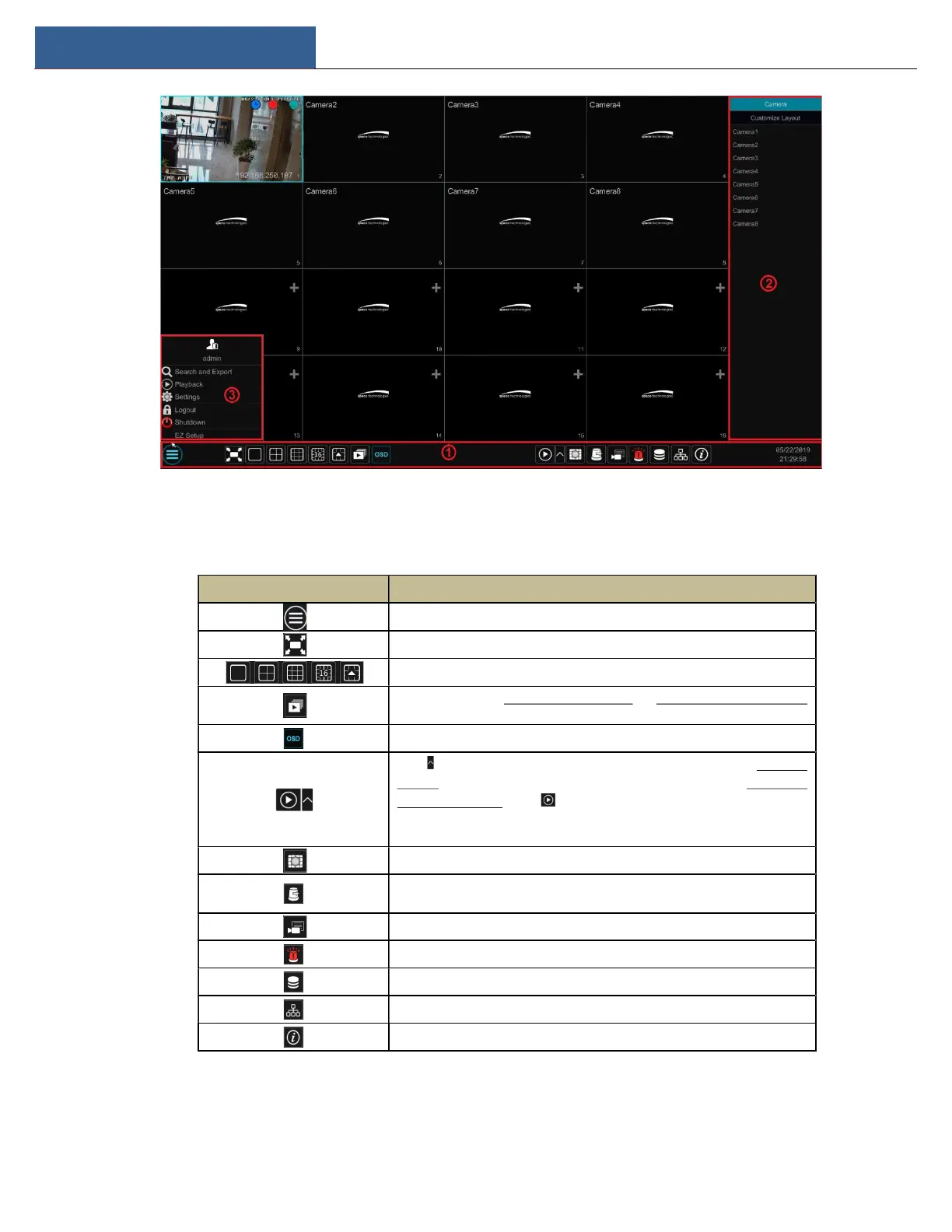
The buttons in area ① are introduced in the table below.
Button Meaning
Start button. Click to pop up area ③.
Full screen button. Click to show full screen; click it again to exit the full screen.
Screen mode button.
Sequence button (see 5.2.2 Quick Sequence View and 5.2.4 Scheme View in Sequence
for details).
Click to enable OSD; click again to disable OSD.
Click to set the default playback time before starting instant playback (8.1 Instant
Playback) or going to the playback interface for playback operations (8.2 Playback
Interface Introduction); click to go to the playback interface. For instance, if you
choose “5 minutes ago” as the default playback time, you can playback the recording
from the past five minutes.
Manual record button. Click to enable/disable record.
Manual alarm button. Click to trigger or clear the alarm-out manually in the popup
window.
Record status button. Click to view the record status.
Alarm status button. Click to view the alarm status.
Disk status button. Click to view the disk status
Network status button. Click to view the network status.
Information button. Click to view system information.
Introduction of area ②:
Click “Camera” to view all the added cameras in the camera list. Select one camera window on the left side of the interface and then double click


 To Next Page