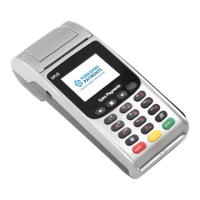
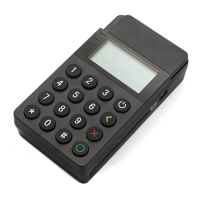
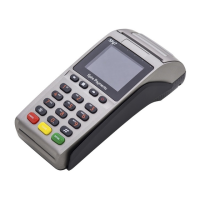
If the terminal cannot read the Chip or the magnetic stripe on the card, you can type in the long number
on the front of the card. Once all the information has been entered and the transaction approved by
the acquirer the terminal will ask for the cardholder to sign the merchant’s copy of the receipt.
PLEASE NOTE:
Signature verication is not as secure as Chip and PIN and you may incur charge-backs from
your acquirer if you use it.
If the cardholder is not present (e.g. a mail order customer) you can also type in the long number
on the front of the card.
If you select ‘CANCEL’ by pressing the red ‘CANCEL’ key when the terminal asks whether the cardholder
is present, you will be asked to type in the 3 digit CVV2 code and address details.
A response will be given, at which point you can choose to accept or cancel the transaction (See Appendix
A for transaction responses.)
When you or the cardholder are requested to enter an amount, it is entered in pence (or cents in ROI).
Example:
Typing in 1000 would equate to a value of £10.00 (€10.00 in ROI).
If a mistake is made, press the yellow ‘CLEAR’ key to delete the last number entered.
If a mistake is made entering any other data such as card number, expiry date, authorisation code,
etc., the entire field can be deleted by pressing the yellow ‘CLEAR’ key once.
PLEASE NOTE:
Pressing the yellow ‘CLEAR’ key twice will cancel the transaction.
Customer Present
Customer NOT Present
Typing In Card Numbers
Page 45.
45
Typing In Amounts
Typing In Other Data


 To Next Page