72
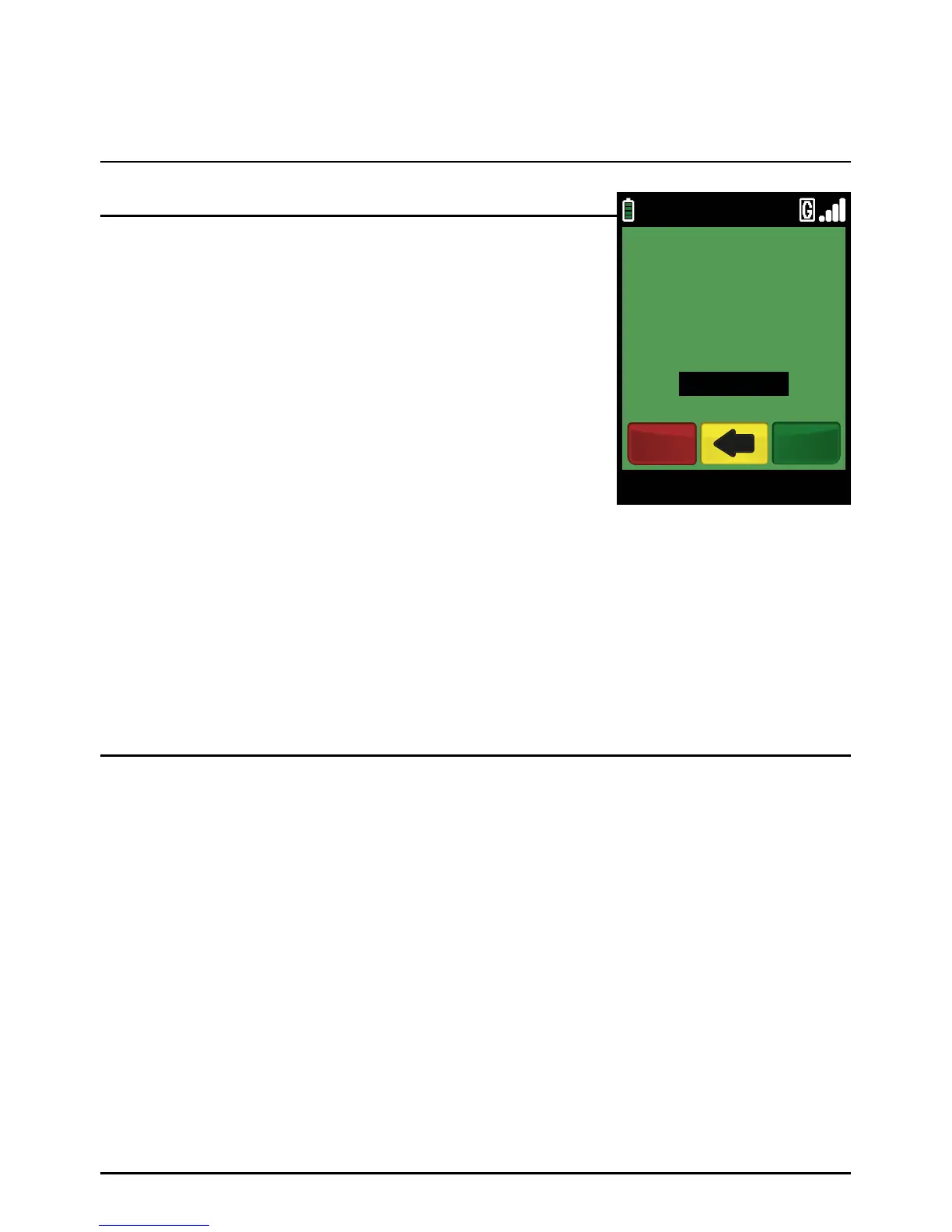
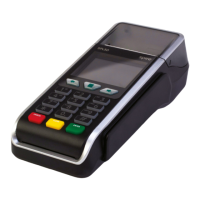
If prompted enter the numbers from the cardholder’s first line
of his/her address and press the green ‘ENTER’ k ey.
Example:
If the first line of the customer’s address is 159 Baker Street,
enter ‘159’.
PLEASE NOTE:
If a mistake is made entering data, the the last digit can
be deleted by pressing the yellow ‘CLEAR’ key.
The terminal will now connect to your acquirer. After the terminal
connects, it will display the response from your acquirer.
The receipts will have the same information as a swiped card, except the dotted line and declaration
will be replaced by the text ‘CUSTOMER NOT PRESENT’.
Step 6
Example Of Sale Receipt (Customer Not Present – Keyed)
The transaction will now continue as with a normal Sale transaction, but the PIN entry phase will
be skipped. You will receive a response from the acquirer informing you whether the address and
postcode entered are correct. You must decide if you are happy to continue with the transaction.
If you select ‘NO’ by pressing the yellow ‘CLEAR’ key the terminal will print out the Reversal copy
of the receipt and connect to your acquirer to reverse the transaction. If you select ‘YES’ by pressing
the green ‘ENTER’ key, the transaction will complete.
Step 7
Sale Transaction (Cont.)
Page 72.
09/11/13 12:00
ENTER ADDRESS
(NUMERICS ONLY)
VISA SALE
Enter
159
Cancel


 To Next Page