30
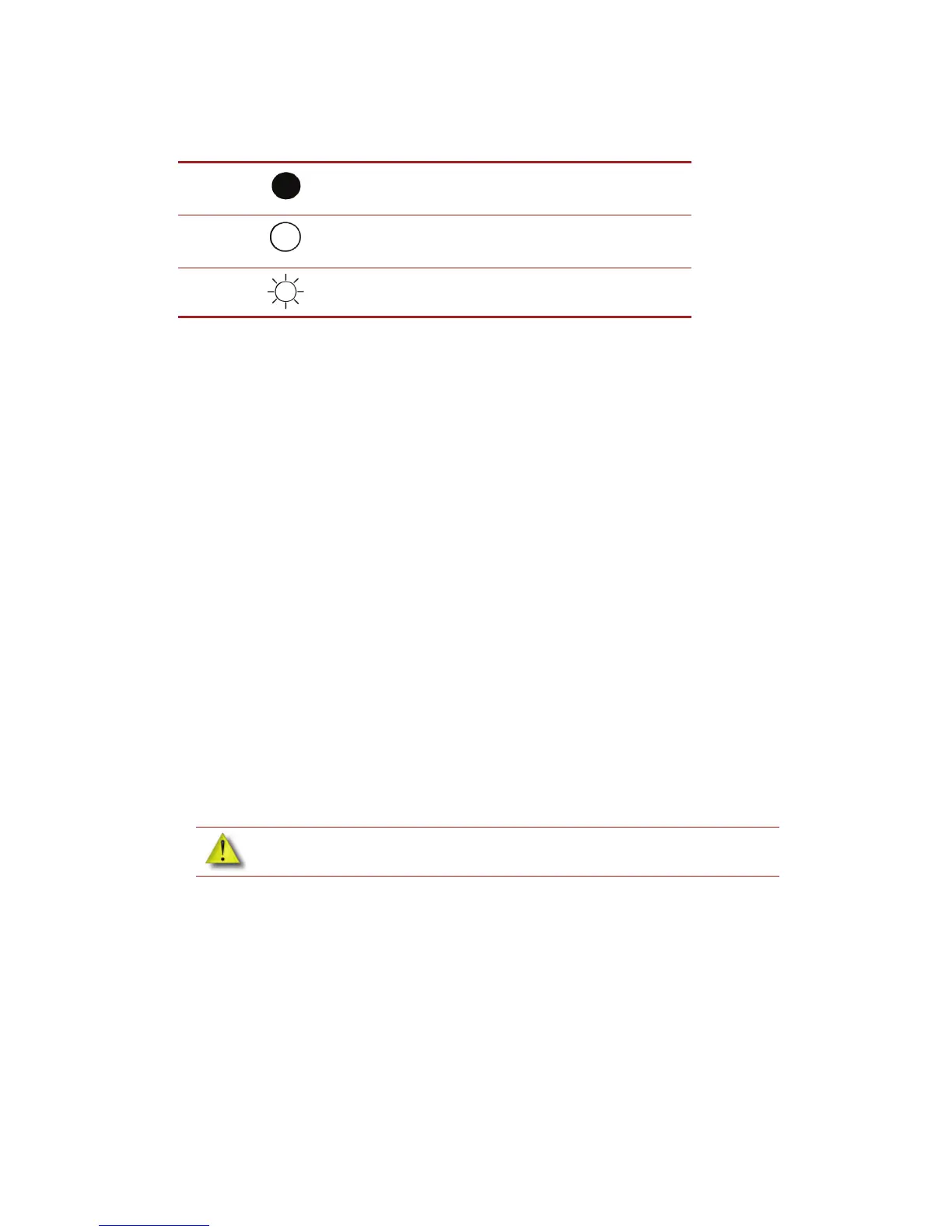
Material bay LEDs
The table below will show the status indicated by the LEDs.
Replacing material spools
Removing a spool of material from the carrier:
1. Place the carrier on a flat stable surface.
2. Unlatch the carrier and open.
3. Remove the spool of material. Discard any pieces of material that may remain in
the carrier.
4. Remove the material guide and recycle. See “Removing the EEproms from the material guides”
on page 60
5. Recycle the empty material spool. See “Recycling Codes” on page 59
6. Install a new material spool into the material carrier.
Storing material spools
If you will not be using the printer for more than 72 hours, unload and store model and support
material in the storage bags provided to prevent moisture absorption.
1. Unload material from the printer.
2. Open the material bay doors by gently pressing in to release and pulling outwards.
3. Remove the material carriers by first pushing them in to unlatch and then pulling them
outwards.
4. Place the carrier on a flat stable surface.
5. Open the carrier.
6. Rotate the spool to rewind the material, leaving 2 inches (50mm) remaining at the material
guide. See Figure 22.
On Material currently loaded to the head
Off
No carrier present
Carrier present and ready to be loaded
Blinking Carrier needs replacement (is empty or has an error)
CAUTION: Do not push the material through the material guide back into the
carrier, doing so can cause material to break or become tangled.










 To Next Page