32
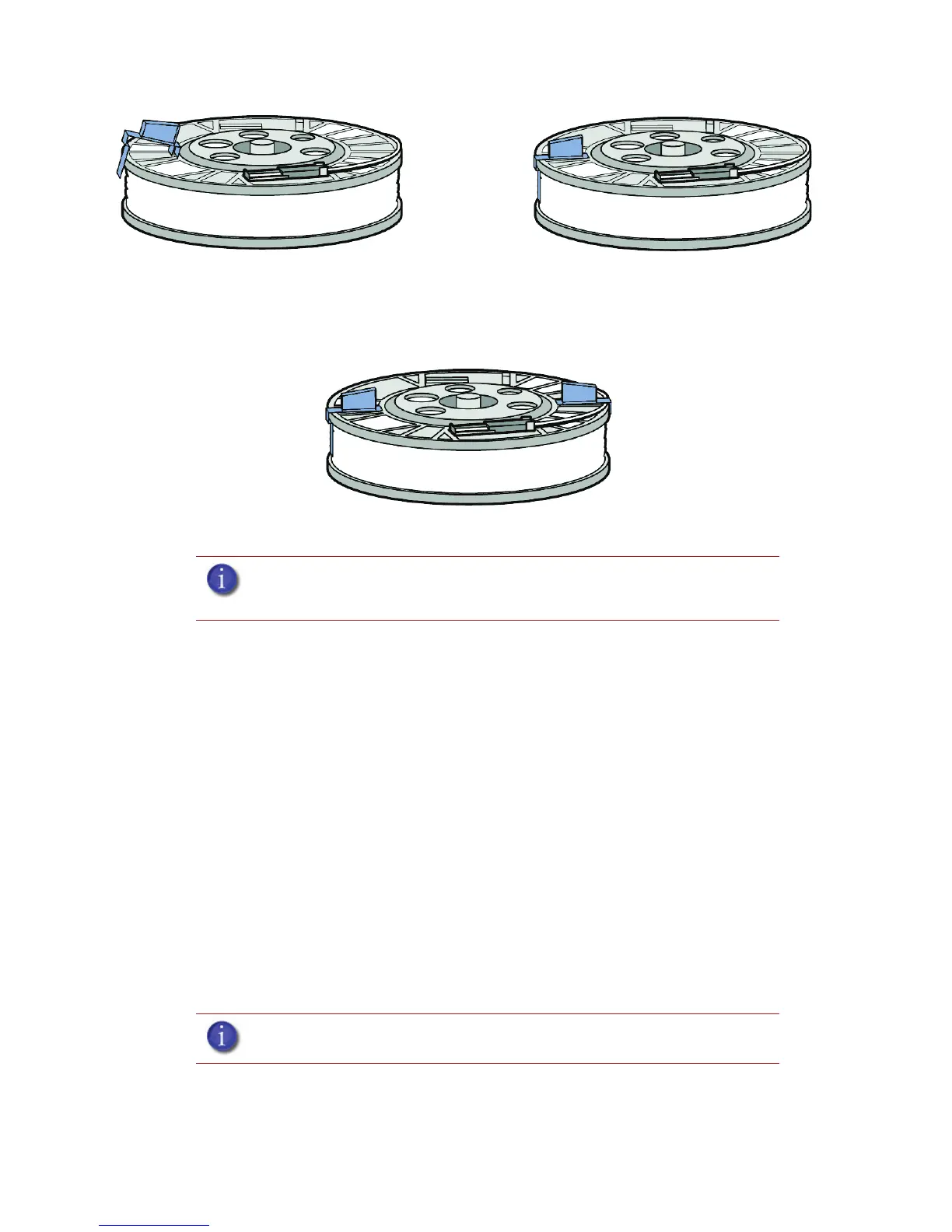
Figure 25 Installing material retaining clips
13. Remove the material spool from the material carrier. See Figure 26.
Figure 26 Properly installed material retaining clips.
14. Place the material spool in the storage bag that came with the material carrier.
Auto power down
You can set the printer to automatically power down when a build is complete. This option will save
energy usage.
1. While the printer is building, press the Auto Power Down button.
2. Turn the power switch, located on the left side of the printer, to the OFF position.
The printer will display Auto Power Down Mode and the printer will power down as soon as the
build is complete.
Cancelling auto power down:
1. Turn the power switch back to the ON position.
Powering off
To power off the printer, turn the power switch to the OFF position. You can do this at anytime
without harming the printer. No other steps are necessary. If this is done while the printer is building
a part, the current part will not be completed.
Note: When not loaded in the printer, always store material spools in the
material carrier or the storage bag that came with the carrier to prevent
moisture absorption.
Note: System cooling fans and lights will continue to operate for several
minutes after the switch has been turned off.
Place clip and push down to lock in place










 To Next Page