EasyManua.ls Logo

Summa S class 2 series - OPOS Paneling

Summa S class 2 series
113 pages
Print Icon
To Next Page IconTo Next Page
To Previous Page IconTo Previous Page
Loading...
S CLASS™ 2 cutter User’s Manual
Contour Cutting 3-7
3.2.6 OPOS paneling
With this option, the job can be divided into panels in order to avoid moving the media
unnecessarily back and forth. When OPOS paneling is activated, all cut data will be cut in
panels. The size of the panel will be the distance between the OPOS marks in the X-axis.
OPOS Panels can be set to OFF or ON. When set to ON, the cutter will only load 2 marks in
the X-direction when loading OPOS and read the marks. The rest of the marks will be read
during unrolling the media, one panel at a time.

NOTE: Do not use software paneling when using OPOS paneling.
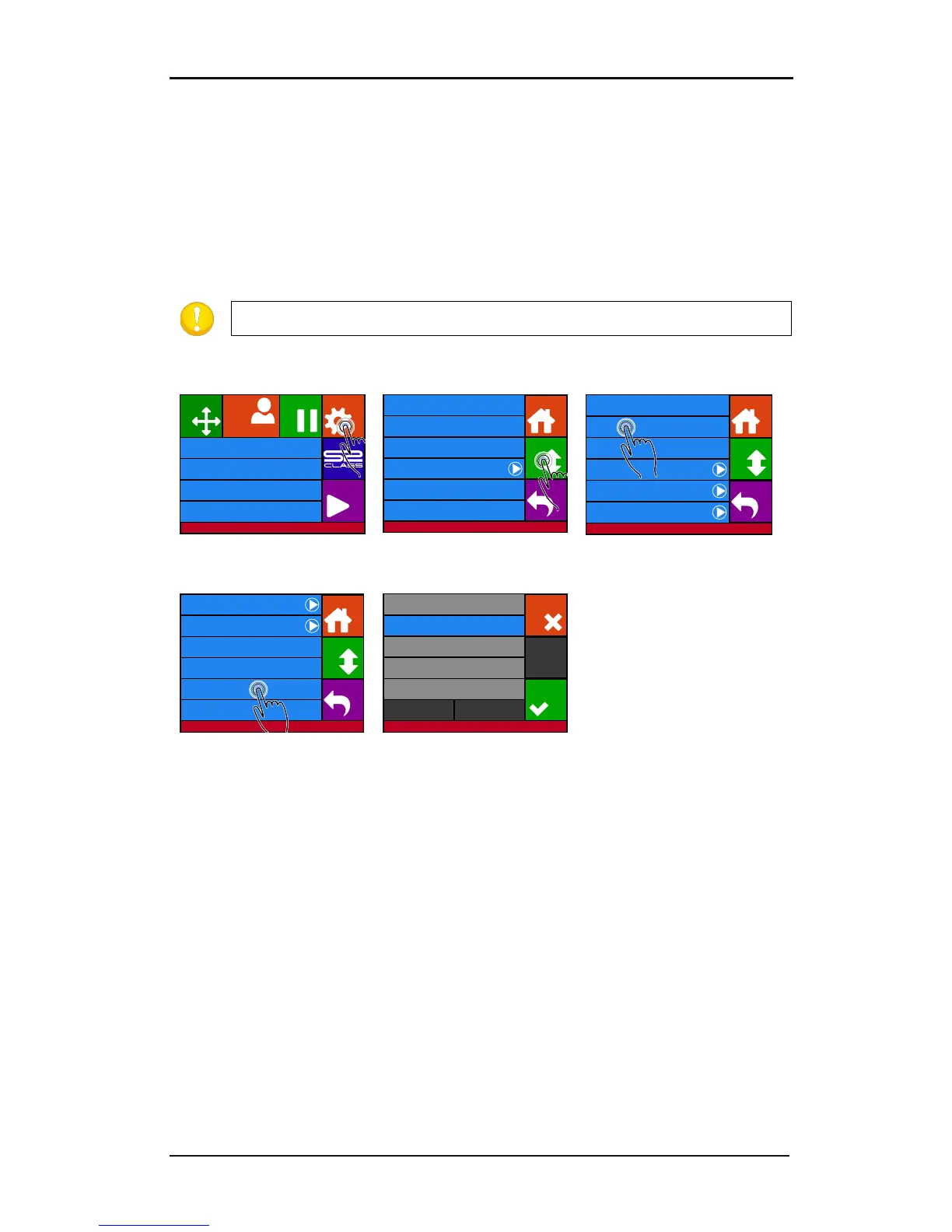
Activating OPOS paneling:
1.
Press Settings
2.
Press More
3.
Press OPOS.
.
4. Press OPOS paneling.
5. Press and then Apply.
Knife pressure 95 gr
Velocity 800 mm/s
Tool Tangential knife
Media size 50000 x 718 mm
Actions
Settings
Configuration 1
Pause
Origin
Summa USB port 1
Summa USB port 1
Knife pressure 95 gr
Velocity 800 mm/s
Tool Tangential knife
Settings
Back
More
Home
...General
Calibrate knife
Advanced cutting ...
FlexCut ...
Communication ...
OPOS ...
Settings
Back
More
Home
Length calibration
Coil setup
Confidence test
General ...
Settings | OPOS
Back
Home
OPOS origin
Mark
Alignment mode OPOS X
OPOS sheet mode Off
OPOS panelling Off
Calibrate media (OPOS)
Calibrate OPOS
More
On
Off
Cancel
Apply
Settings | OPOS

Table of Contents

Related product manuals