Page 52 Using the eSYNC Application
To perform a manual eSYNC:
1. Press the ON button.
2. Open the eKEY shell front and place the eKEY on the eSYNC
Cradle.
3. Tap the main menu icon if the main application screen is not
activated.
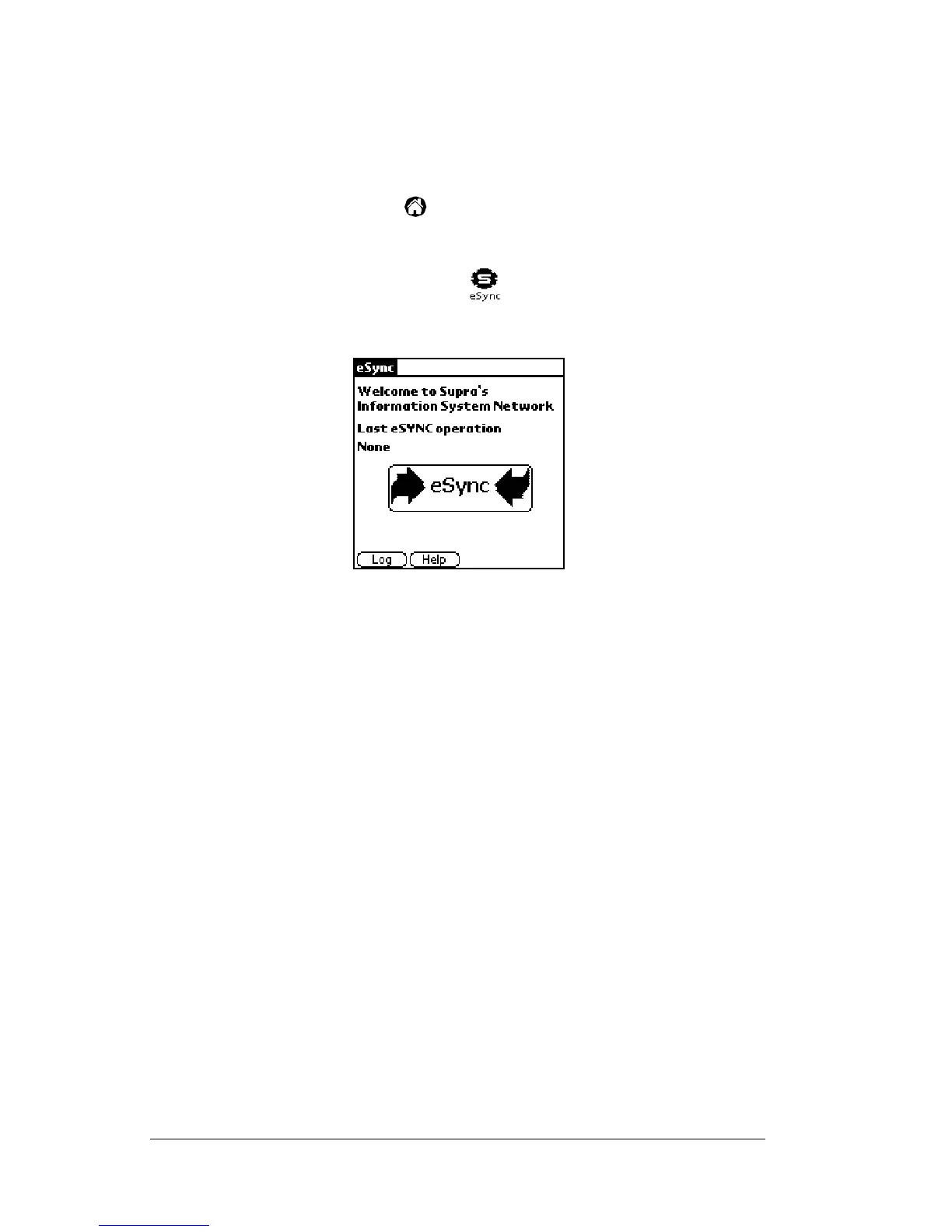
4. Tap the eSYNC application icon . The Welcome screen is
displayed.
5. Tap the word eSYNC which appears between the two arrows on
the screen. The red light on the front of the Cradle illuminates and
the eSYNC operation begins. As eSYNC begins, the screen displays
the status of the operation.
Note: A red light illuminates on the eSYNC Cradle indicating the
Cradle is communicating with KIMnet.
A green light indicates the eKEY is connected to the Cradle or
is in the process of being re-charged.
Important! Do not remove the eKEY from the eSYNC Cradle when the red
light is illuminated. When the green light illuminates, the
eSYNC operation is complete. You may remove the eKEY
from the Cradle however you may not use the Key until the
information received during eSYNC is processed.
Offline listing and roster data processing
Data isdelivered during eSYNCandissortedafterdisconnectingfrom
KIMnet. Information processing is finished when the message
Key
Update Status: Updated
appears. The duration of both eSYNC and
information processing is determined by the amount of data
transmitted. The entire processing time can last up to 15 minutes.


 To Next Page