Page 58 Using the eKEY Application
Navigating the eKEY Application
There are two ways to start the eKEY application:
! Press the
on
buttonontheeKEY shell front, or
! Open the shell front, tap the eKEY icon on the screen, then close
the shell front.
Note:TheeKEY application is designed to be used with the eKEY
shell front in the closed position. There are some options
where information is displayed on the entire SUPRA
handheld computer screen. Open the shell front to view the
full display screen.
Viewing menu options
When the eKEY application is started, the menu option last used in the
application is highlighted. To select an option press the up or down
arrow button on the shell front until the selection you want is
highlighted and press
enter
, or press the number button of the option
on the shell front.
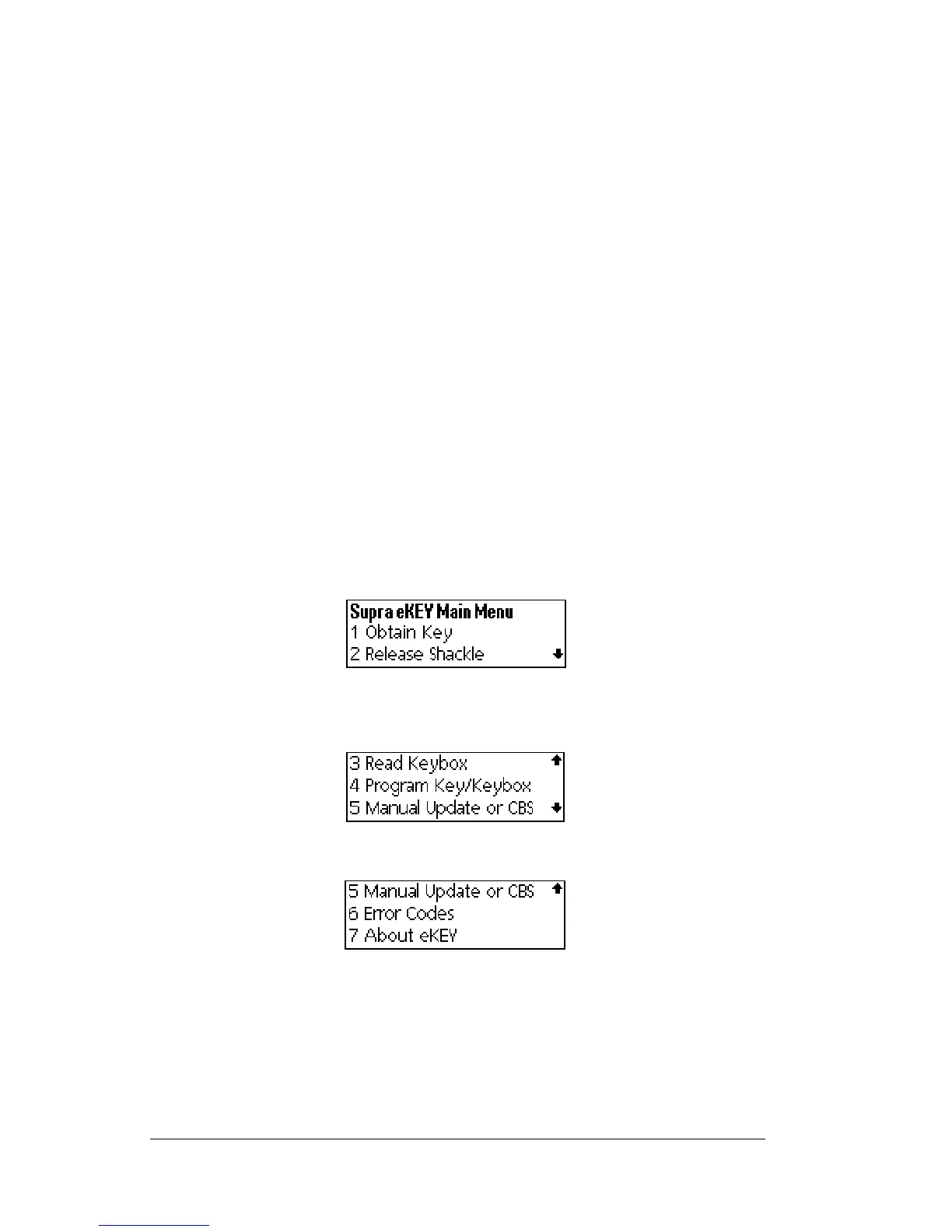
There are seven menu options on the Supra eKEY Main Menu.
From the first screen of options, press the down arrow on the shell
front to view more options.
Press the down arrow again to view the last screen of options.
Tip: To back out of a menu option once you have selected it, press
the up arrow button on the shell front. You are returned to the
previous menu.


 To Next Page