Page 62 Using the eKEY Application
Obtaining the Listing Key from a KeyBox
Once your eKEY is updated and the batteries are charged, you are
ready to show listings.
Releasing the key container
1. Close your eKEY shell.
2. Press the
on
button.
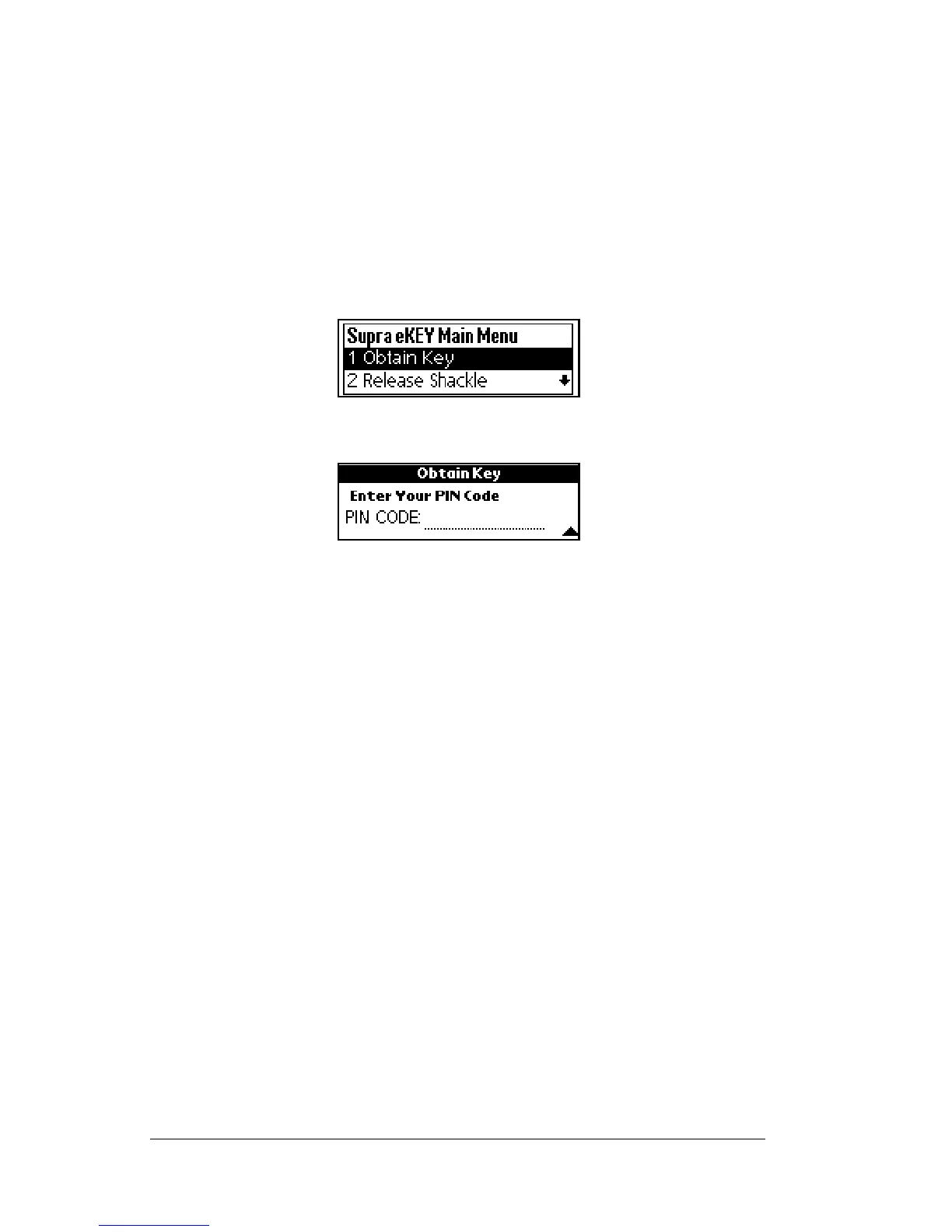
3. Highlight the
Obtain Key
option.
4. Press
enter
.The
PIN CODE
prompt appears.
5. Enter your four-digit PIN code.
Tip: Press the down arrow button on the shell front to
backspace if you enter an incorrect number.
6. InsertthebackofyourKeyinto theKeyBoxso thatthebackportion
of the Key fits snugly into the recessed portion of the KeyBox. After
a few seconds the key container drops partially from the KeyBox.
Tip: The gold contacts on the Key must match the contacts on
the KeyBox receptacle.
7. Grasp the sides of the key container and pull it straight down to
remove it completely from the KeyBox.
Once the key is obtained, the eKEY displays an
Operation Successful
message on the display. If you receive an error message, see Appendix
A: Error Codes for help in determining how to correct the error.
Attaching listing keys to the key container
A chain inside the key container attaches the listing keys to the key
container. The key container is designed to hold up to three keys. Be
sure the keys are tucked carefully inside the key container before
closing it in the KeyBox.


 To Next Page