PROG.
Recording from the
TV
Follow the steps below to record
TV programs. Recording starts
immediately and continues until
the disc is full or you stop
recording.
Note:
When the clock setting has not
been made, title names in the
original or playlist will be blank.
1
Turn on the DVD recorder
and load a recordable disc.
Make sure that the TV input is
set to the DVD recorder.
The DVD recorder will require
for a while to initialize the disc.
2
Select a recording speed
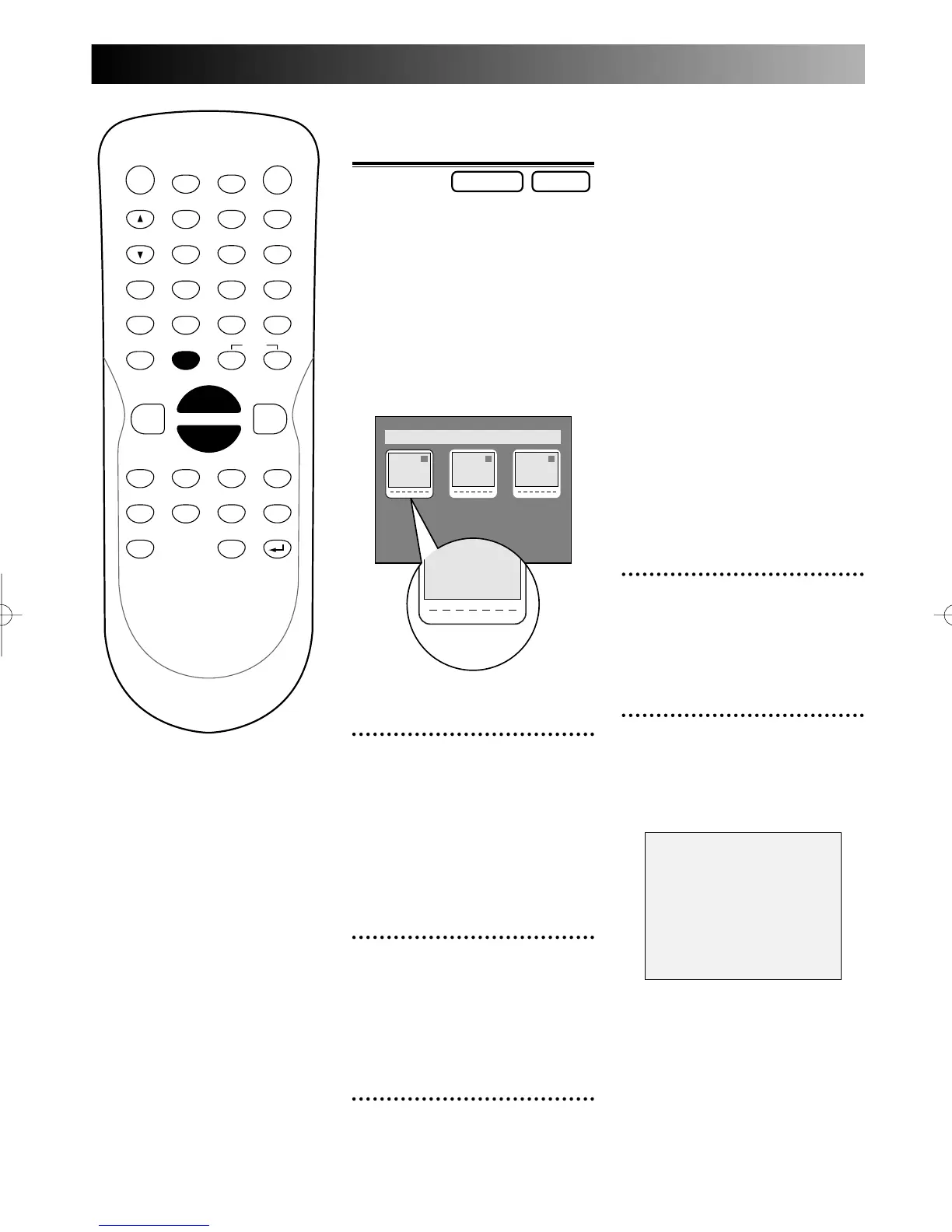
using REC SPEED button.
Refer to page XX “Recording
speed.”
3
Format a disc.
Refer to page xx “Formatting a
disc.”
When a DVD-RW disc is
loaded:
You can choose Video mode or
VR mode from SETUP menu.
“Video mode” has been selected
as the default. Refer to page XX
“Settings for recording to a blank
disc.”
Note:
You cannot mix two formats on
one DVD-RW disc.
When you load a disc once
recorded before, the recording
format cannot be changed even
you change it in SETUP menu.
When a DVD-R disc is
loaded:
DVD-R discs will always be in
Video mode.
4
Select a desired channel to
record using CH K / L but-
tons or number buttons.
5
Press REC button to start
recording.
REC mark will be displayed for 5
seconds.
To pause the recording, press
PAUSE F button. Press REC but-
ton to restart the recording.
To stop the recording, press
STOP C button.


 To Next Page