Editing
68
Option window will appear.
4
Select a desired time using K
/ L buttons, then press
ENTER button.
Option window will appear.
Note:
You cannot select a time for
putting markers more than a
length of a title.
5
Select “Yes” using { / B
buttons, then press ENTER
button.
A chapter marker will be added.
Note:
A chapter marker may be delayed
according to the recording con-
tent.
6
Press SETUP button to exit
DISC menu.
PROG.
68
Setting or clearing chap-
ter markers
You can put chapter markers in
each title. Once a chapter is
marked, you can use it for the
chapter search feature.
You can set chapter markers
every at a specified time you
selected among options for a
title of more than 5 minutes.
1
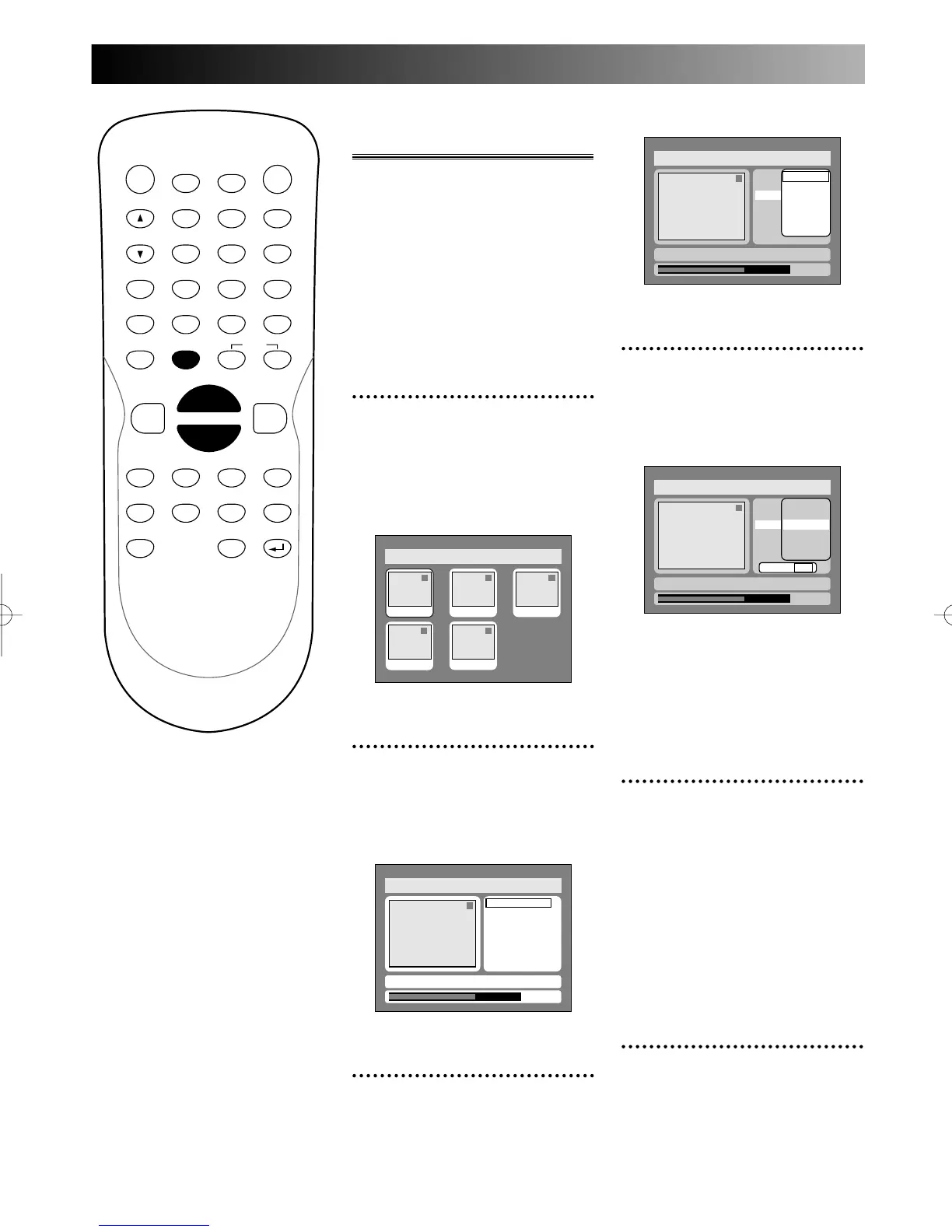
Select “Edit” from DISC
menu using K / L buttons,
then press ENTER button.
Titlelist will appear.
Screen:
2
Select a desired title using K
/ L / { / B buttons, then
press ENTER button.
Edit menu will appear.
3
Select “Chapter Mark” using
K / L buttons, then press
ENTER button.


 To Next Page