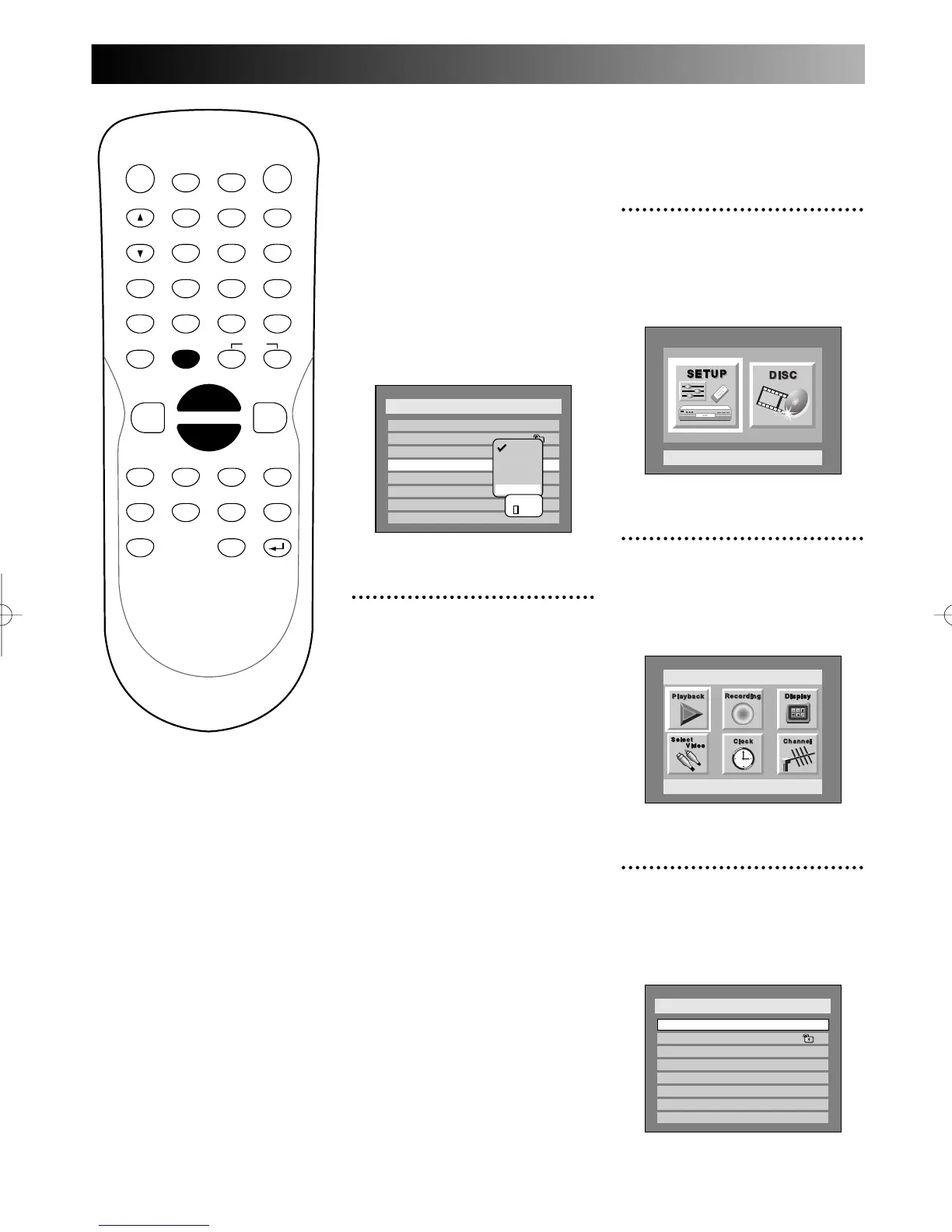
Using SETUP menu
94
When you want a language
other than those in the
option:
1.
Choose “Other,” then press
ENTER button.
The code input option will
appear, so that you can select a
language you want by entering the
4-digit code number using num-
ber buttons.
Refer to the language code table
on page xx.
6
Press SETUP button to exit
SETUP menu.
Setup > Play Back
TV Aspect
Parental Lock
Disc Menu Language
Audio Language
Subtitle Language
Digital Out
Dynamic Range Control
Fast Forward with Audio
English
Original
4:3 Letter Box
All
OFF
ON
OFF
Original
English
French
Spanish
Other
Code Input
- - - -
Choosing the subtitle
language
1
Press SETUP button to dis-
play SETUP/DISC menu.
SETUP/DISC menu will appear.
Screen:
2
Select SETUP using { / B
buttons, then press ENTER
button.
SETUP menu will appear.
3
Select “Playback” using K / L
/ { / B buttons, then press
ENTER button.
Play Back menu will appear.
Setup > Play Back
TV Aspect
Parental Lock
Disc Menu Language
Audio Language
Subtitle Language
Digital Out
Dynamic Range Control
Fast Forward with Audio
4:3 Letter Box
All
English
Original
OFF
ON
OFF
Setup
Playback Setting
Setup Menu
POWER
DISPLAY
CH
REC MODE CLEAR
SKIP
REC
PAUSE
SETUP
REPEAT
ZOOM
ENTER
RETURN
REC
MONITOR
OPEN/CLOSE
TIMER
PROG.
1
2
3
4
5
6
7
8
9
0
k
A
K
{ B
L
FWD
g
STOP
C
PLAY
B
h
HG
CM SKIP
REV
MENU
PLAY LIST
TOP MENU/
ORIGINAL
E6500UD.QX 03.12.8 19:07 Page 94


 To Next Page