Playing discs
60
3
Select a desired audio sound-
track using K / L buttons,
then press ENTER button.
Audio soundtrack will switch.
Note:
Some discs will only allow you to
change the soundtrack from the
disc’s menu. Press TOP MENU/
ORIGINAL button or MENU
PLAYLIST button to display this.
Caution:
Some discs feature both Dolby
Digital and DTS soundtracks.
There is no audio output when
DTS is selected.
On DVD-RW discs recorded in
VR mode that have both a main
and a SAP (Secondary Audio
Program) audio channel, you can
switch between main(R), SAP(L),
or a mix of both(L/R).
1
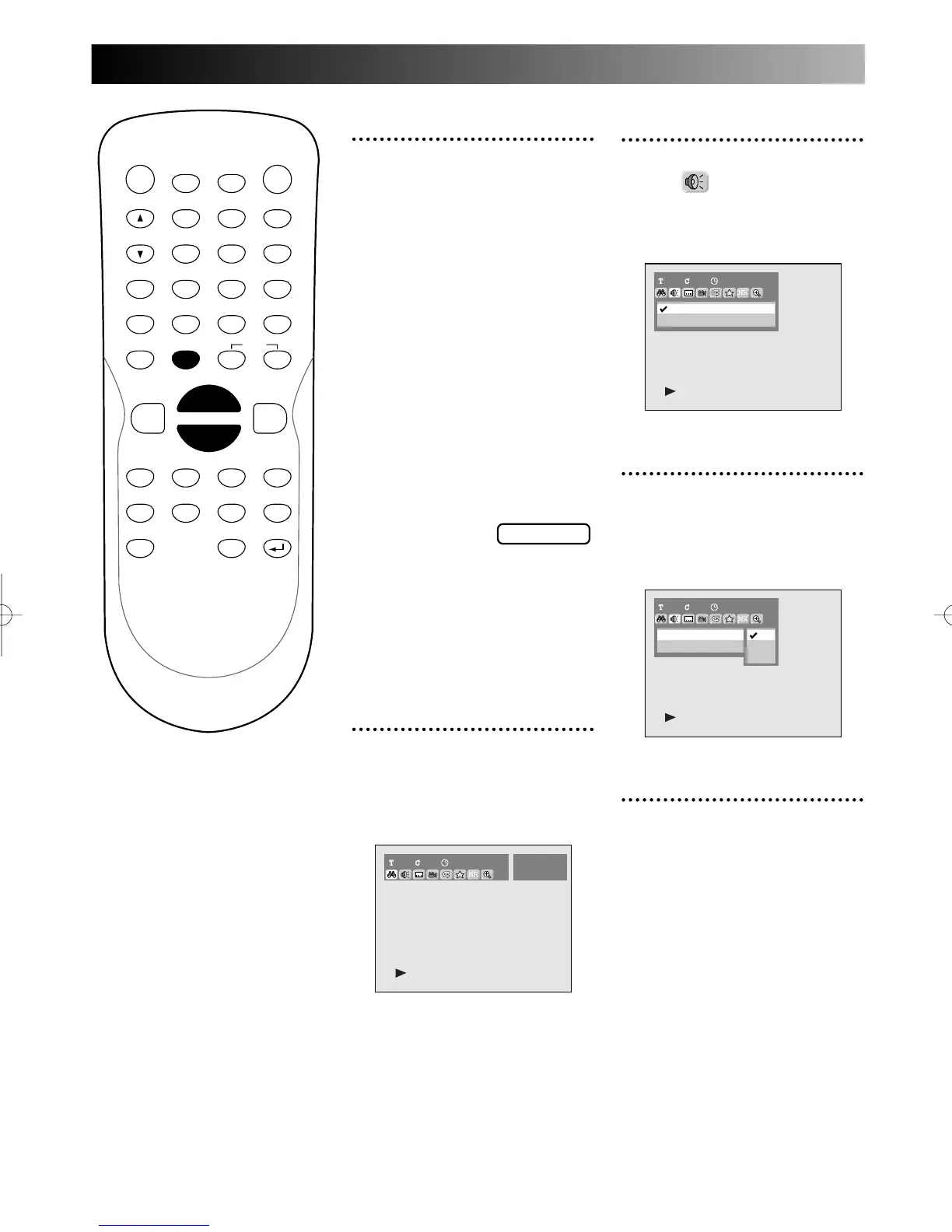
During play, press DISPLAY
button.
The display menu will appear.
Screen:
PROG.
2
Select icon using { / B
button, then press ENTER
button.
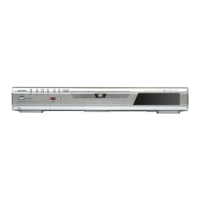
Audio menu will appear.
3
Select a desired audio sound-
track using K / L buttons,
then press ENTER button.
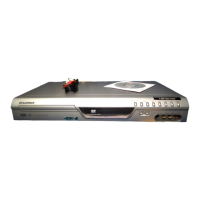
Audio channel menu will appear.
4
Select a desired audio chan-
nel using K / L buttons, then
press ENTER button.
Audio channel will switch.


 To Next Page