Versa User Manual www.teledynetekmar.com
Introduction • Page 4-4
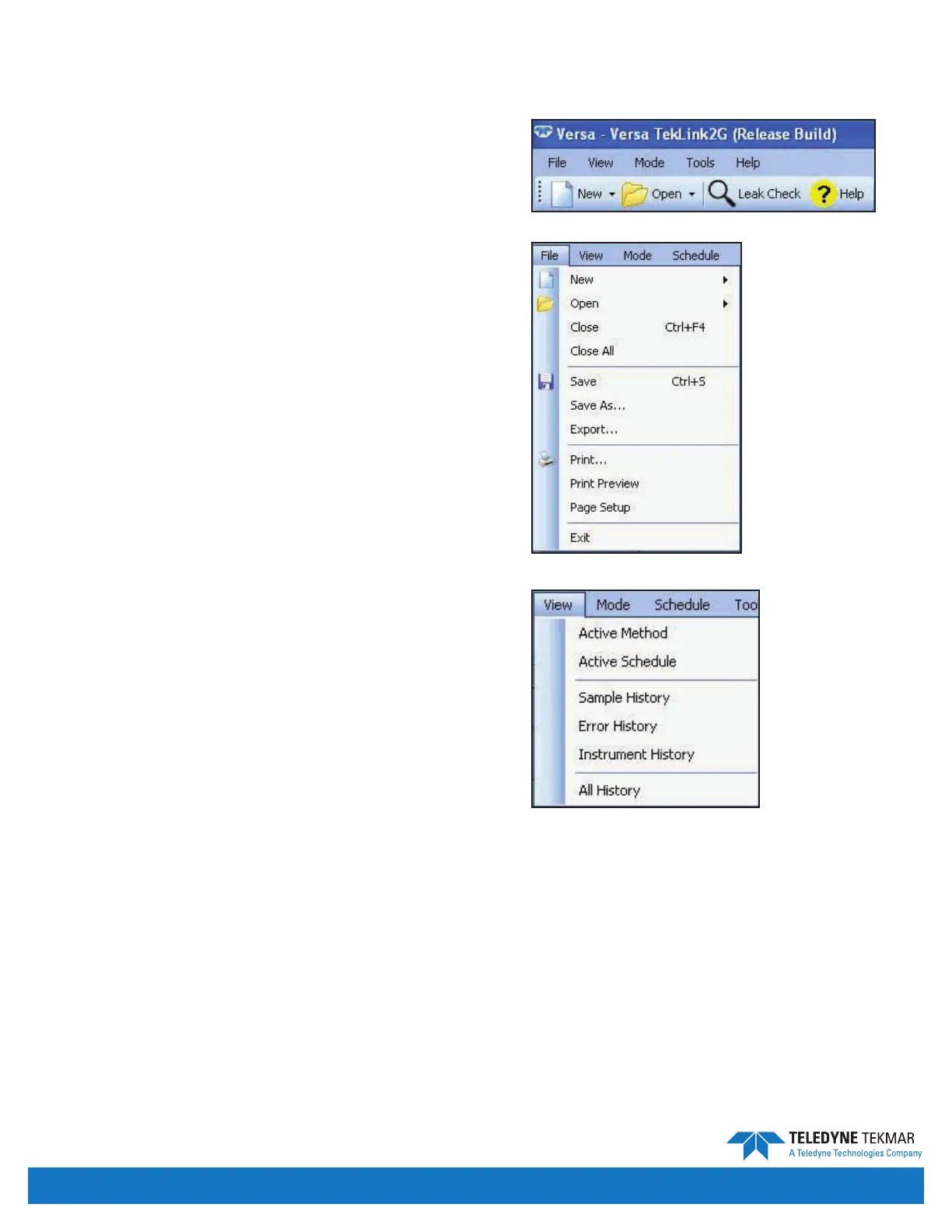
Situated below the Versa TekLink™2G menu is a bar
containing icons. These icons allow you easier access
to some of the more commonly used menu items and
commands.
FILE MENU
From the File menu you can access the options for opening,
saving, printing, and accessing methods and schedules.
The menu shown on the right is displayed when there is a
method and/or a schedule open.
New - Opens another menu where you can choose to
create a new schedule or method.
Open - Opens another menu where you can choose to
open an existing schedule, method, or import CSV les.
Close - Closes the active window.
Close All - Closes all open windows.
Save - Saves the active window.
Save As - Opens the Save As screen where the user can
create or modify the name or location of the le of the
active window.
Export - Exports the data in the active window to a
CSV le.
Print - Prints the active window.
Print Preview - Opens a preview of the active
window printout.
Page Setup - Opens the Page Setup screen.
Exit - Exits Versa TekLink™2G.
Note: This full File menu is only visible when a schedule
or method is open.
VIEW MENU
From the View menu you can select to show the Active Method, Active Schedule, and the System History Logs.
Active Method - Displays the method that is currently downloaded to the instrument.
Active Schedule - Displays the schedule that is currently downloaded to the instrument.
Sample History - Applies a general lter to the system history to display only history entries that are sample related.
Error History - Applies a general lter to the system history to display only error related history.
Instrument History - Applies a general lter to the system history to display only instrument related history.
All History - Displays every system history entry. From this screen the user is also able to customize history ltering.
Figure 4-7: Main Screen Icon Bar
Figure 4-8: File Menu
VOC TekLink™2G Icons and Menus
Figure 4-9: View Menu


 To Next Page