Versa User Manual www.teledynetekmar.com
BUILDING AND EDITING SCHEDULES
After creating customized methods, you can dene method
schedules that specify samples, operating sequences, and
the order in which they run. You can build a new schedule
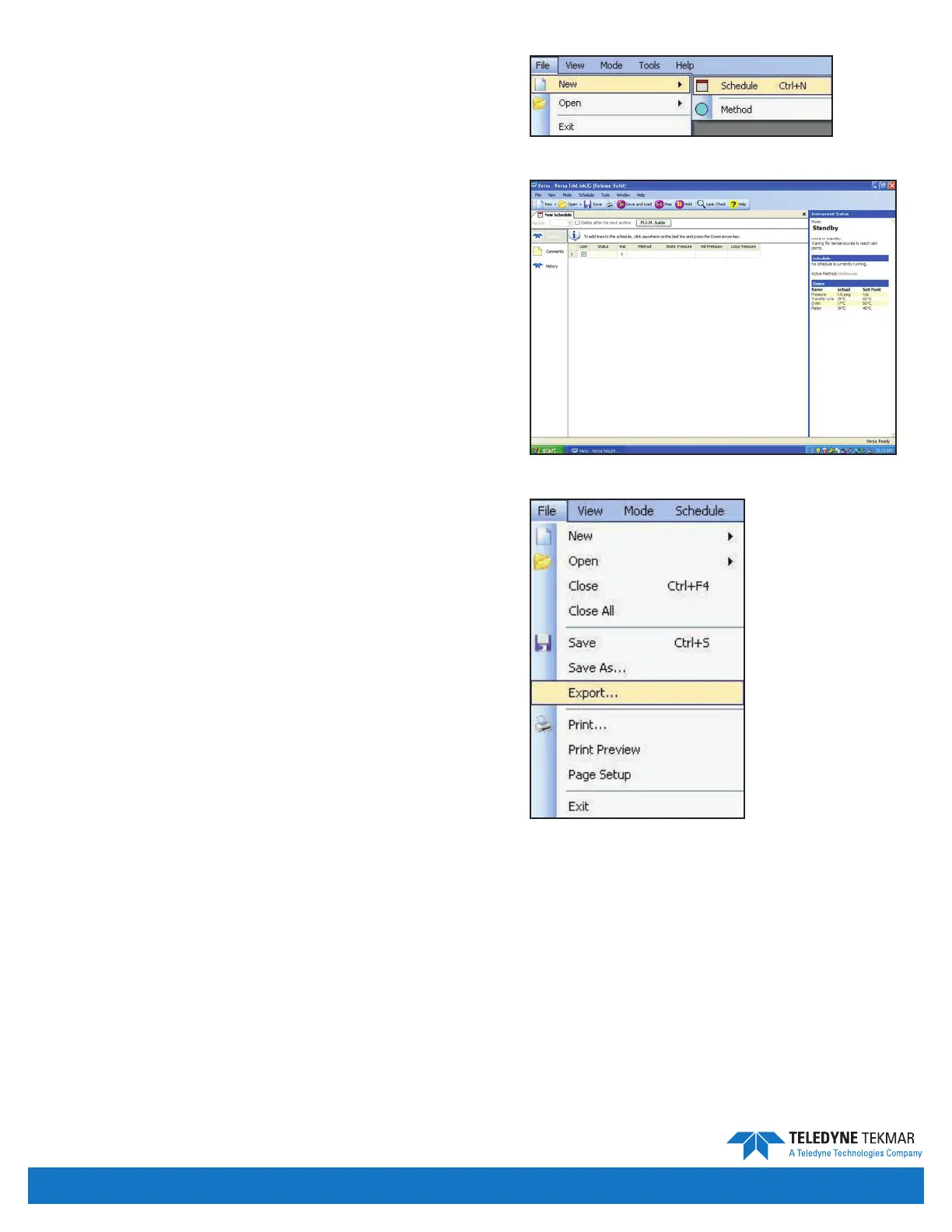
using File | New | Schedule or by clicking the New button
then selecting Schedule from the drop-down menu.
When you click New | Schedule, a screen similar to the one
right appears.
At the top of the schedule window there is a button labeled
M.O.M. Builder. By clicking this button, the user enables a
feature that develops a method optimization schedule.
The schedule window displays the following selections on the
left: Samples, Comments, and History. The default selection
is Samples, which displays the sample schedule. Clicking on
Comments will change the sample schedule section to a
comments section where comments can be placed for the
sample schedule. Clicking on History will display the history
of the sample schedule.
In the sample section of the schedule the following columns
are available:
Non-editable Column - Displays the line of the schedule.
Use? - A checkmark in the box indicates that line of the
schedule will be run. If left unchecked, the line will be skipped.
Status - Tells the status of the schedule line. (Aborted, Active,
Completed, Pending, Preparing, and Skipped)
Vial - Denotes which position in the Versa carousel will
be used.
Method - Shows Versa TekLink™2G method to run with sample.
To populate eld, user must double-click in the empty cell to
open the method selection window.
Static Pressure - States the static pressure of the vial in that
position.
Vial Pressure - States the vial pressure of the vial in that position.
Loop Pressure - States the loop pressure of the vial in that position.
Additionally, there are shortcuts that will help you create a schedule more eciently.
Down Arrow - Adds new lines and increments the vial number of the previous line.
Ctrl+S - Opens Save Schedule As screen.
Ctrl+F4 - Closes the schedule window.
Schedules can be exported to a CSV le by clicking File | Export.
Figure 4-14: File | New | Schedule
Figure 4-15: New Schedule Screen
Figure 4-16: File | Export
Introduction • Page 4-7


 To Next Page