Versa User Manual www.teledynetekmar.com
If you are running Windows Vista or Windows 7:
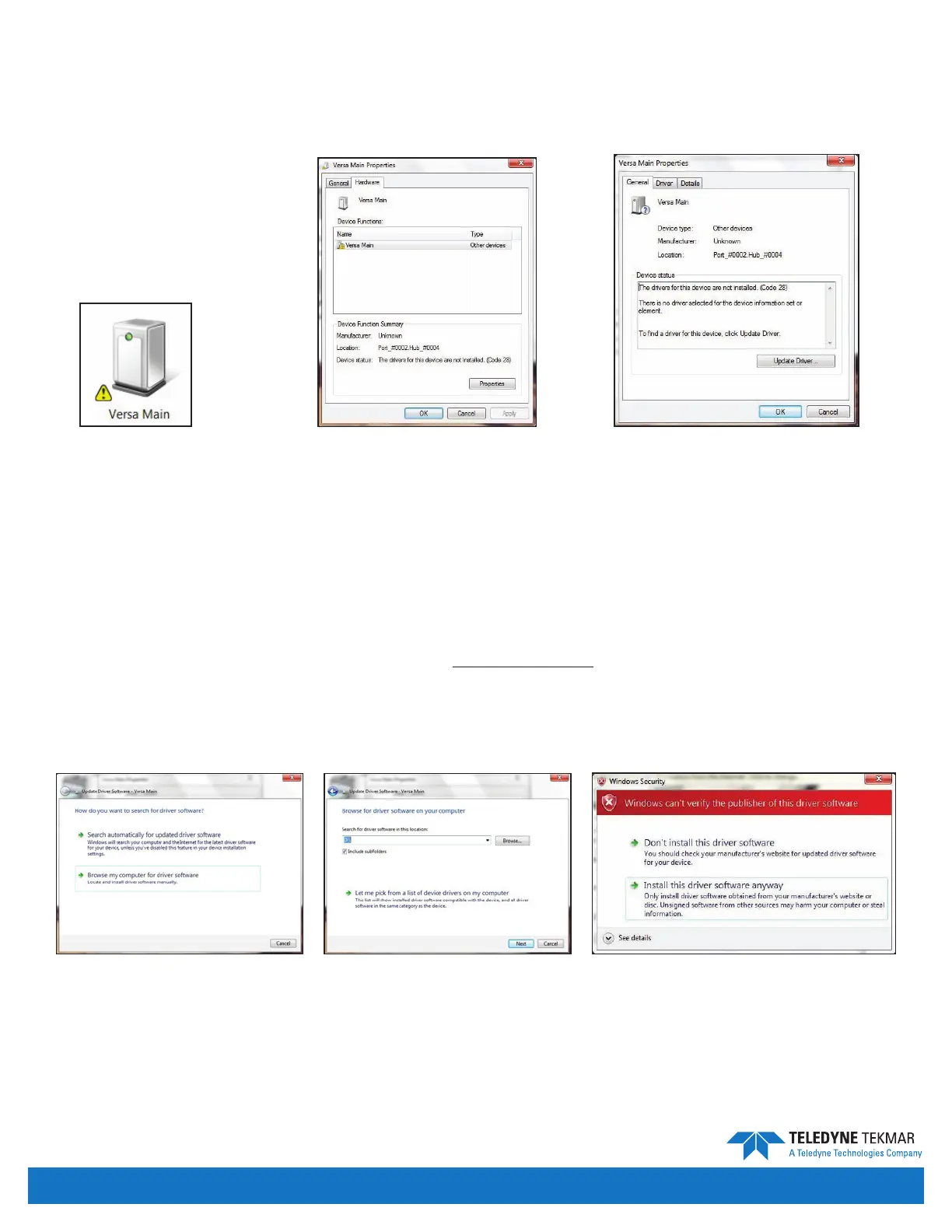
1. Navigate to Start | Control Panel | Hardware & Sound | Devices & Printers.
2. Double-click on Versa DFU and choose the Hardware tab. Then click on Properties.
3. Click Update Driver, and then choose Browse Computer for Driver Software. Choose the driver software from
the install CD CD | Teklink Folder | Tekmar USB Driver and click OK.
4. A Windows Security window will appear. Click on Install Driver.
5. Click Next and the driver software will begin installing. This may take a few seconds.
6. Click Close once nished and reboot the Versa unit.
7. Once the Versa has rebooted, go to step 1 under the Upgrading Firmware section of this instruction sheet to
upgrade the rmware on your system.
Note: Once the rmware has been upgraded for the rst time, there is no need to reboot the unit manually during additional
rmware upgrades, unless you have changed the USB port.
Figure 7-8: Versa Main Icon
Figure 7-11: Browse Computer for
Updated Driver Software
Figure 7-10: Versa Main PropertiesFigure 7-9: Hardware Tab
Figure 7-13: Windows Security ScreenFigure 7-12: Navigate to the Install CD
Maintenance & Troubleshooting • Page 7-3


 To Next Page