Versa User Manual www.teledynetekmar.com
Introduction • Page 4-5
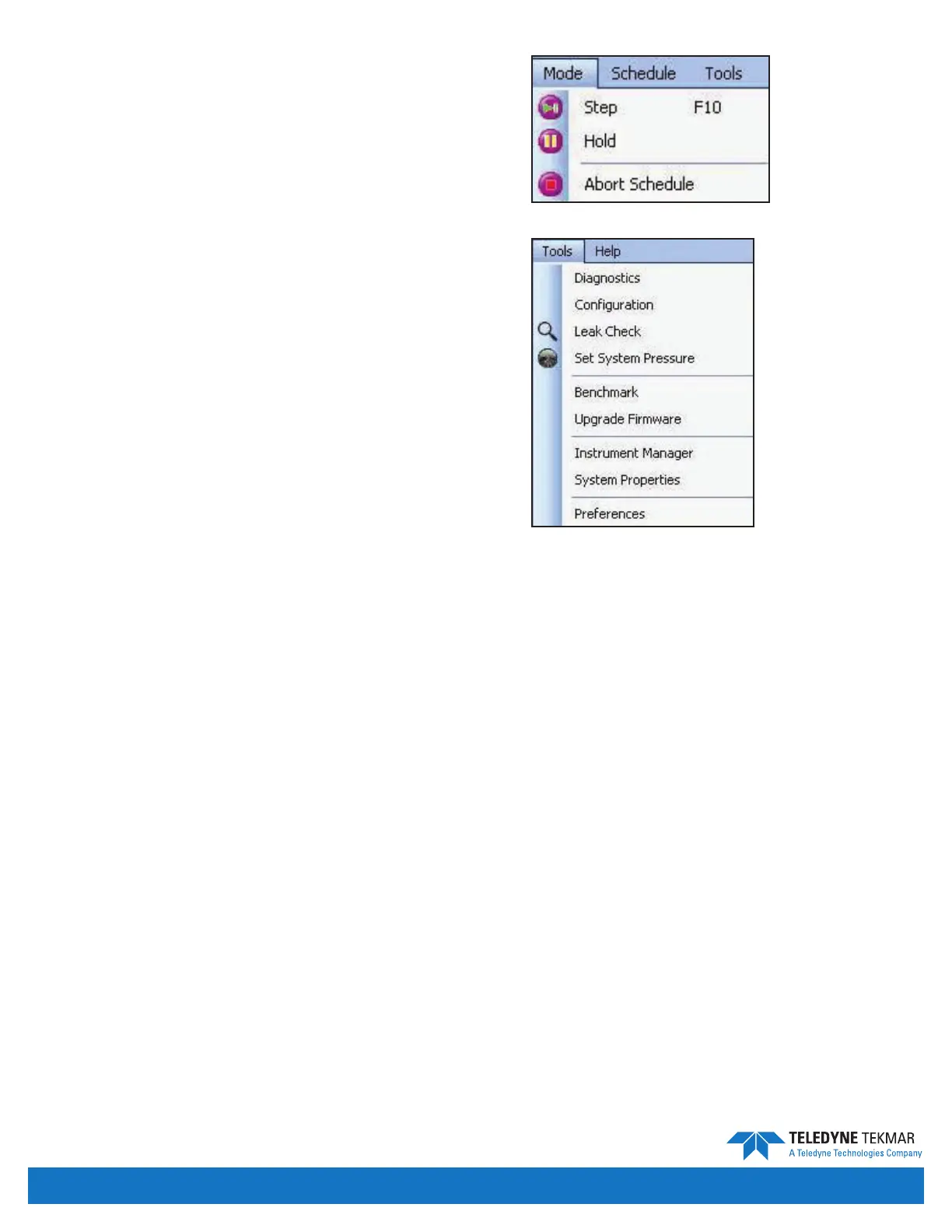
MODE MENU
From the Mode menu, you can access the functions
featured below. These commands put the unit in the
selected mode, and also give the user the option to
perform other functions. Functions available depend on
your system conguration. Items that are inaccessible are
not relevant to your current conguration.
Step - Moves the unit to the next mode.
Hold - Pauses the unit in its current mode.
Abort Schedule - Aborts the current schedule, then goes
to Standby.
TOOLS MENU
The functions available through the Tools menu vary
according to your conguration. Menu functions that are
inaccessible cannot be accessed due to your connection
status or the current mode of operation. Most diagnostic
tools can only be accessed in Standby mode.
Diagnostics - Allows the user to independently control
valves, mechanisms and view communication records
for troubleshooting purposes.
Conguration - Enables a user to congure optional
accessories and basic instrument congurations for this specic system.
Leak Check - Pressurizes the system and looks for a pressure decay to determine if the system is free of leaks.
Set System Pressure - Allows the user to set the system pressure for the Versa.
Benchmark - The Benchmark test allows the end user to perform either a full test of the electro-mechanical
components of the system or test a specic subset of the system.
Upgrade Firmware - Allows you to upgrade the rmware on the Versa.
Instrument Manager - Allows you to select and congure instrument proles.
System Properties - Allows you to customize elements of your system to meet your personal needs. Items include:
email alerts, archiving, and ability to access units from other PCs.
Preferences - Allows the user to personalize preferences.
Figure 4-10: Mode Menu
Figure 4-11: Tools Menu


 To Next Page