Versa User Manual www.teledynetekmar.com
TO UPGRADE VERSA FIRMWARE
To upgrade the Versa rmware, follow the directions below:
1. Click this hyperlink: Software Downloads
(http://www.teledynetekmar.com/resources/downloads/)
2. Under VOC Firmware and Software, nd the appropriate
rmware or software upgrade and click on it.
3. Follow the installation instructions on the next webpage.
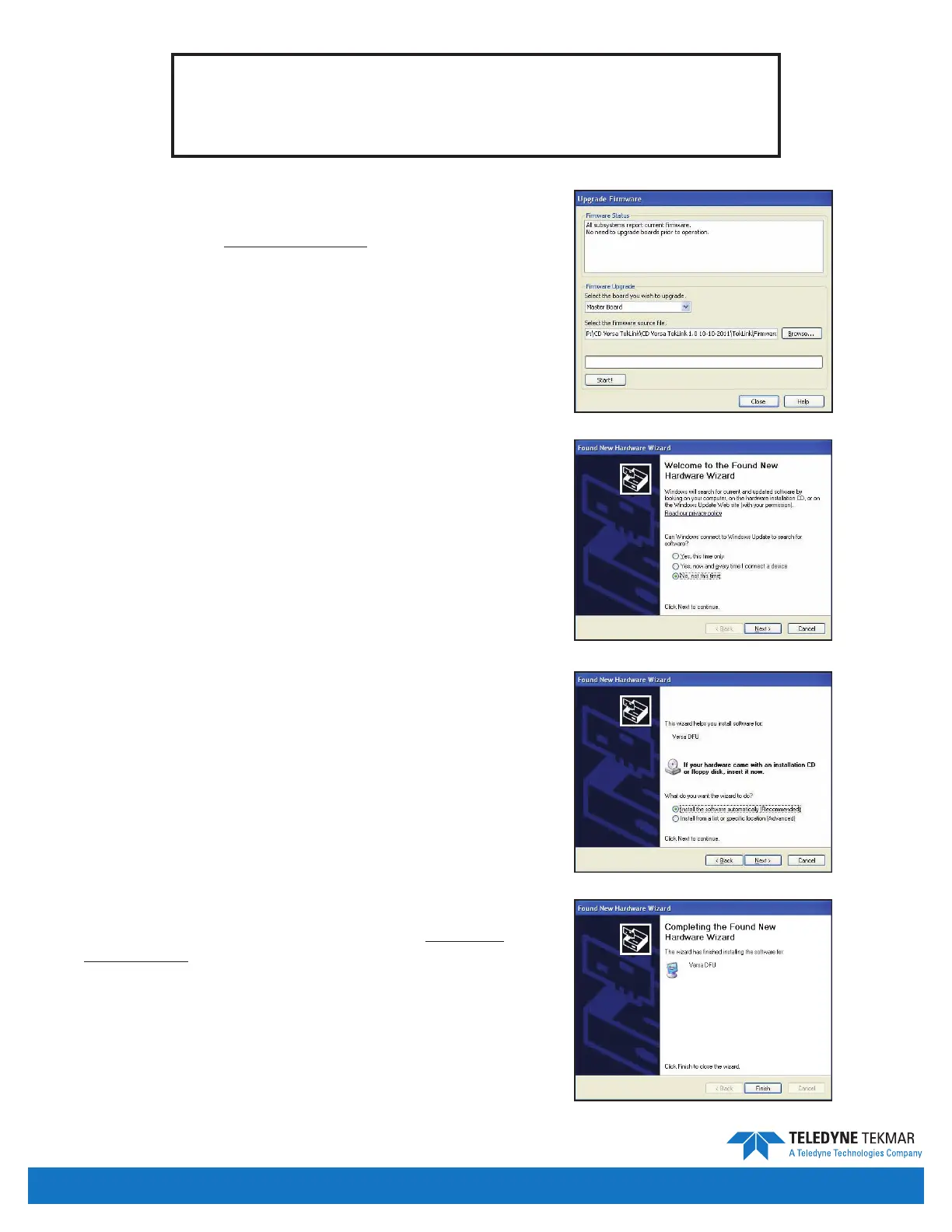
4. Once the rmware has been obtained, click
Tools | Upgrade Firmware.
5. From the dropdown menu, select the board you wish
to upgrade and click browse to locate and select the
new rmware.
6. Click Start.
7. Follow the instructions on the screen. Do not power down
during the ash process.
8. Reboot unit upon completion.
If the DFU driver is not installed, the upgrade will fail. In order
to install the DFU driver, you will need to follow the steps
below that pertain to the operating system on your PC.
INSTALLING THE DFU DRIVER
If you are running Windows XP:
1. The Found New Hardware Wizard will begin. Choose No,
not this time, and click Next.
2. Choose Install the software automatically and click Next.
The Wizard will then install the new software.
3. When the install is complete click Finish to close the Wizard
and reboot the Versa unit.
4. Once the Versa has rebooted, go to step 1 under To Upgrade
Versa Firmware section of this manual to upgrade the
rmware on your system.
Note: Once the rmware has been upgraded for the rst time,
there is no need to reboot the unit manually during
additional rmware upgrades, unless you have changed
the USB port.
WARNING!
Failure to follow this procedure exactly can cause irreversible
damage to your equipment!
Figure 7-4: Upgrade Firmware Screen
Figure 7-6: Install Software Screen
Figure 7-5: Found New Hardware Wizard
Figure 7-7: Install Complete Screen
Maintenance & Troubleshooting • Page 7-2


 To Next Page