Versa User Manual www.teledynetekmar.com
PREFERENCES
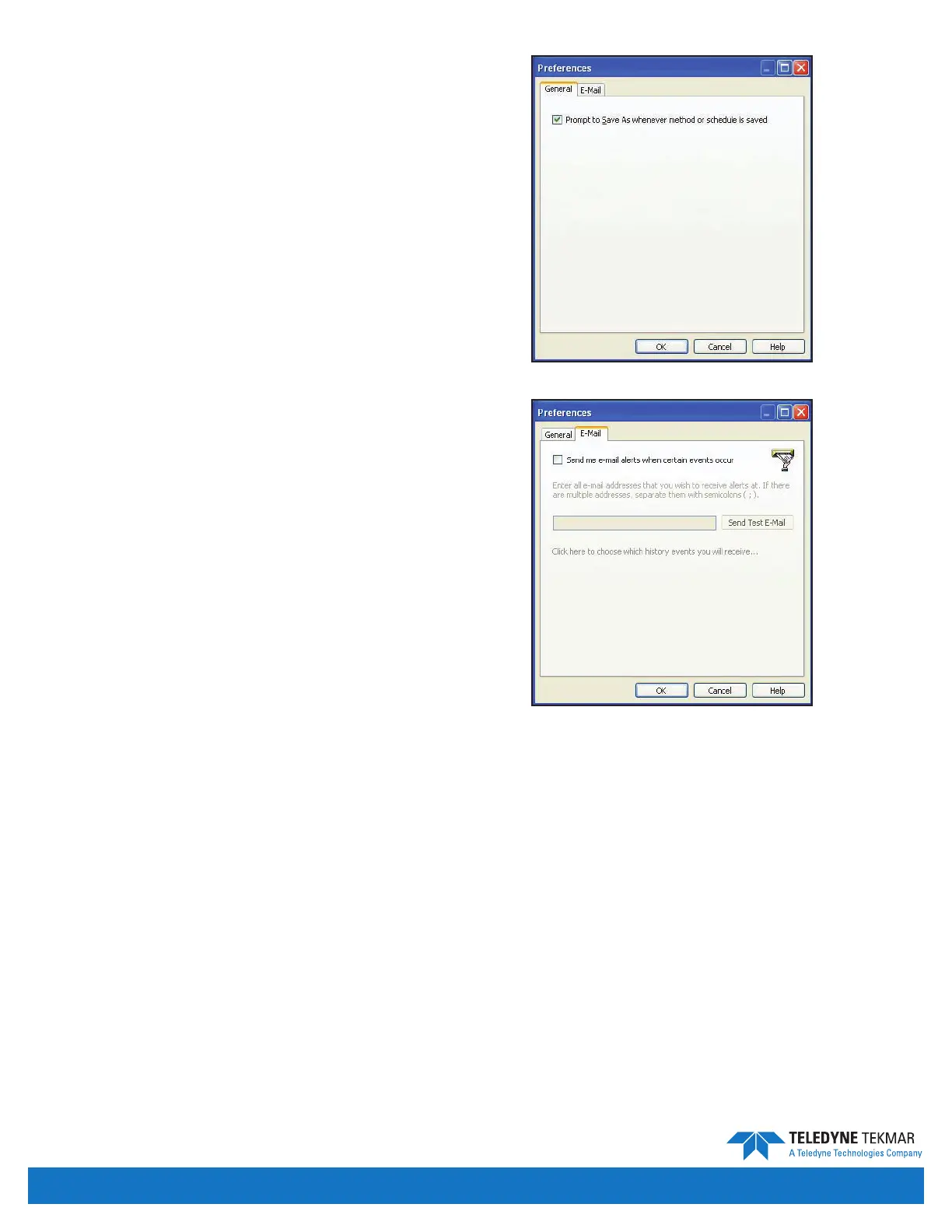
Preferences - General Tab
The Preferences screen contains any miscellaneous options
for the software. This option, when selected, will display a
Save as screen when an existing method or schedule is
changed and then saved.
Preferences - E-mail Tab
The E-mail tab contains an option to receive e-mail alerts
when certain events occur. If the option is selected, the
grayed-out text, text box, link, and button below will become
accessible. Enter the desired e-mail address(es) in the text
box to have e-mails sent to that address. The Send Test
E-mail button, when clicked, will send a test e-mail to the
address(es) designated in the text box.
Note: E-mail alerts should be set up in the System Properties
screen before email alert preferences are set.
Clicking the Click here to choose which history events you
will receive... link will open up the History Filter for E-Mail
Events screen.
The Restrict by event type check box will restrict the
e-mails generated to the event types selected in the menu
below the check box when the check box is selected. You
do not need to hold shift or control to select multiple
event types.
The Restrict by event reason check box will restrict the e-mails
generated to the event reasons selected in the menu below the
check box when the check box is selected. You do not need to
hold shift or control to select multiple event reasons.
The Omit events occurring before this date and time check box will restrict the e-mails generated to events that
occur after the time and date selected in the text box below. Clicking the down arrow will display a calendar from
which the date can be selected. To edit the time simply input the time desired in the text box.
The Omit events occurring after this date and time check box will restrict the e-mails generated to events that occur
before the time and date selected in the text box below. Clicking the down arrow will display a calendar from which
the date can be selected. To edit the time simply input the time desired in the text box.
The Restrict by user check box will restrict the e-mails generated to the events that occurred when the user, selected
in the drop-down menu below the check box, was logged into the system.
The Restrict by instrument check box will restrict the e-mails generated to the events that occurred when the
instrument, selected in the drop-down menu below the check box, was connected to the system.
The Click here to return to the default lter for this view link will return all the selections to the default lter settings.
Figure 4-43: Preferences - General Tab
Figure 4-44: Preferences - E-mail Tab
Introduction • Page 4-16


 To Next Page