Versa User Manual www.teledynetekmar.com
Edit an Existing Account Permissions
1. Select the User Account from the User Manager
screen.
2. Click the Properties button, then the Permissions
tab. The screen should display the current permissions
for that user.
3. Select the appropriate boxes.
4. Click OK.
Lockout
Users can be locked out after a set number of bad logon
attempts using the System Properties screen. You can
activate this function by following the directions below:
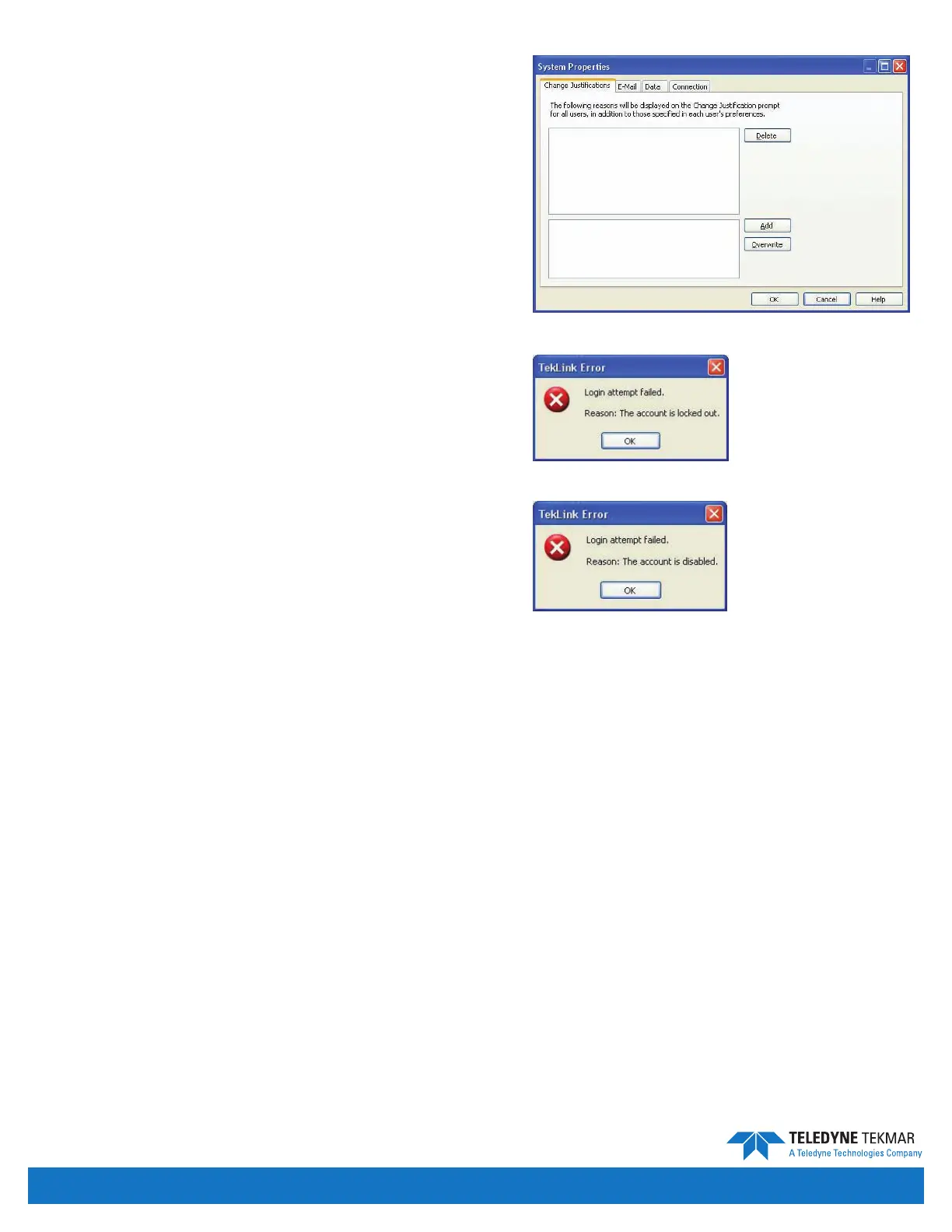
1. Click Tools | System Properties.
2. Select the Connection tab.
3. Select the Server will wait for... check box.
4. Enter the number of bad attempts to allow before
action is taken.
5. Select the action to be taken. There are two
available actions:
• Lockout the user for a set amount of time.
• Disable the user account.
6. Click OK.
When a user is locked out, the screen to the right will
appear when they try to log in.
When a user is disabled, the screen to the right will appear
when they try to log in.
21 CFR Part 11 Compliance • Page 5-5
Figure 5-7: System Properties Screen
Figure 5-9: User Disabled
Figure 5-8: System Lockout: Time-out
Note: If a disabled account is selected, either the Administrator or a user with use edit permissions must enable the users
account or create a new one.


 To Next Page