84
GPON ONT
5.6.4 NAT
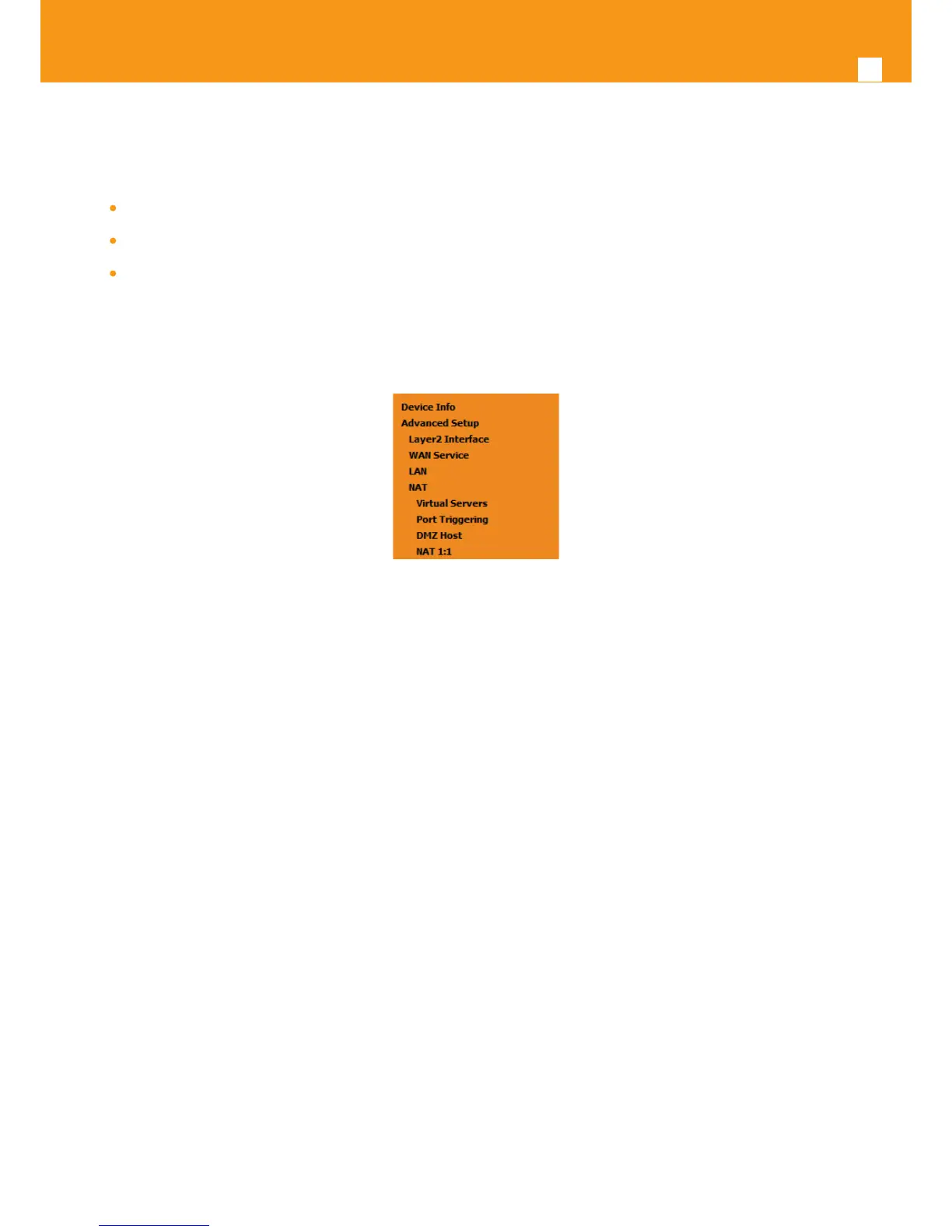
Selection of Advanced Setup submenu item NAT will display a NAT submenu with three items, Figure 5-79:
Virtual Servers
Port Triggering
DMZ Host
In the main window a NAT-Virtual Servers Setup window is displayed, Figure 5-80, showing the current NAT-Virtual servers conguration.
Figure 5-79: Advanced Setup NAT Sub-menu
5.6.4.1 Virtual Servers
Selection of Advanced Setup submenu NAT, item Virtual Servers a NAT-Virtual Servers Setup window is displayed in the main window Figure 5-80,
showing the current NAT-Virtual servers conguration.
This window allows inserting and conguring port forwarding, redirecting a network port from one network mode to another network mode. This
allows a user from the WAN side of the network to reach a PC on the LAN side of the network for which ports were opened. The WAN interface used
must have NAT enabled. A short on line help text is provided in the conguration window.
To insert and congure a new NAT-Virtual server use the Add Button, Figure 5-80; a new window is displayed, Figure 5-81, allowing the congura-
tion of a new Nat- virtual Server entry, Figure 5-82. A short on line help text is provided in the conguration window.
The rst part of the conguration consists on choosing the Wan interface, the Service name and the server IP address.
To save and apply this conguration, use the Apply/Save button, Figure 5-81-1. The port forwarding table will be updated with the chosen service
predened port forwarding conguration, Figure 5-81.
To nalize the conguration use the Apply/Save button below the table, Figure 5-81-2. The next displayed window is the initial window, showing
the current NAT - virtual servers’ conguration, Figure 5-83.


 To Next Page