EN
89
5.6.5 Security
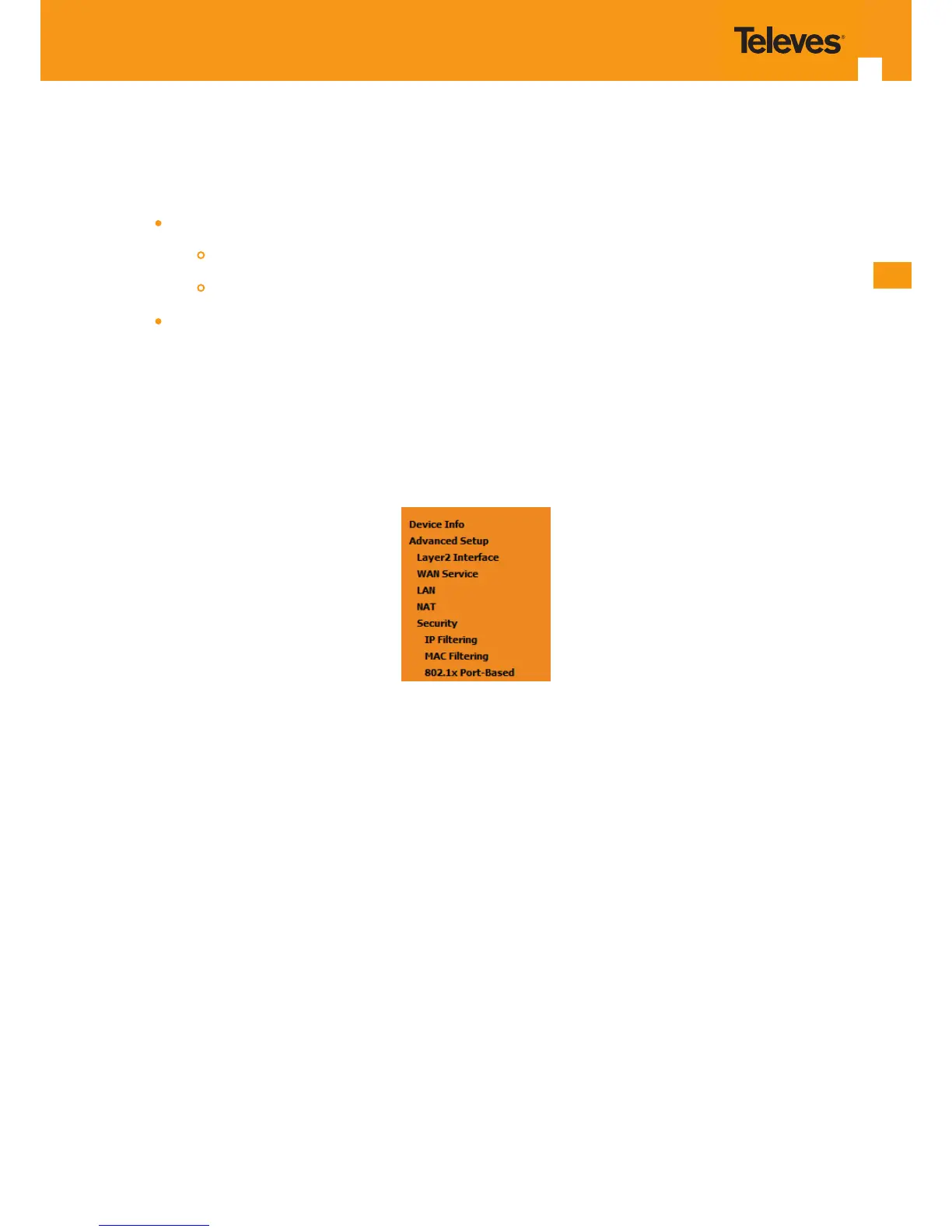
Selection of Advanced Setup submenu item Security will display a Security submenu with two items, Item IP Filtering is a submenu composed of
two items, Outgoing and Incoming, Figure 5-88:
IP Filtering,
Outgoing
Incoming
MAC Filtering
In the main window an Outgoing IP Filtering Setup window is displayed, Figure 5-89.
This window allows the creation and conguration a lter rule to identify outgoing IP trac.
Figure 5-88: Advanced Setup Security Sub-menu5.6.5.1 IP Filtering
Selection of Advanced Setup submenu Security, submenu IP Filtering, will display in the main window, an Outgoing IP ltering Setup window,
Figure 5-89, showing the current Outgoing IP Filtering conguration. A short on line help text is provided in the conguration window.
5.6.5.1.1 Outgoing
Selection of Advanced Setup submenu Security, submenu IP Filtering, item Outgoing, an Outgoing IP ltering Setup window is displayed , Figure
5-89, showing the current Outgoing IP Filtering conguration. A short on line help text is provided in the conguration window.
To insert and congure a new Outgoing IP Filter entry use the Add Button, Figure 5-89; a new window is displayed, Figure 108. A short on line help
text is provided in the conguration window.
This window allows the conguration of Outgoing IP Filter. Figure 5-90 provides an outgoing lter conguration example
In order to congure the Outgoing IP Filter, Figure 5-90:
STEP 1. Enter the Filter name;
STEP 2. Select the IP version to use from the IP version selection combo box;
STEP 3. Select the Protocol to use from the Protocol Selection combo box;
STEP 4. Enter the Source IP address;


 To Next Page