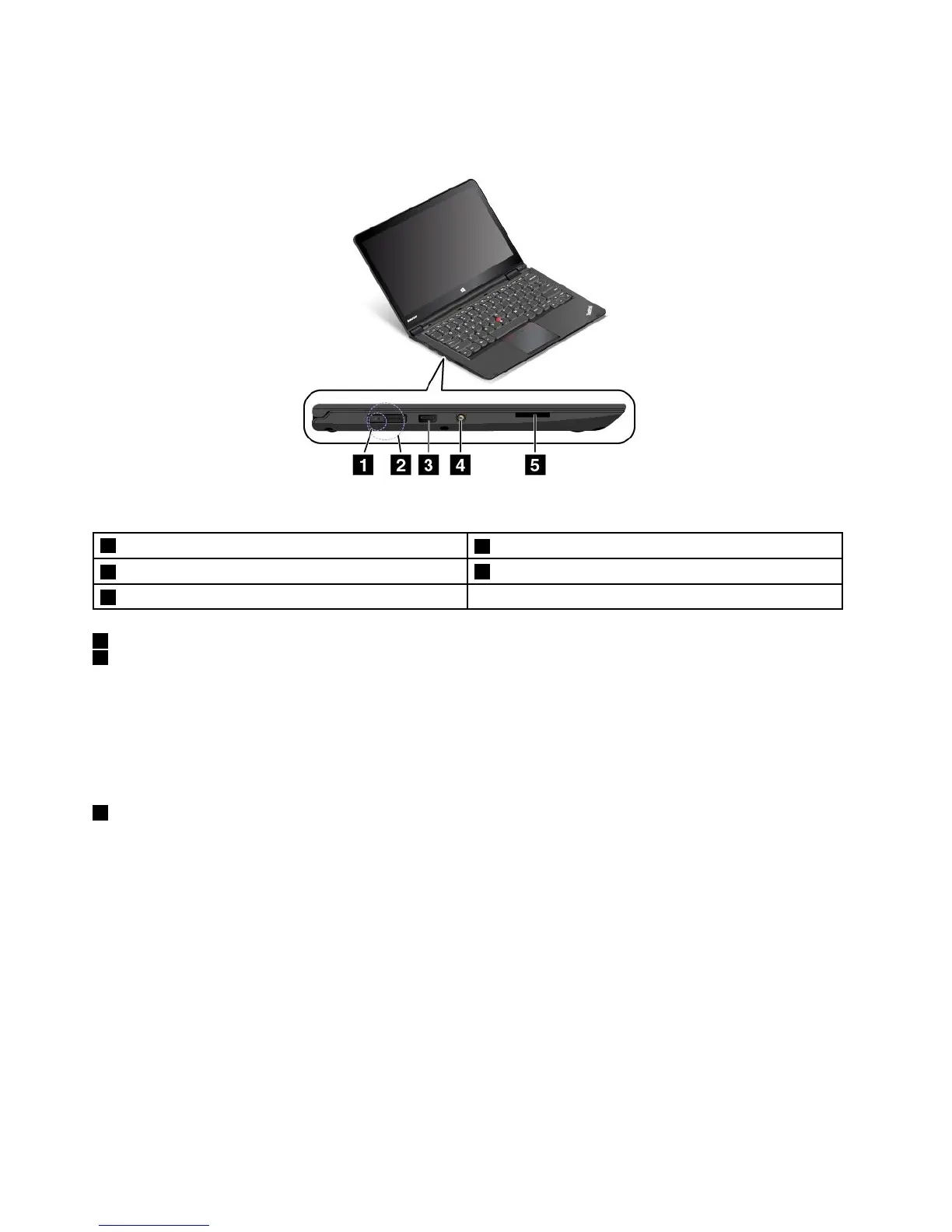
Left-sideview
Figure3.Left-sideview
1acpowerconnector
2LenovoOneLinkconnector
3AlwaysOnUSBconnector(USB2.0connector)
4Audioconnector
5Media-cardslot
1acpowerconnector
2LenovoOneLinkconnector
Whentheacpoweradapterisconnectedtotheacpowerconnector,theacpoweradapterprovidesac
powertothecomputerandchargesthebattery.WhenasupportedThinkPadOneLinkDockoptionis
connectedtotheLenovoOneLinkconnector,theoptioncannotonlyextendthecomputercapabilitiesbut
alsoprovideacpowertothecomputerandchargethebattery.
TousetheLenovoOneLinkconnector,removetheconnectorcoverfromtheLenovoOneLinkconnectorfirst.
3AlwaysOnUSBconnector(USB2.0connector)
Bydefault,theAlwaysOnUSBconnectorenablesyoutochargesomemobiledigitaldevicesand
smartphoneswhenyourcomputerisinthefollowingsituations:
•Whenyourcomputerisonorinsleepmode
•Whenyourcomputerisinhibernationmodeoristurnedoff,butconnectedtoacpower
Ifyouwanttochargethesedeviceswhenyourcomputerisinhibernationmodeoristurnedoff,andthe
computerisnotconnectedtoacpower,dothefollowing:
•ForWindows7:StartthePowerManagerprogramandclicktheGlobalPowerSettingstab.Thenselect
EnableUSBchargefromthecomputerbatteryevenwhenthecomputerisoff,andclickOKorApply.
•ForWindows8.1:PresstheWindowskeytogototheStartscreen.ClickLenovoSettings➙Power.
ThenselectEnableUSBchargefromthecomputerbatteryevenwhenthecomputerisoffcheck
boxunderAlwaysOnUSB.
4UserGuide



 To Next Page