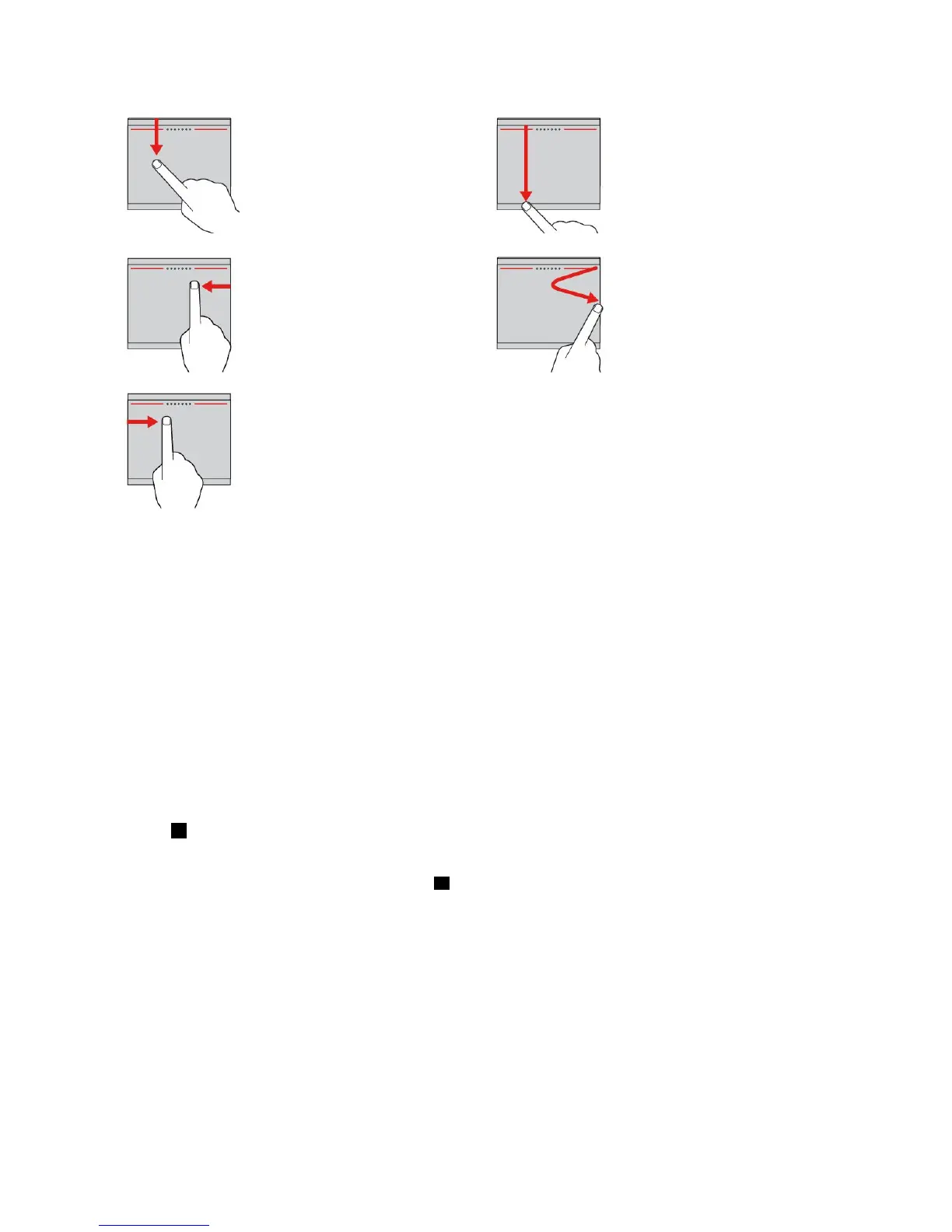
Swipefromthetopedge
FromtheStartscreenorthe
currentapp,swipeinfrom
thetopedgeofthetrackpad
withonefingertodisplaythe
commandmenu.
Swipefromthetoptothebottom
edge
Swipefromthetoptothebottom
edgeofthetrackpadwithone
fingertoclosethecurrentapp.
Performingthisgestureonthe
desktopclosesthedesktopand
displaystheStartscreen.
Swipefromtherightedge
Swipeinfromtherightedgeof
thetrackpadwithonefingerto
displaythecharms.
Swipeinandout
Swipeinandoutfromtheright
edgeofthetrackpadwithone
fingertohidethecharms.
Swipefromtheleftedge
Swipeinfromtheleftedgeof
thetrackpadwithonefingerto
showthepreviouslyusedapp.
CustomizingtheThinkPadpointingdevice
YoucancustomizetheThinkPadpointingdevicesoyoucanuseitmorecomfortablyandefficiently.For
example,youcanchooseyourpreferredmodetousetheThinkPadpointingdevice.Youalsocanconfigure
thetouchgesturesintheTrackPointmodeortheTrackpadmodeaccordingtoyourneeds.
TocustomizetheThinkPadpointingdevice,dothefollowing:
1.GotoControlPanel.
2.ClickHardwareandSound➙Mouse.TheMousePropertieswindowisdisplayed.
3.IntheMousePropertieswindow,selecttheThinkPadtab.
4.Followtheinstructionsonthescreen.
Replacingthecapofpointingstick
Thecap1ontheendofthepointingstickisremovable.Afteryouusethecapforaperiodoftime,you
mightconsiderreplacingthecapwithanewone.
Note:Ensurethatyouuseacapwithgroovesaasshowninthefollowingillustration.
Chapter2.Usingyourcomputer37



 To Next Page