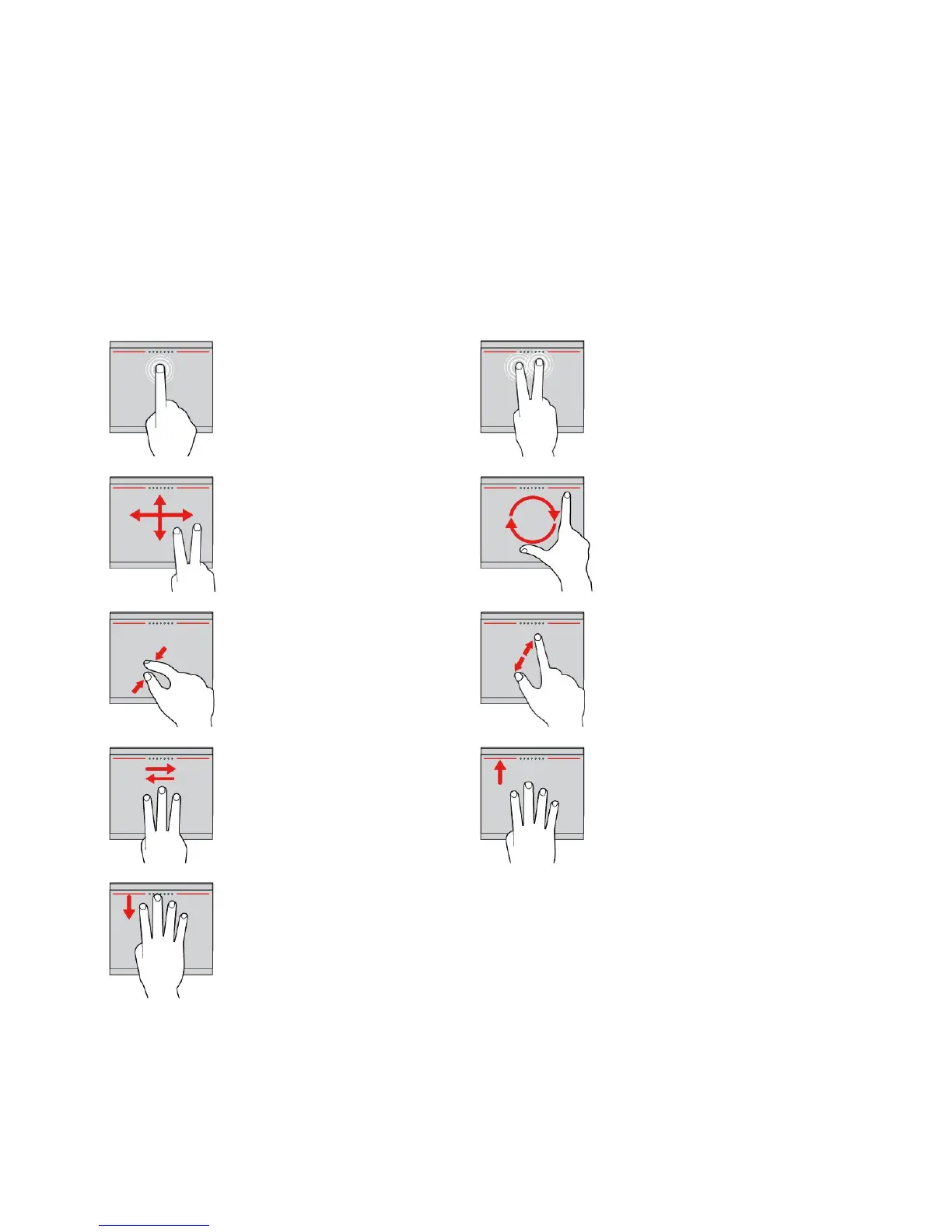
Usingthetrackpadtouchgestures
Theentiretrackpadissensitivetofingertouchandmovement.Youcanusethetrackpadtoperformthe
samepointandclickactionsasyouwouldusingatraditionalmouse.Youalsocanusethetrackpad
toperformavarietyoftouchgestures.
Thistopicintroducesthefrequentlyusedtouchgesturessuchastap,drag,scroll,androtate.Formore
gestures,seethehelpinformationsystemfortheThinkPadpointingdevice.
Notes:
•SomegesturesareonlyavailableincertainappsandmodesoftheThinkPadpointingdevice.
•Whenusingtwoormorefingers,ensurethatyourfingersareslightlyapart.
Tap
Tapanywhereonthetrackpad
withonefingertoselectoropen
anitem.
Two-fingertap
Tapanywhereonthetrackpadwith
twofingerstodisplayashortcut
menu.
Two-fingerscroll
Puttwofingersonthetrackpad
andmovethemintheverticalor
horizontaldirection.Thisaction
enablesyoutoscrollthroughthe
document,Website,orapps.
Two-fingerrotate
Puttwofingersonthetrackpad
androtatethemclockwiseor
counterclockwisetorotateanitem.
Two-fingerzoomout
Puttwofingersonthetrackpad
andmovethemclosertogether
tozoomout.
Two-fingerzoomin
Puttwofingersonthetrackpadand
movethemfartheraparttozoomin.
Three-fingerswipe
Putthreefingersonthetrackpad
andmovethemlefttoshowthe
nextitem.Movethemrightto
showthepreviousitem.
Four-fingerswipe
Putfourfingersonthetrackpad
andmovethemupwardtoviewand
choosefromopenedapps.
Four-fingerswipe
Putfourfingersonthetrackpad
andmovethemdownwardto
showthedesktop.
Note:ThefollowingtouchgesturesareavailableonlyontheWindows8.1operatingsystem.
36UserGuide



 To Next Page