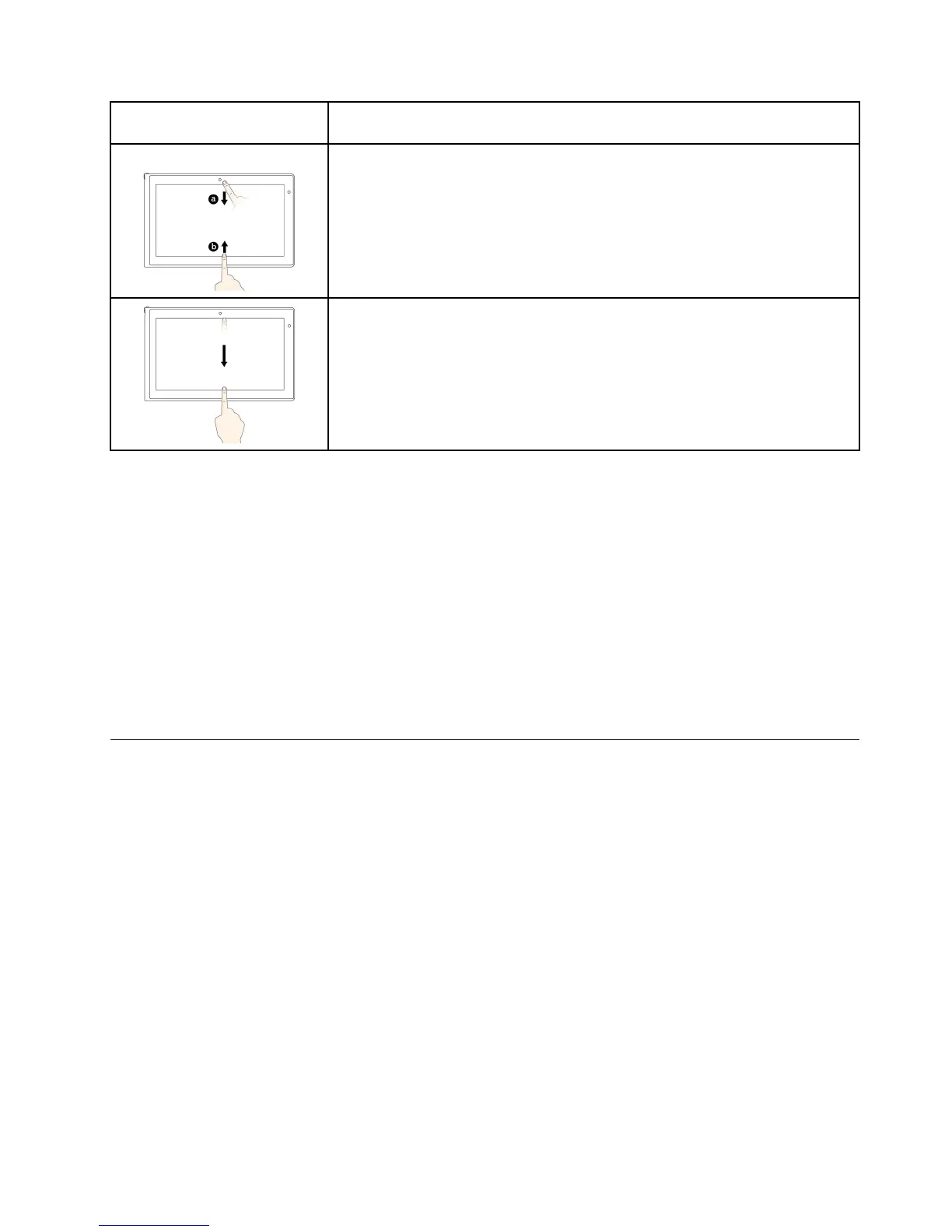
Touchgesture(touchmodels
only)
Description
Touch:Swipeinfromthetoporbottomedgeofanopenapp.
Mouseaction:Right-clickanywhereonanopenapp.
Function:Viewtheappcommandsonanopenapp,suchasCopy,Save,and
Delete,dependingontheapp.
Supportedoperatingsystem:Windows8.1
Touch:Swipeinfromthetopedgetothebottomonanopenapp.
Mouseaction:Fromthetopedgeofthescreen,click,hold,andmovethepointer
tothebottomofthescreen.Then,releasethebutton.
Function:Closethecurrentapp.
Supportedoperatingsystem:Windows8.1
Tipsonusingthemulti-touchscreen
•Themulti-touchscreenisaglasspanelcoveredwithaplasticfilm.Donotapplypressureorplaceany
metallicobjectonthescreen,whichmightdamagethetouchpanelorcauseittomalfunction.
•Donotusefingernails,glovedfingers,orinanimateobjectsforinputonthescreen.
•Regularlycalibratetheaccuracyofthefingerinputtoavoidadiscrepancy.
Tipsoncleaningthemulti-touchscreen
•Turnoffthecomputerbeforecleaningthemulti-touchscreen.
•Useadry,soft,andlint-freeclothorapieceofabsorbentcottontoremovefingerprintsordustfromthe
multi-touchscreen.Donotapplysolventstothecloth.
•Gentlywipethescreenusingatop-downmotion.Donotapplyanypressureonthescreen.
Operatingmodes
Thissectionprovidesinformationabouttheoperatingmodesofyourcomputer.Yourcomputerprovides
thenotebookmode,standmode,tabletmode,andtentmodethatenableyoutoworkmoreconveniently
inyourworkingenvironment.
Thissectioncontainsthefollowingtopics:
•“Enablingtheoperatingmodes”onpage23
•“Rotatingthecomputerdisplay”onpage24
•“Notebookmode”onpage25
•“Standmode”onpage25
•“Tabletmode”onpage26
•“Tentmode”onpage28
Enablingtheoperatingmodes
Toprovideyourcomputertheflexibilityofbeingusedinvariousoperatingmodes,enabletheoperating
modesfirst.
Chapter2.Usingyourcomputer23



 To Next Page