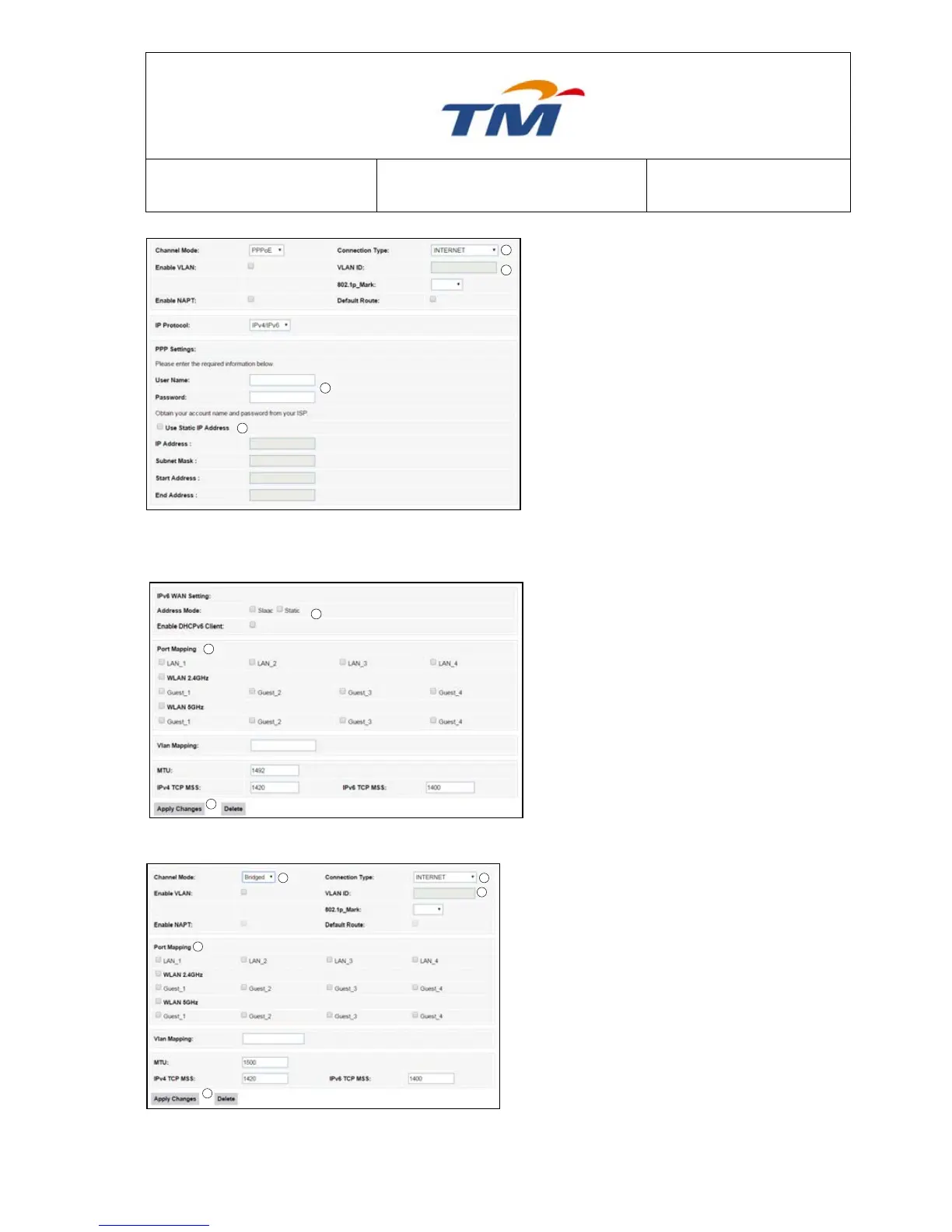
PPPoE
1) Selected connection under PPPoE
type.
2) Enable or disable the VLAN
Tagging of this connection. If you
select Enable VLAN Tagging, you’ll
be required to enter the VLAN ID
for marking the packet.
3) Key in the PPPoE Username &
PPPoE Password (Provided by
your Internet Service Provider).
4) Tick the Use Static IP Address
checkbox to enable Static IP. Fill
the blanks in the right figure with
the information provided by your
ISP.
5) Select Which IPv6 Address Mode
needed to display.
6) If you want to bind this Static IP
connection to a port, select that
port. You can also bind this
connection to more than one port
or to the wireless u needed
7) Save Configuration by click Apply
Changes at the bottom of the
page.
Bridge
1) Set the Connection Type to be Bridge.
2) Set the Service Type to be INTERNET,
TR069, IPTV or VOICE.
3) Enable or disable the VLAN Tagging of this
connection. If you select Enable VLAN,
you’ll be required to enter the VLAN ID for
mark the packet of this connection.
4) Select the Port or Wireless u need to bind
with this connection.
5) Save configuration by click Apply
Changes in the bottom of the page


 To Next Page