- 70 -
8.0. Troubleshooting
1. All indicators are off
Check the connection between the power adapter and the power socket.
Check whether the power switch is turned on.
2. Failure to login to the wireless router
Check the connection between the computer and the wireless router, the steps as shown
below:
(1) Choose Start > Run from the desktop and enter ping 192.168.0.1 (IP address of the
wireless router) in the DOS window.
(2) If the wireless router cannot be accessed, check the following:
The type of the network cable.
The connection between the wireless router and the computer.
The TCP/IP setting of your computer.
3. To restore the factory defaults after incorrect configuration
Press the Reset button for about 10 seconds to load the default configuration.
The default IP address and subnet mask of the device are 192.168.0.1 and 255.255.255.0
respectively. The user name and the password are admin and admin respectively.
4. Failure to access the Web configuration page of the wireless router
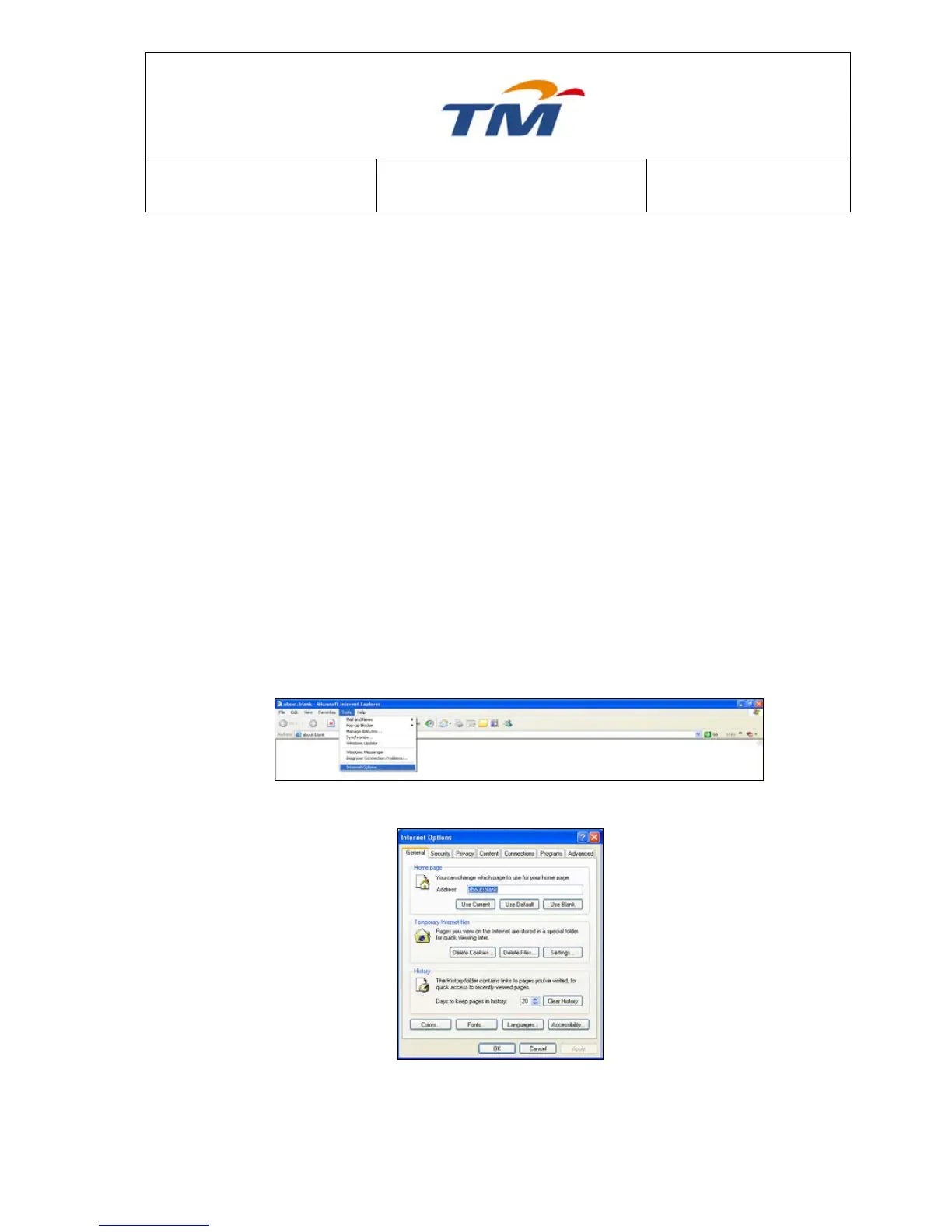
Step1 Run the Web browser (for example, IE) and choose Tools > Internet Options.
Step2 Click Delete Cookies and then Delete Files in the Temporary Internet files pane.
5. Failure to establish the network connection
The following table describes the possible causes and the corresponding solutions:


 To Next Page