6. Failure to access the Internet through wireless connection with the wireless router
(1) Place the device to the wireless-enabled area where you can access the Internet.
(2) Check whether the wireless network adapter can connect to corresponding station.
(3) Check whether the wireless channel accords with the channel of your country or
zone.
(4) Check the encryption settings.
(5) Check whether the cable is connected to the correct interface.
(6) Replace a network cable to connect the wireless router.
7. Failure to access the Internet
(1) Check whether the status of each LED
indicator on the network device connected
to the wireless router is normal.
(2) Check whether the WAN indicator is on. If
the WAN indicator is off, please check
whether the cable connected to the WAN
interface is loose.
(3) Check whether the Internet indicator is
always white. If the Internet indicator keeps
on in white without blinking, the wireless
router has successfully accessed the
Internet.
(4) Reboot your computer.
(5) Set the device again.
(6) Check whether the WAN indicator is on.
(7) Check the encryption settings of wireless
network.
(8) Check whether the PC that connects to the
device can obtain the IP address through
the wireless network or the cable network.
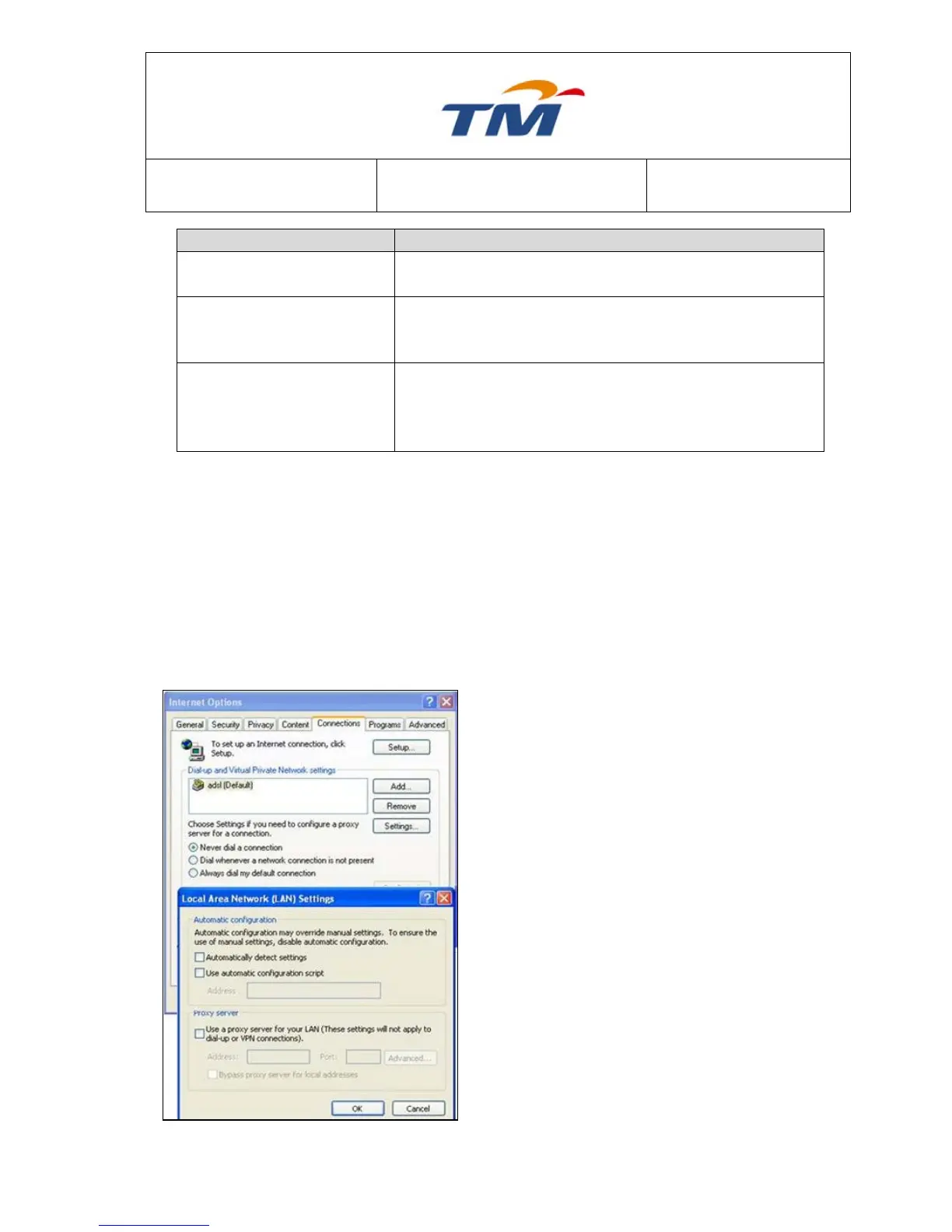
(9) Check the LAN settings of your Internet
options, and do not use a proxy server for
your LAN. See the figure on the left.


 To Next Page