- 73 -
If you are not using a DHCP capable gateway/wireless router, or you need to assign a static IP
address, please follow the steps below:
Step 1
Windows® XP - Choose Start > Control Panel > Network Connections
from the desktop
.
Windows® 2000 - Right-click My Network Places from the desktop and choose Properties.
Step 2
Right-click Local Area Connection of your network adapter and choose Properties.
Step 3
Select Internet Protocol (TCP/IP) and click Properties.
Step 4
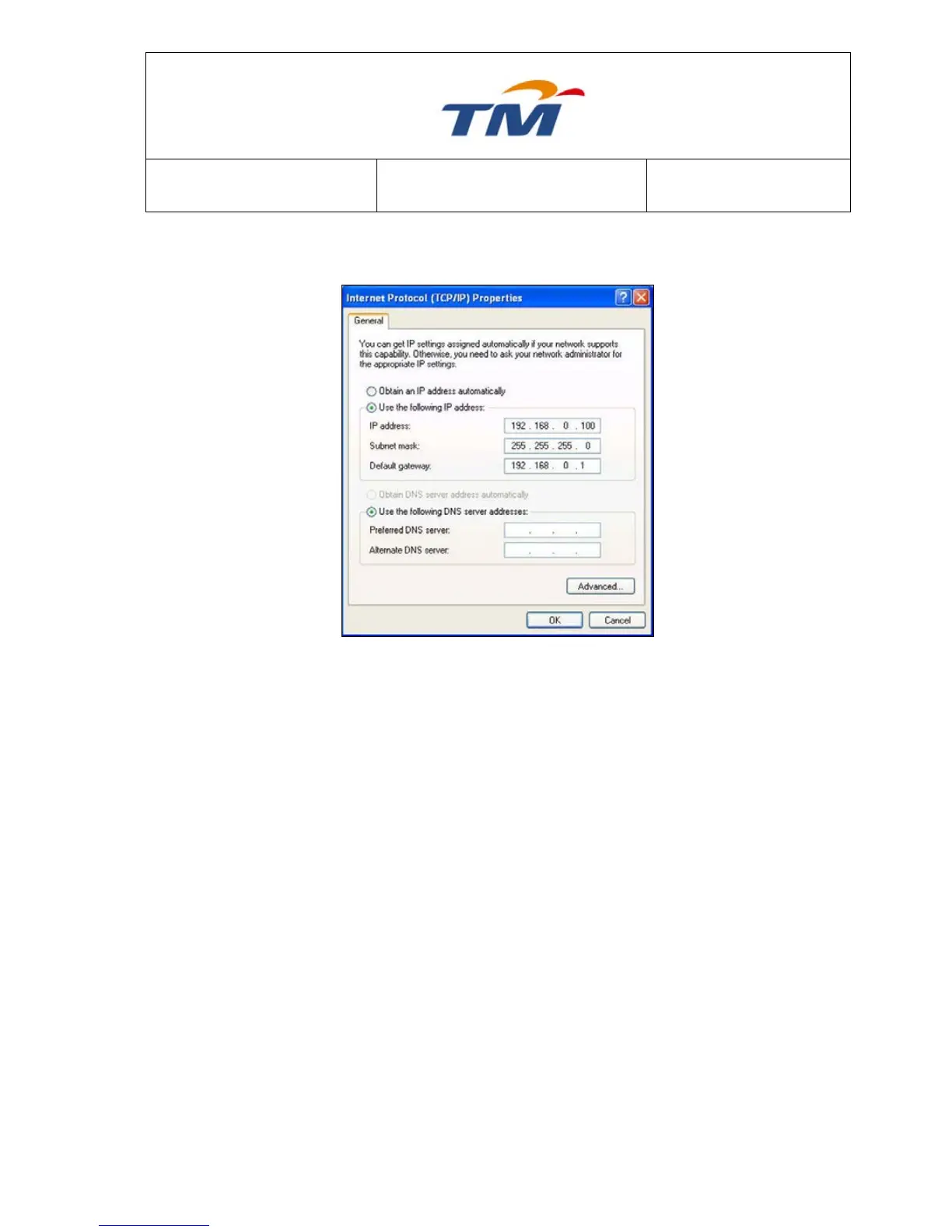
Click Use the following IP address and enter an IP address that is on the same subnet as your
network or the LAN IP address on your wireless router.
Example: If the wireless router’s LAN IP address is 192.168.0.1, make your IP address
192.168.0.X (X is a number between 2 and 254). Make sure that the number you choose is not in
use on the network. Set the Default Gateway to be the same as the LAN IP address of your
wireless router (192.168.0.1). Set the Primary DNS to be the same as the LAN IP address of your
wireless router (192.168.0.1). The Secondary DNS is not needed or you may enter a DNS server
from your ISP.
Step 5
Click OK twice to save your settings.


 To Next Page