The check weighing function is used to compare the weight of an object against a preset target range. To set the limits
and use the check weighing function follow the steps below. A “C” indicator will appear on the screen to indicate the
scale is in Check Weighing mode.
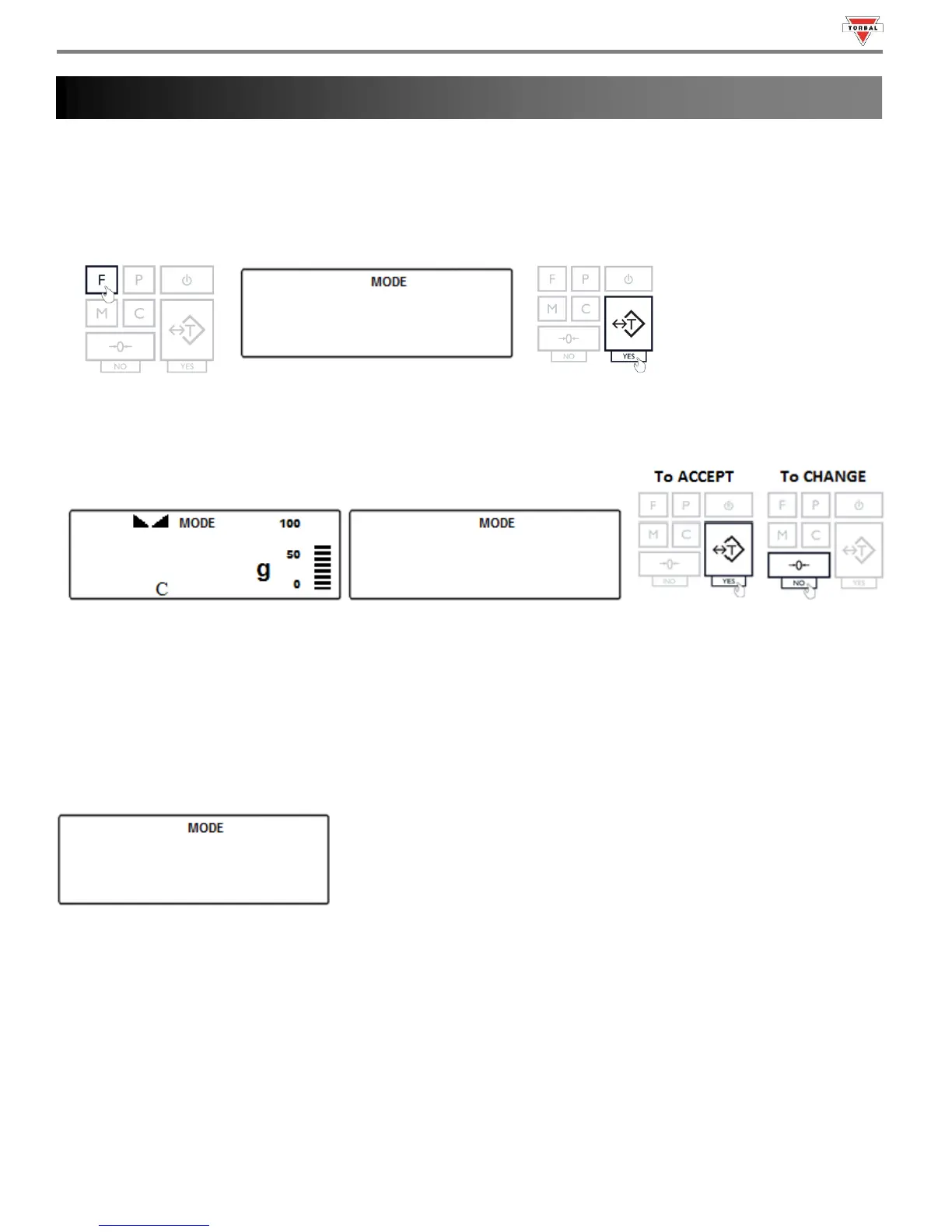
1. To enter Check Weighing Mode, press the “F” key. Select “” by pressing the “T” key.
2. The current, set UNDER-limit and the command “” will appear on the display sequentially. To accept the
current UNDER-limit, press the “T” (Yes) key. To change the limit, press the “0” key.
Note: The UNDER-limit displayed will be from the last time the function was used. If this is the first time the Check
Weighing function is used, the limit will be set to 0.000g.
To enter a weight, use the following keys: the “0” (NO) key to increment a digit; “T” (YES) key to accept and go to
the next digit; “P” key to insert a decimal; “FUNCTION” key to accept the entire setting; and “CLR” key to clear and start
over . To become familiar with setting the weight limits, see Table 16.1.
52


 To Next Page