Operational Procedures
43-06955 - Rev Q Page 21
How to Operate the Epic 430
TM
Printer
User Interface
Your Epic 430
TM
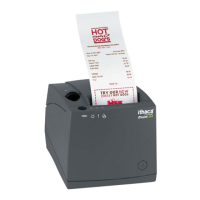
printer contains two buttons and four (LED) indicator lights.
Indicator Lights (LED)
The four Epic 430
TM
indicator lights are:
Ready LED Indicates printer activity and non-recoverable errors
Open LED Indicates the cover is open
Paper LED Indicates paper status (paper low or out)
Fault LED Indicates problems and probability of recovery
The FEED button
The FEED button will provide various functions, depending upon how long it is
pressed.
Pressing this button will provide one of three functions. The function is time-
dependent, and the display indicators will change to indicate the next mode,
as follows:
By pressing and releasing the FEED button, the printer will feed about 5
inches of paper while printing the printer firmware version. This is
intended to clear the printer and align the next ticket for print. To indicate
this mode is selected the Fault LED will illuminate as soon as the FEED
button is pressed.
Pressing and holding the button for about two seconds will enter journal
maintenance mode. The LED indication of this mode selection is shown
by the Paper LED illuminating and the Fault LED going out after about 2
seconds of holding down the FEED button.
Holding the button for about 4 seconds will enter configuration mode. The
LED indication of this mode selection is shown by the Open LED
illuminating and the Paper LED going out after about 4 seconds of holding
down the FEED button.


 To Next Page