EasyManua.ls Logo

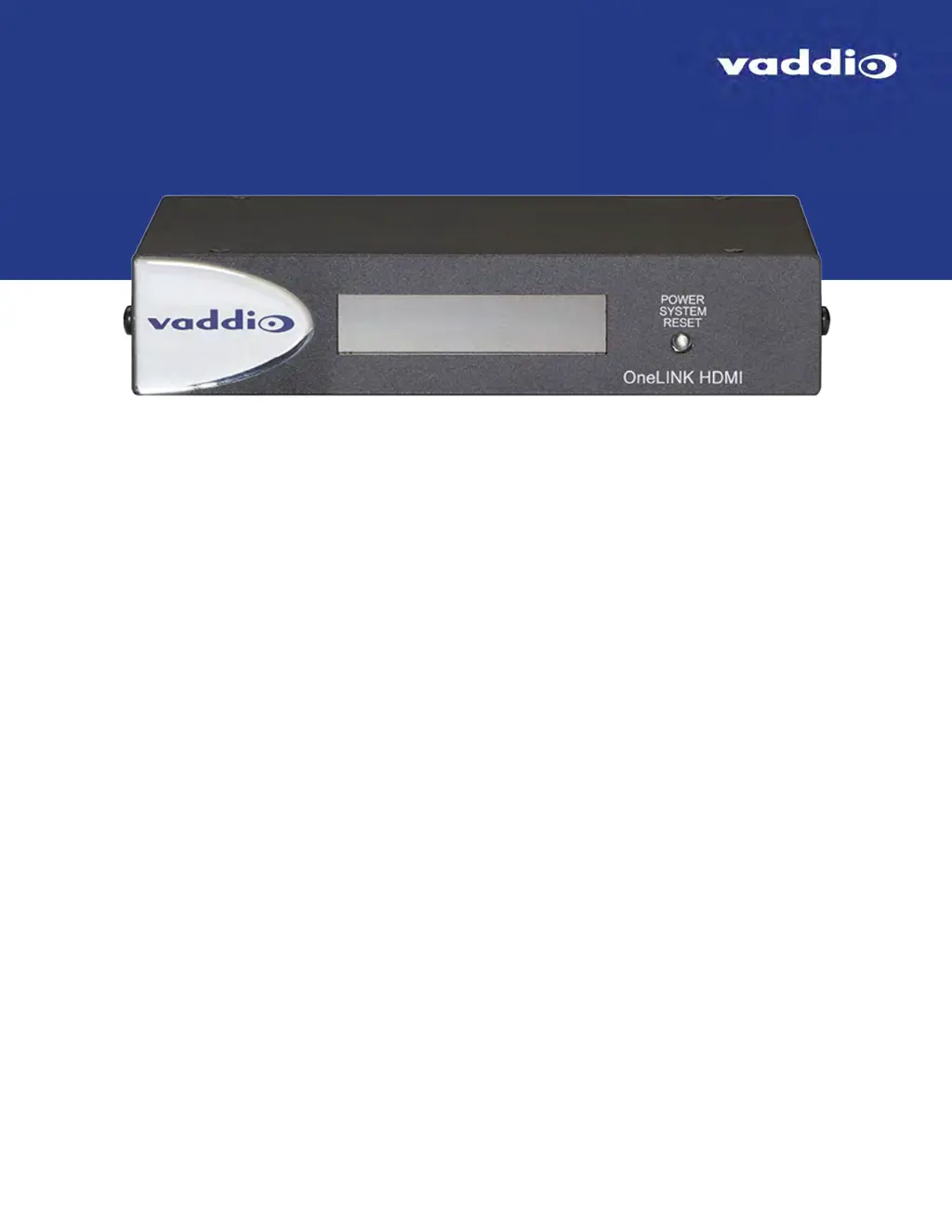
VADDIO OneLINK HDMI - User Manual

VADDIO OneLINK HDMI
76 pages
Print Icon
To Next Page IconTo Next Page
Loading...
Integrator's Complete Guide to the
OneLINK HDMI
Camera Extension
Document 411-0019-30 Rev. B
February 2018

Table of Contents

Questions and Answers

  • D
    David PerkinsAug 2, 2025
    What to do if my VADDIO Camera Accessories are not receiving power?
    • Z
      zacharyraymondAug 2, 2025
      If your VADDIO Camera Accessories are not receiving power, here are a few things to check: * Ensure the camera is properly connected to the EZIM, if you're using one. * Verify that the OneLINK device's power pack is plugged into a working wall outlet and that the EZIM is connected to the main OneLINK unit. * Try plugging the OneLINK power pack into a different outlet to rule out an inactive outlet. * A faulty cable may also be the culprit, so try replacing the cable. If none of these steps work, it may indicate a more serious issue, and you should contact your reseller or Vaddio Technical Support.
  • C
    crystalfergusonAug 7, 2025
    What to do if VADDIO Camera Accessories web interface is not available?
    • W
      William WhiteAug 7, 2025
      If your VADDIO Camera Accessories web interface is not available, first, ensure all network and OneLINK cables are securely connected. If the issue persists, try replacing the network or OneLINK cable, as it may be faulty. Also, verify that the camera is using the correct IP address by pressing the Data Screen button on the remote to see the camera's IP address.
  • S
    Sandra AndersonAug 12, 2025
    What to do if VADDIO Camera Accessories do not finish booting?
    • M
      mendozachristopherAug 12, 2025
      If your VADDIO Camera Accessories do not finish booting or reach the ready state, there are a couple of things you can try. First, ensure that your camera's firmware is up to date. If not, update it to the latest version. Also, a cable issue may be the reason. Try using shorter cables or re-terminating the existing cable to see if that resolves the problem.
  • M
    Michelle DixonAug 17, 2025
    Why does video drop out repeatedly on my VADDIO Camera Accessories?
    • A
      ashleyknoxAug 17, 2025
      If you experience repeated video dropouts with your VADDIO Camera Accessories, especially during PTZ movements, it could be due to inadequate power. Test the camera by connecting it and the EZIM to the main interface using a short cable (6 to 10 ft). If it performs well, the issue likely lies with the length of the cable from the main interface to the EZIM. Consider using a higher-quality cable, such as Cat-6 or Cat-7, to resolve the problem. Also, avoid coiling excess cable, as this can cause inductance issues; it's best to use cables of the required length.
  • J
    James GreenAug 23, 2025
    How to fix no communication with VADDIO Camera Accessories?
    • C
      Cheryl EdwardsAug 23, 2025
      If you have no communication with your VADDIO Camera Accessories, first check the Ethernet or RS-232 cable connections at both ends, ensuring they're plugged into the correct ports on the EZIM or OneLINK device and the camera. Verify that you're using the correct cable type. If using a custom Cisco cable, ensure it's connected according to the instructions on its labels. Finally, confirm that the camera is compatible with the OneLINK device you are using.
  • P
    phillipsjenniferAug 27, 2025
    What to do if VADDIO Camera Accessories are on but not transmitting video?
    • S
      Scott FoleyAug 28, 2025
      If your VADDIO Camera Accessories are on but not transmitting video, a potential cause is the cable length. To troubleshoot, connect a display directly to the camera's HDMI output using a short cable. If the video quality is good, the issue may be with the cable grade. Upgrading to a better cable, such as Cat-6 or Cat-7, may resolve the problem.

Summary

Product Overview and Installation

Guide Contents and Features

Outlines the scope of the guide and lists key features of the OneLINK HDMI extension.

OneLINK Device Components and Installation

Details physical components, installation, cabling, mounting, and connector pin-outs.

System Connection Scenarios

Connection Diagrams and Camera Types

Covers diagram conventions, HDBaseT/HDMI camera connections, and camera configuration.

Device Administration and Control

Web Interface Administration

Covers accessing, configuring network, managing security, and updating the device via web interface.

Telnet Serial Command API

Details on using Telnet for device control via API commands.

Technical Details and Support

Specifications and Troubleshooting

Provides technical specifications, troubleshooting steps, and maintenance guidance.

Compliance and Warranty

Details regulatory compliance and warranty information for the product.

VADDIO OneLINK HDMI Specifications

General IconGeneral
TypeAV repeater
Product colorBlack
ID3 Tag displayYes
Maximum resolution- pixels
Compatible productsRoboSHOT 12/30 HDBT/RoboSHOT 20 UHD/DocCAM 20 HDBT
Remote control typeIR
Cable types supportedCat5e, Cat6, Cat7
Supported video modes720p, 1080p
Maximum transfer distance100 m
RJ-45 input ports2
RJ-45 output ports1
Connectivity technologyWired
Cables includedAC
Operating temperature (T-T)0 - 40 °C
Operating relative humidity (H-H)20 - 80 %
Weight and Dimensions IconWeight and Dimensions
Depth152 mm
Width213 mm
Height44 mm
Weight703 g

Related product manuals