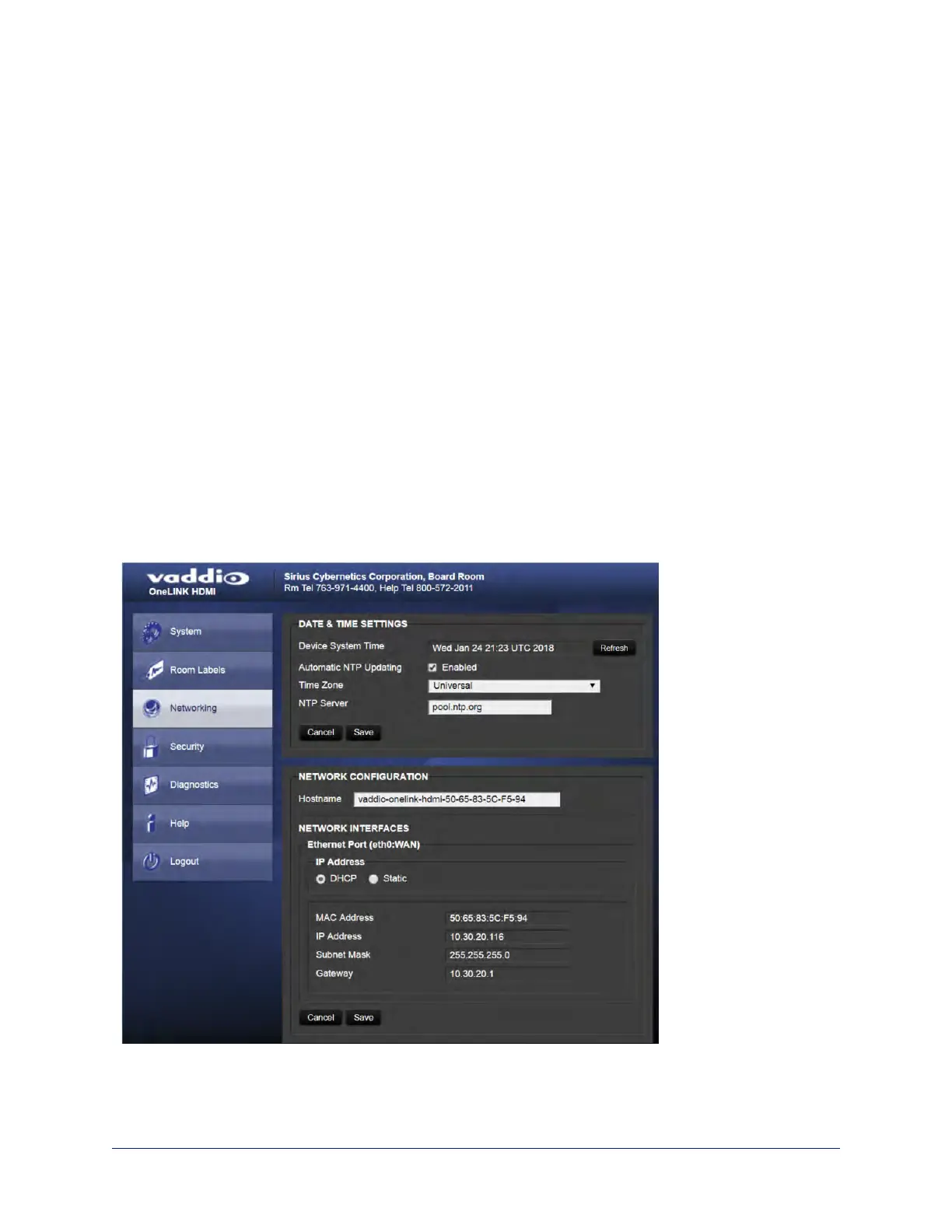
Configuring Network Settings
NETWORKING PAGE
These settings are for the OneLINK device only. The camera is configured separately.
DHCP addressing is the default setting. In a DHCP environment, you will not need to change the network
configuration.
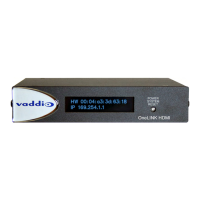
The OneLINK device will use the default address of 169.254.10.1 if no DHCP server is available. In this
situation, you will need to connect a computer to the OneLINK device's network port and configure network
settings. Depending on the computer, you may need a crossover cable.
Caution
Consult your IT department before changing network settings. Errors in network configuration can make
the OneLINK device and connected equipment inaccessible from the network. Do not change
DHCP/Static addressing, IP address, subnet mask, or gateway unless you are very familiar with the
characteristics and configuration of the network where you install the equipment.
To assign a static IP address:
1. Select static IP addressing.
2. Specify the IP address, subnet mask, and gateway address.
3. Save your changes.
Pro Tip
Make sure you have a way to remember the IP address. There is no hardware factory reset.
49
Integrator's Complete Guide to the OneLINK HDMI Camera Extension


 To Next Page