Starting a Firmware Update
SYSTEM PAGE
Caution
Do not remove power or disconnect the OneLINK device while a firmware update in progress. Interrupting a
firmware update can make the OneLINK device unusable.
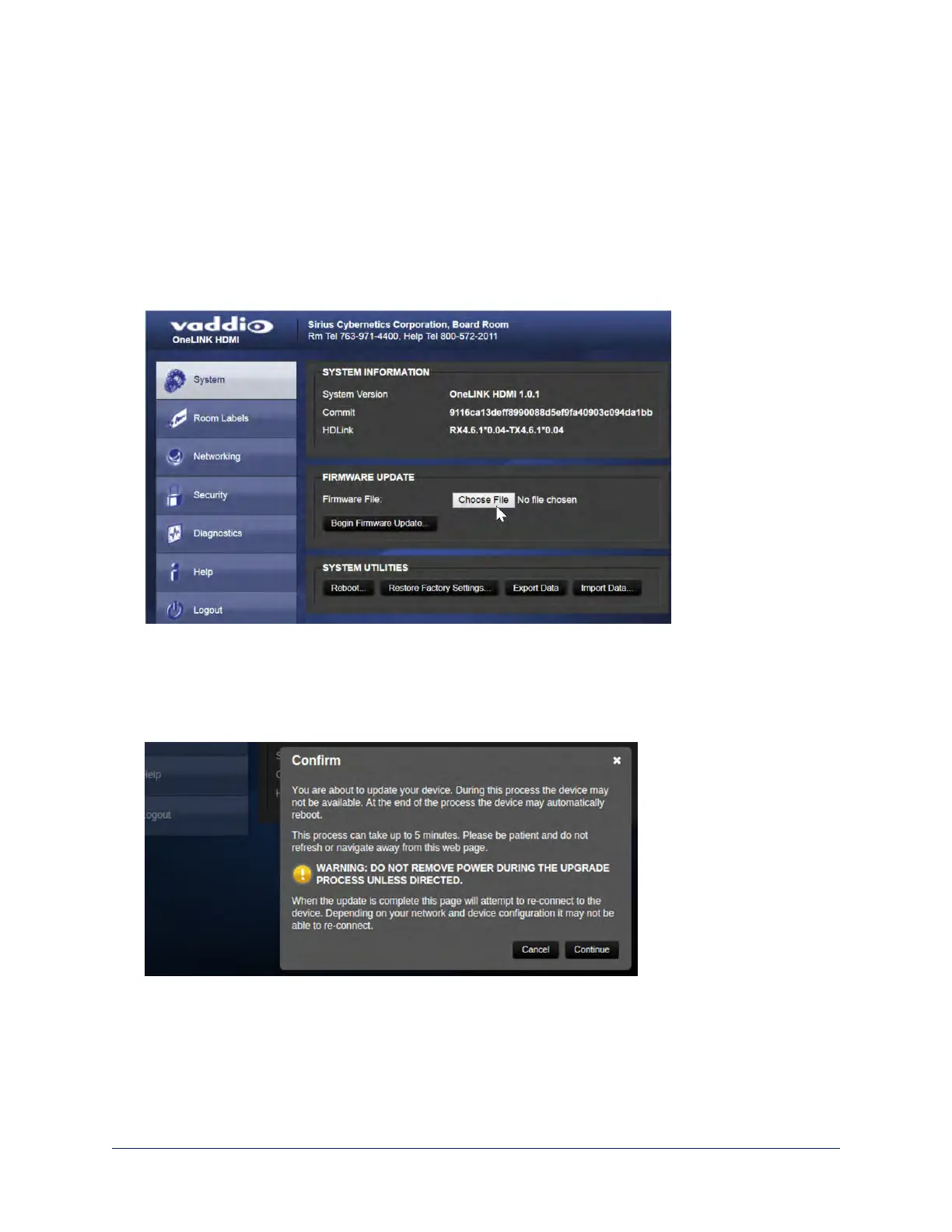
1. Be sure you have downloaded the appropriate update file to your computer.
2. Select Choose File, browse to the firmware update file that you downloaded, and select it. The filename
ends with .p7m. The System page then displays the filename beside the Choose File button.
3. OPTIONAL: Select Export Data to save a copy of the OneLINK device's current configuration. You
probably won't need it, but it could save time if you need to roll back the update.
4. Select Begin Firmware Update.
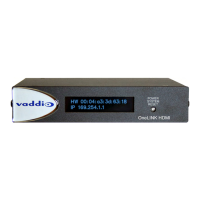
5. READ the information in the Confirm dialog box and be sure you understand it. It's boring, but it could
save you a lot of time and aggravation.
6. When you are ready to start the update, select Continue.
7. If the update process presents warnings or error messages, read them carefully.
8. Contact Vaddio technical support if you encounter any problems with the update.
56
Integrator's Complete Guide to the OneLINK HDMI Camera Extension


 To Next Page