115 © VeEX Inc. All Rights Reserved. Platform Functions
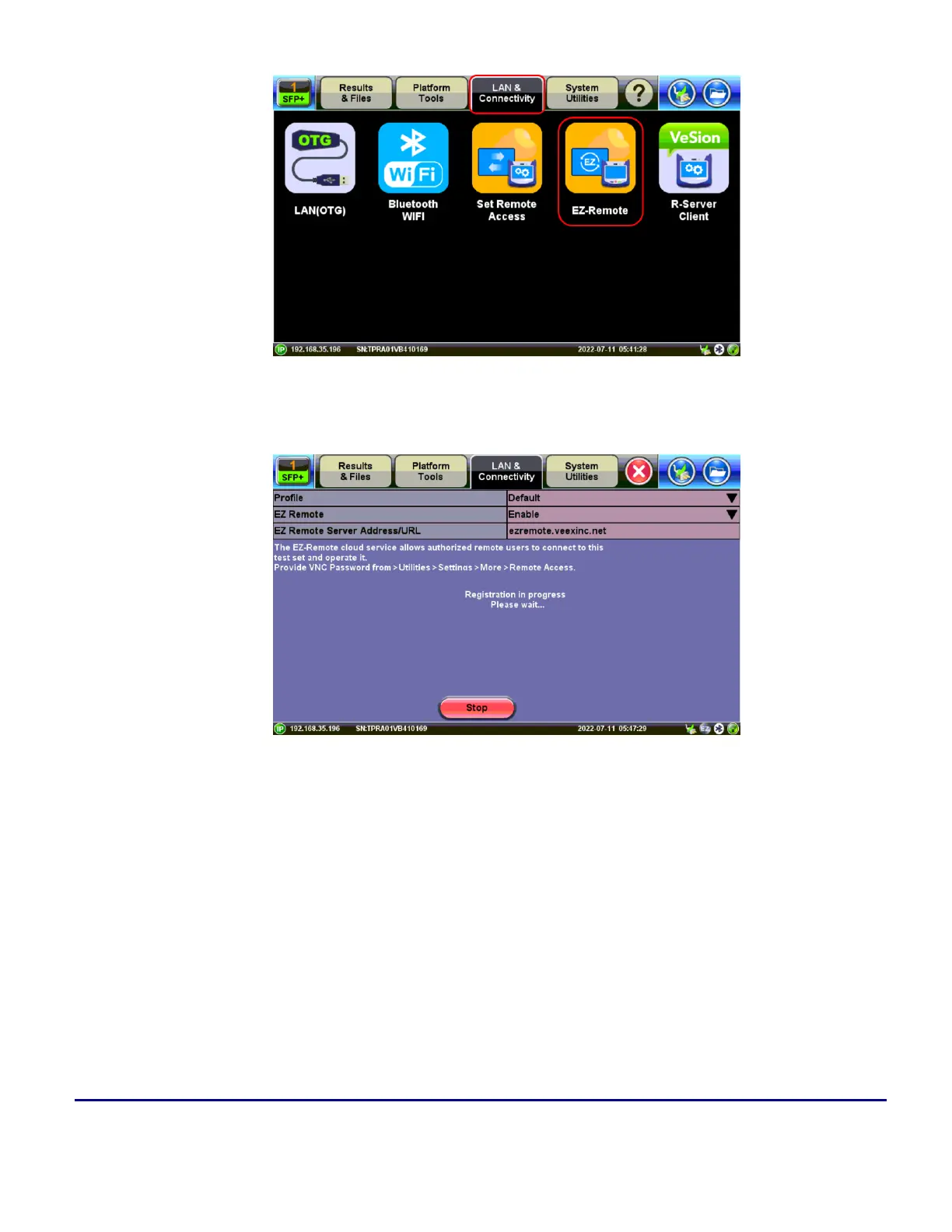
3. On the EZ Remote screen, set EZ Remote to Enabled, confirm the URL is ezremote.veexinc.net
(without www.), and tap on Apply to connect and establish a session with the EZ Remote server.
4. Provide the resulting URL and Session IDor scan the QR codes to Email or SMS/Test to the inten-
ded remote user.


 To Next Page