65 © VeEX Inc. All Rights Reserved. Platform Functions
The File Manager (Utilities > Files > Saved) displays files stored in the test set, including profiles, test results,
and screenshots. When managing files, use the check box to select the desired file(s).
The File Management system offers backup To USB and restore From USB functions to preserve user data.
Tests Results/Reports
To access the test results stored in the test set:
1.
Press , then press on the top left of the screen.
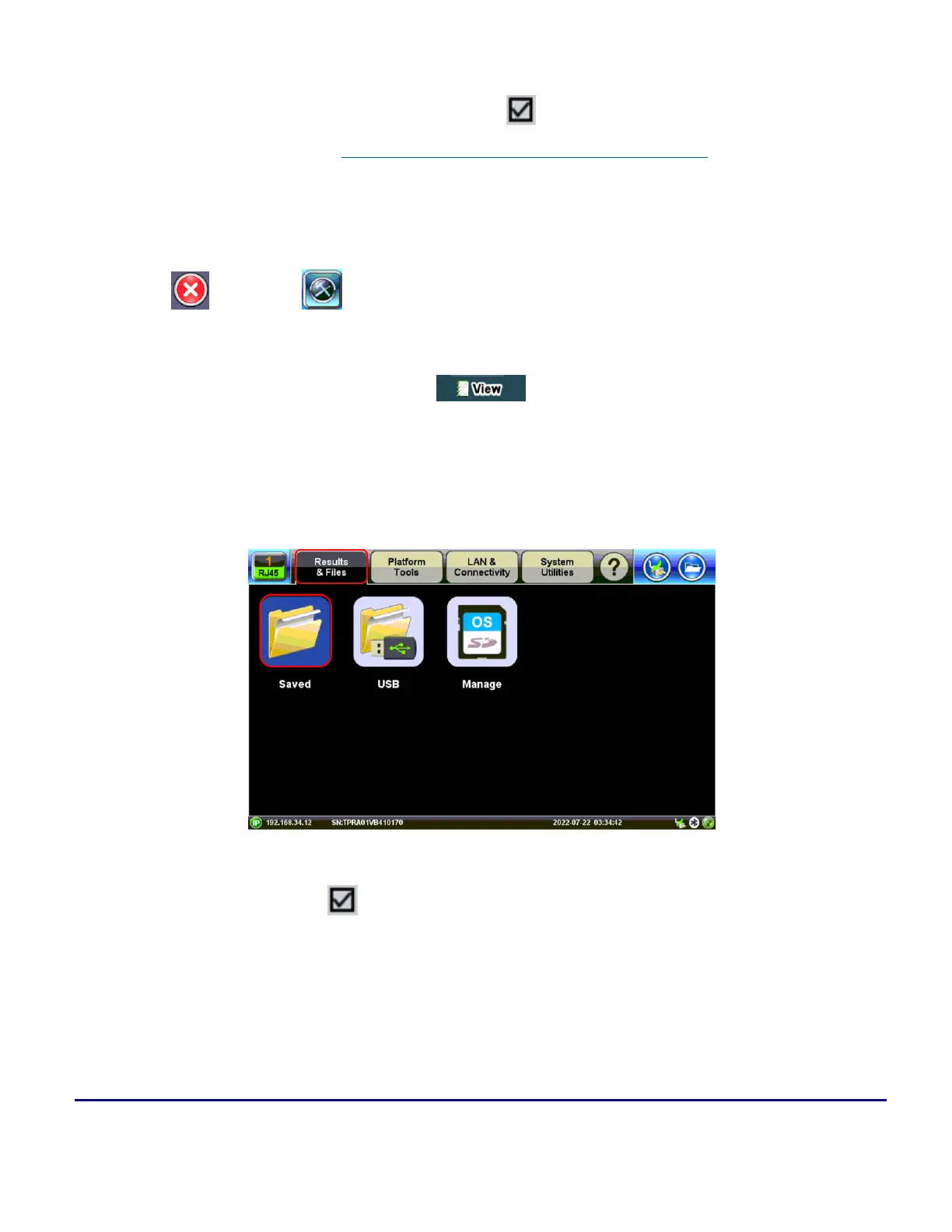
2. Select the Results & Files tab, then select Saved. The File Manager screen is displayed.
3.
Select the desired results file, then press to open the test report.
To navigate the test results report, use the links in its Table of Content and the right rocker switch to scroll Up
and Down.
Working with Saved Results, Profiles, Images
Access the File Manager by selecting Results &Files> Saved in the left panel of the platform menu. Files can
be viewed, edited, or exported to a USB dongle, Windows PC, SD card, or a PDF file (using a FAT32 USB
Memory stick). Use the check box to select the desired file(s) or choose all files by selected the check box
in the top header row.
Table Sorting
Tap any column header to sort the table in ascending or descending order by the column selected. Up and
down arrow keys indicate that the table is sorted in ascending and descending order respectively.


 To Next Page